22
9.7 Display, time, language
Use the icon on the left to navigate to the
“Display, time, language” screen.
Time
You can set the current time.
Use the icon on the left to navigate to the “Time”
screen.
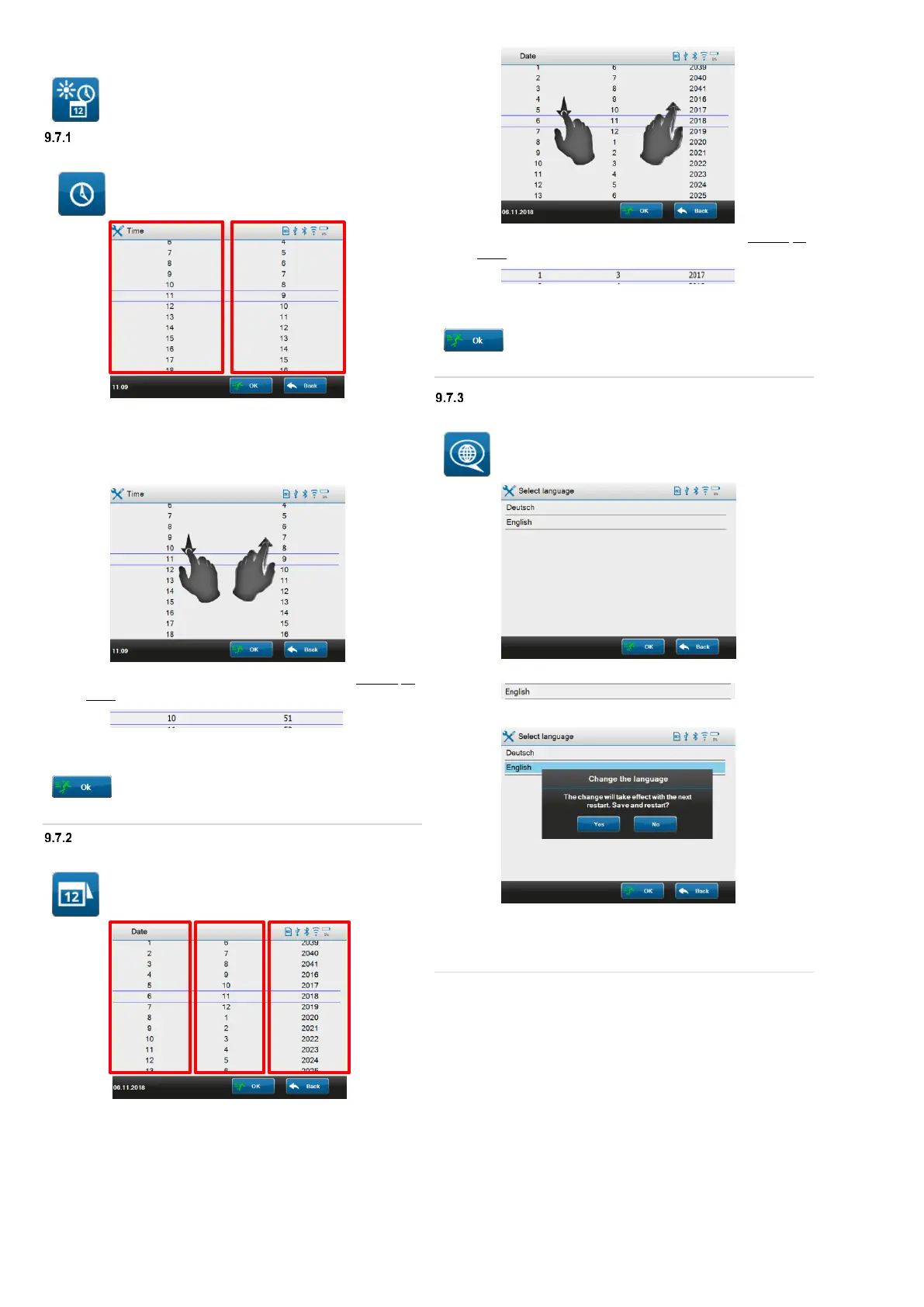
The screen is divided into two columns.
Left:
hours
(24 h indication)
Touch the desired column and change the value by swiping up
or down.
The numbers within the blue framed line correspond to the
desired time (Example: 10:51 a.m.).
Confirm your entries with “OK”.
Your entry will be applied as the current system time.
Date
You can set the current system date.
Use the icon on the left to navigate to the “Date”
screen.
The screen is divided into three columns.
Touch the desired column and change the value by swiping up
or down.
The numbers within the blue framed line correspond to the
desired date (Example: display date 01/03/2017).
Confirm your entries with “OK”.
Your entry will be applied as the current system date.
Language
You can set the current system language.
Use the icon on the left to navigate to the
“Select language” screen.
The screen shows the languages that can be selected.
Touch the line with the desired language.
Confirm the confirmation prompt on the display with "Yes".
o The change will take effect with the next restart.
Your entry will be applied as the current system language.



 To Next Page