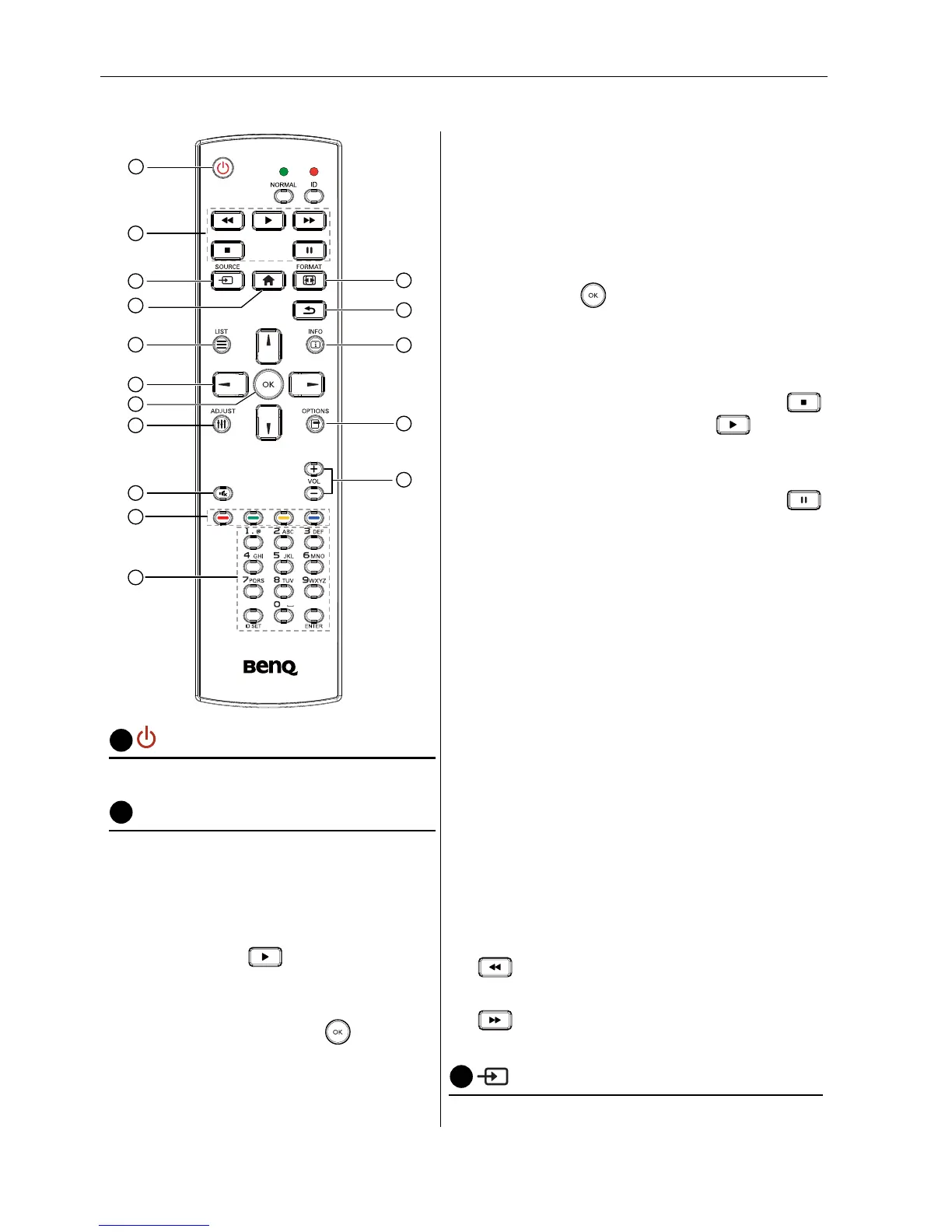
PLAY buttons
1. Media playback (video/audio/picture).
There are 3 ways to play media les.
1) Media Player > Compose > edit or
add new playlist > choose any media
les > press
to play the media
le directly.
2) Media Player > Play > choose non-
empty play list > press
to play all
the media les in the play list.
3) Set media playlist in Boot on Source
or Schedule by OSD menu.
2. PDF playback
There are 3 ways to play PDF les.
1) File Manager
Select and play the PDF le from File
Manager.
2) PDF Player > Play > choose non-empty play
list > press
to play all the PDF les in
the play list.
3) Set PDF playlist in Boot on Source or
Schedule by OSD menu.
3. When playing PDF, video or music, press
to stop playing. Then if pressing again,
playing will be started from the beginning of
the le.
4. When playing PDF, video or music, press
button to pause playing.
5. All media or PDF les should be put at the
folder, which is named “benq” with sub-
folder, under the root directory of the
specied storage (internal/USB/SD Card). All
sub-folders (video/photo/music/pdf) are
named by media types and shouldn’t be
changed.
- videos: {root dir of storage}/benq/video/
- photos: {root dir of storage}/benq/photo/
- music: {root dir of storage}/benq/music/
- pdf: {root dir of storage}/benq/pdf/
Note that the root directories of three storages
are
- Internal storage: /sdcard
- USB storage: /mnt/usb_storage
- SD card: /mnt/external_sd
6.
Media Player: Rewind 20 seconds.
PDF Player: Go to the previous page.
7.
Media Player: Forward 20 seconds.
PDF Player: Go to the next page
3
SOURCE button
Root Menu: Go to Video source OSD.



 To Next Page