OSD Menu56
OSD Menu
An overall view of the On-Screen Display (OSD) structure is shown
below. You can use it as a reference for further adjusting your display.
Navigating the OSD Menu
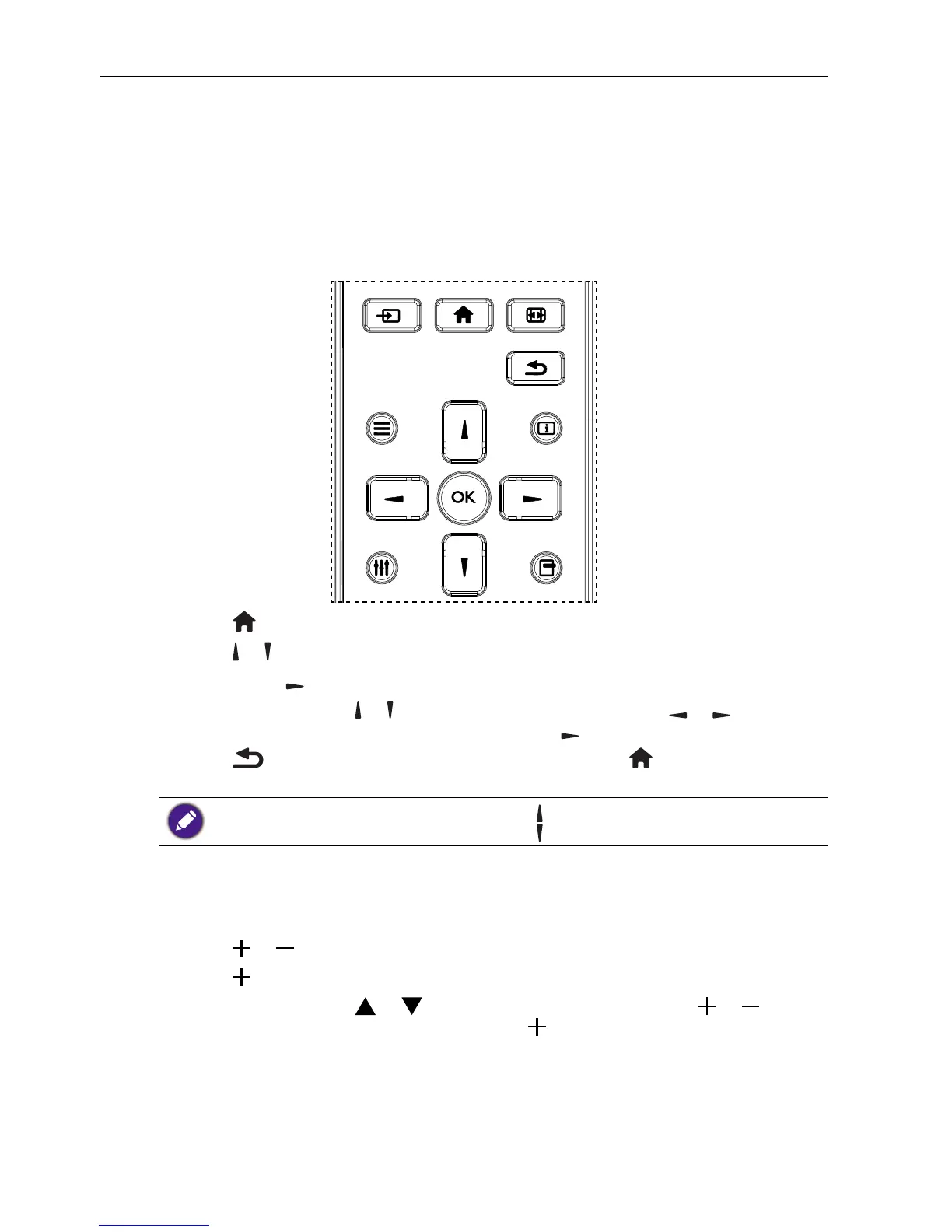
Navigating the OSD menu using the remote control
FORMAT
SOURCE
INFOLIST
OPTIONSADJUST
1. Press button on the remote control to display the OSD menu.
2. Press
or button to choose the item you want to adjust.
3. Press OK or
button to enter the submenu.
4. In the submenu, press
or button to toggle among items, press or button to
adjust settings. If there is a submenu, press OK or
button to enter the submenu.
5. Press
button to return to the previous menu, or press button to exit the
OSD menu.
• When there is no OSD menu on the screen, press to display the menu of picture mode.
• When there is no OSD menu on the screen, press
to display the menu of Audio source.
Navigating the OSD menu using the display’s control buttons
1. Press MENU button to display the OSD menu.
2. Press
or button to choose the item you want to adjust.
3. Press
button to enter the submenu.
4. In the submenu, press
or button to toggle among items, press or button
to adjust settings. If there is a submenu, press
button to enter the submenu.
5. Press MENU button to return to the previous menu, or press MENU button several
times to exit the OSD menu.



 To Next Page