OSD (On-Screen Display) menu 35
English
Using the Picture Modes
You can choose a Picture Mode to suit your viewing condition.
You can choose a Picture Mode independently for each input source.
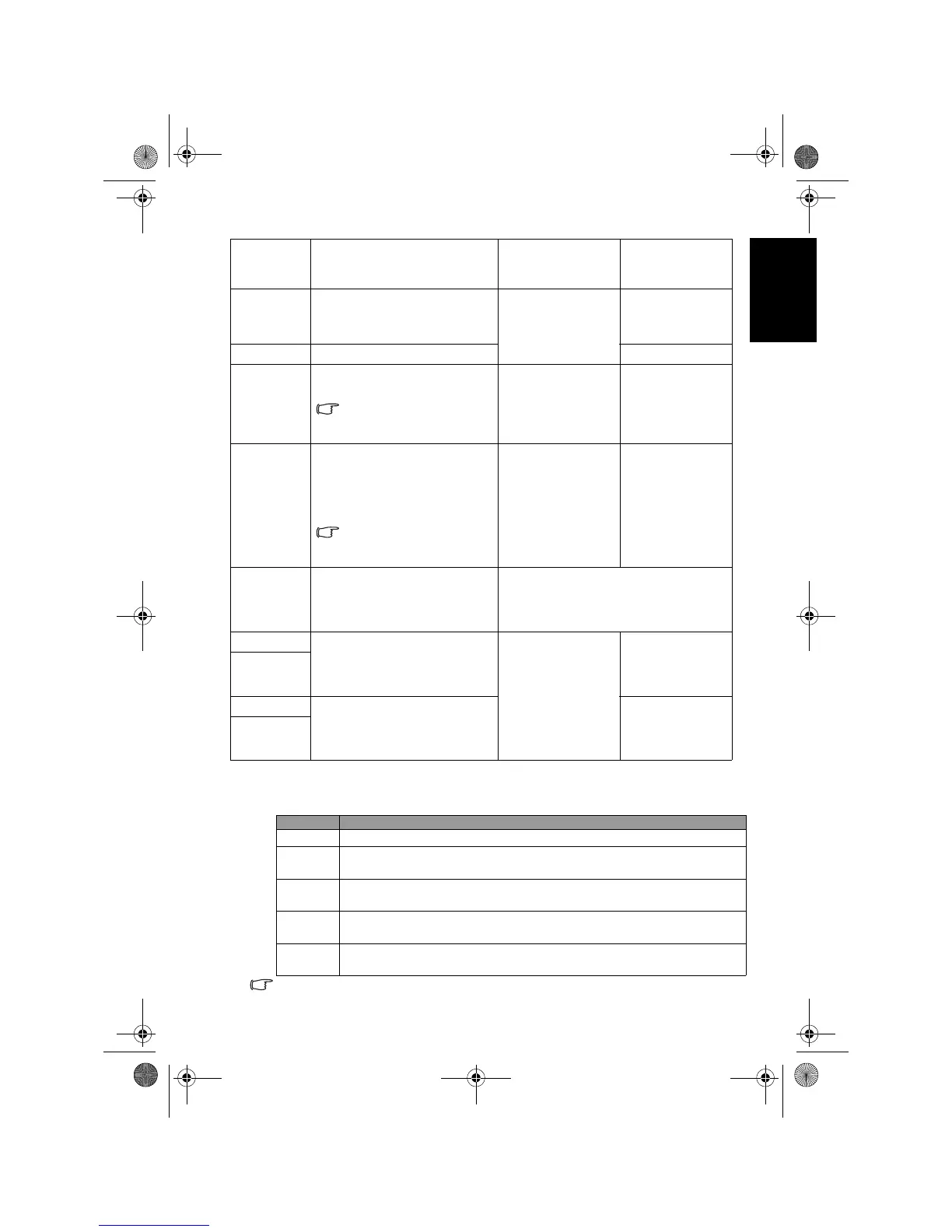
Sharpness Adjusts image sharpness level.
Press
+ for sharper
image,
- for softer
image.
0 to 6
Color
TEMP.
Adjusts the color tint of the
black and white part of the
image.
Press
+ or - to make
adjustment.
• Warm
• Normal
• Cool
Backlight Adjusts backlight intensity. 0 to 10
NTSC Tint
Adjusts color tint in NTSC
video.
This option is only
available for NTSC video
sources.
Press + for redder
tones,
- for greener
tones.
0 to 64
NTSC
Setup
Sets up the NTSC video
display format to match that
of the input NTSC video input
from other devices (such as a
DVD player).
This option is only
available for NTSC video
sources.
Press + or - to
change selection.
• 0 IRE
• 7.5 IRE
Auto
Adjust
Automatically adjusts
Frequency, Phase, H. Position
and V. Position to place the PC
input image on the screen.
Press
OK to begin the auto adjustment
function.
Frequency Adjusts the display clock
frequency and phase to correct
shimmering or distortion of
the image.
Press
+ or - to make
adjustment.
-16 to 16
Phase
H. Position Adjusts the horizontal and
vertical positions of the image
in order to center it on the
screen.
-50 to 50
V. Position
Mode Description
Standard
Suitable for viewing in environments with normal lighting condition.
Cinema
In this mode, the contrast and levels of colors are optimized in order
to display more details in the bright and dark areas of images.
Dynamic
The contrast, brightness and color saturation are enhanced for
displaying vivid images in public areas.
Game
Images are displayed with moderate brightness and contrast, making
it suitable for prolonged viewing.
Personal
Your own customised picture mode. See "Setting up the Personal
Picture Mode" on page 36.
V32B_V37B_EN.book Page 35 Wednesday, January 23, 2008 10:55 AM


 To Next Page