Using the remote control20
English
Using the remote control
Power on, off and standby
Turning the TV on
After plugging the TV's power cord into a wall outlet, the TV will enter
standby mode automatically, and the power indicator will light up red.
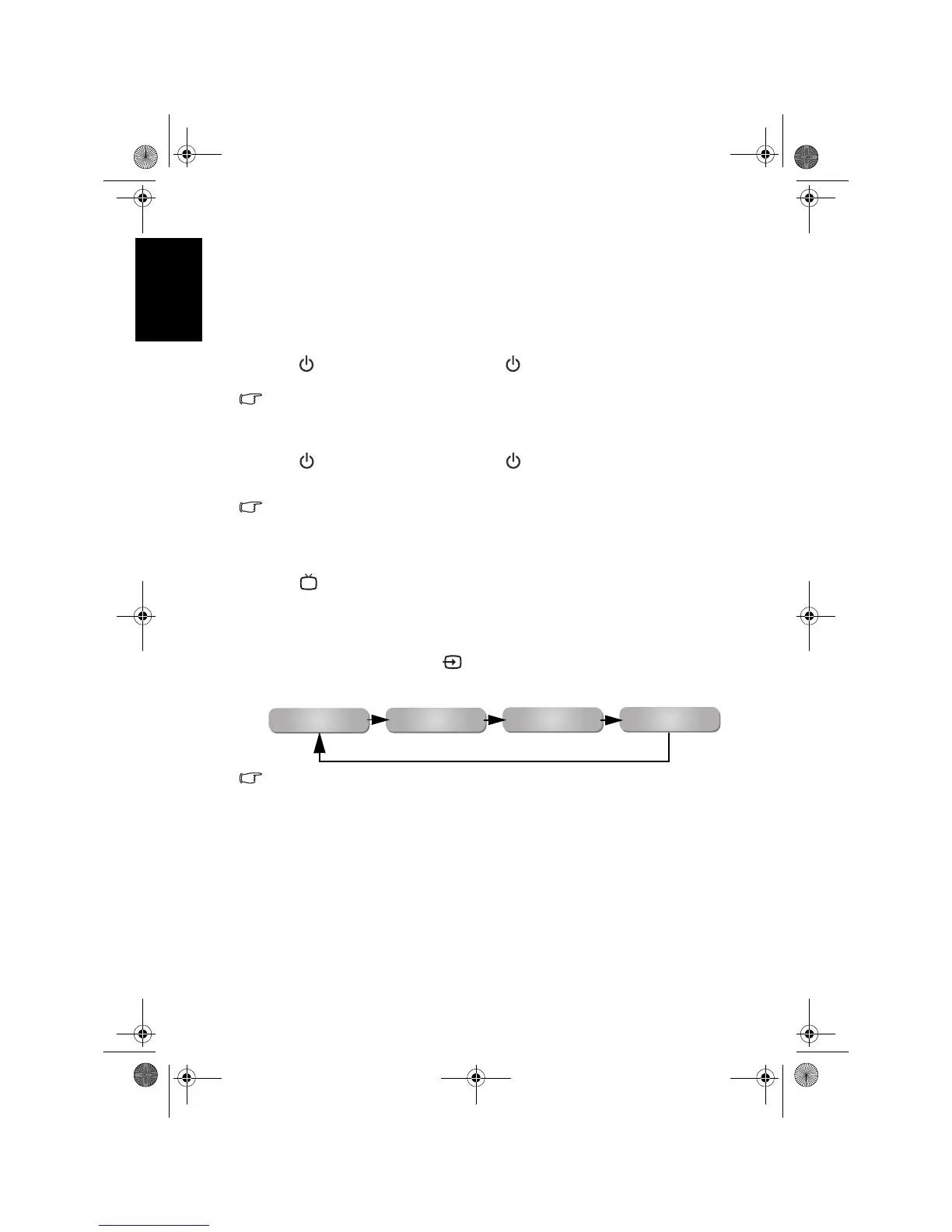
Press
(Power/standby) on the TV, or (Power/standby) on the remote
control. The TV will turn on and the power indicator will change to green.
You can also turn the TV on and view TV input by pressing P (Program) , P
(Program)
or any Program selection numeric buttons on the remote control.
Putting the TV to standby
Press (Power/standby) on the TV, or (Power/standby) on the remote
control again, and the TV will return to the standby mode. The power
indicator will turn red.
The TV consumes about 1.5W of power in standby mode.
Selecting an input source
Selecting the TV input directly
Press TV on the remote control to change to TV input directly and view
TV programs.
Switching to other input sources (except the TV input)
1. Turn on the TV. Turn on the connected device and play the video.
2. Press
INPUT on the TV, or INPUT on the remote control to display the
current selected input. Press the button repeatedly until your desired input
is displayed. The sequence is as follows:
• These options will only appear when corresponding signals are connected to
the TV.
• If both Composite Video (AV) and S-Video signals are connected to the AV2
input at the same time, only the S-Video input will be displayed. If you wish to
view the Composite Video (AV) input in such case, remove the S-Video
connection temporarily.
• Be aware that the HDMI input signal must be HDCP-compliant to be displayed
properly. When switching to the HDMI inputs, the TV needs approximately 3
seconds to detect the HDCP information from the signal source and no image
will be displayed during this period. This is not a malfunction.
• When displaying PC video, remember to switch the PC video output setting
from monitor display to external device. For more information, refer to the
documentations of your PC.
AV1
AV2 (or AV2-S)
HDMI (or DVI)
PC
V32B_V37B_EN.book Page 20 Wednesday, January 23, 2008 10:55 AM


 To Next Page