Getting to know the remote control 19
English
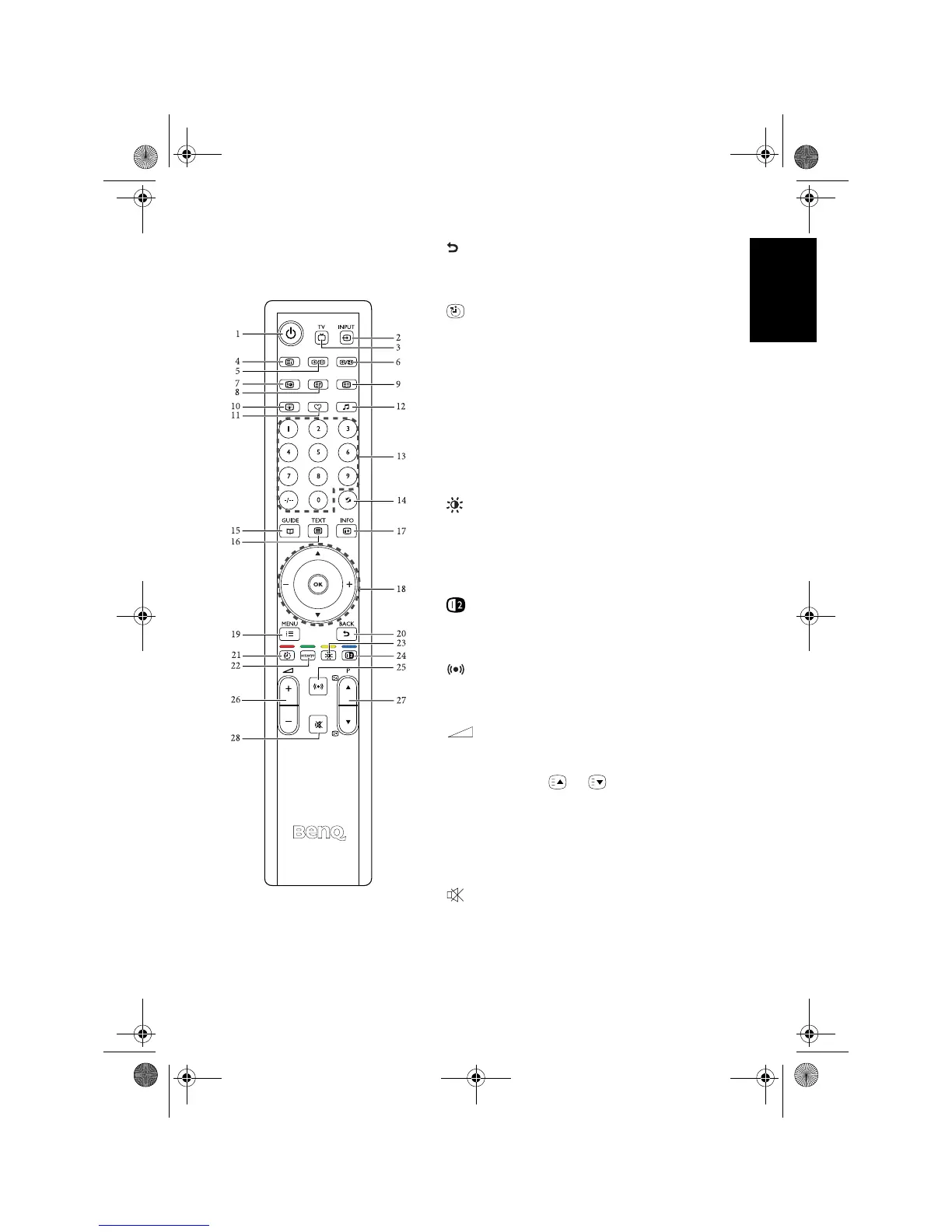
20. BACK
In the OSD menu, press this button to return to the
previous menu page. See "Navigating the OSD
menu" on page 31.
21. Sleep/red
• Press this button to set the automatic shut-off timer.
See "Using the sleep timer" on page 22.
• When Teletext displays on-screen, press this button
to select the corresponding color Teletext page. See
"Using the Teletext function" on page 23.
22. senseye/green
• Press this button to display the senseye menu. See
"Senseye menu" on page 37.
• When Teletext displays on-screen, press this button
to select the corresponding color Teletext page. See
"Using the Teletext function" on page 23.
23. Preset/yellow
• Press this button to select a preset picture mode. See
"Selecting a picture mode" on page 22.
• When Teletext displays on-screen, press this button
to select the corresponding color Teletext page. See
"Using the Teletext function" on page 23.
24. PIP/blue
When Teletext displays on-screen, press this button
to select the corresponding color Teletext page. See
"Using the Teletext function" on page 23.
25. Surround
Press this button to turn on or off the surround
sound effect. See "Turning on/off the Surround
sound effect" on page 21.
26. (Volume) +/-
Press these buttons to raise or lower the volume level.
See "Adjusting volume" on page 21.
27. P (Program) /
• Press these buttons to sequentially change programs.
See "Changing programs" on page 21.
• When Teletext displays on-screen, press these
buttons to go to the previous or next page, or go to
the subpage (if available). See "Using the Teletext
function" on page 23.
28. Mute
Press this button to mute the sound output. Press it
again to restore the sound output. See "Mute setting"
on page 21.
V32B_V37B_EN.book Page 19 Wednesday, January 23, 2008 10:55 AM


 To Next Page