FlightHawk RF Test Set
20
Peak Search Between Markers
The peak search between markers feature causes a marker to find the peak
between two other markers. M1 ~ M2 selection causes marker 3 to move to the
peak signal between marker 1 and marker 2 positions. M4 ~ M5 selection causes
marker 6 to move to the peak signal between marker 4 and marker 5 positions.
All markers follow the current trace only.
Note: A minimum of three markers must be displayed for the peak
search between markers to work. Marker 3 will always find the peak
between marker 1 and 2, regardless of how many other markers are
displayed, and marker 6 will always find the peak between marker 4
and 5.
1. Press MKR icon, and Add markers 1, 2, and 3. If desired add markers 4, 5,
and 6 also.
2. Move marker 1 and 2 to the upper and lower limit for the peak search. If
desired, move markers 4 and 5 to a second area of interest.
3. Press MKR icon, and select Search Peak:
4. Select either M1 ~ M2 or M4 ~ M5
Note:
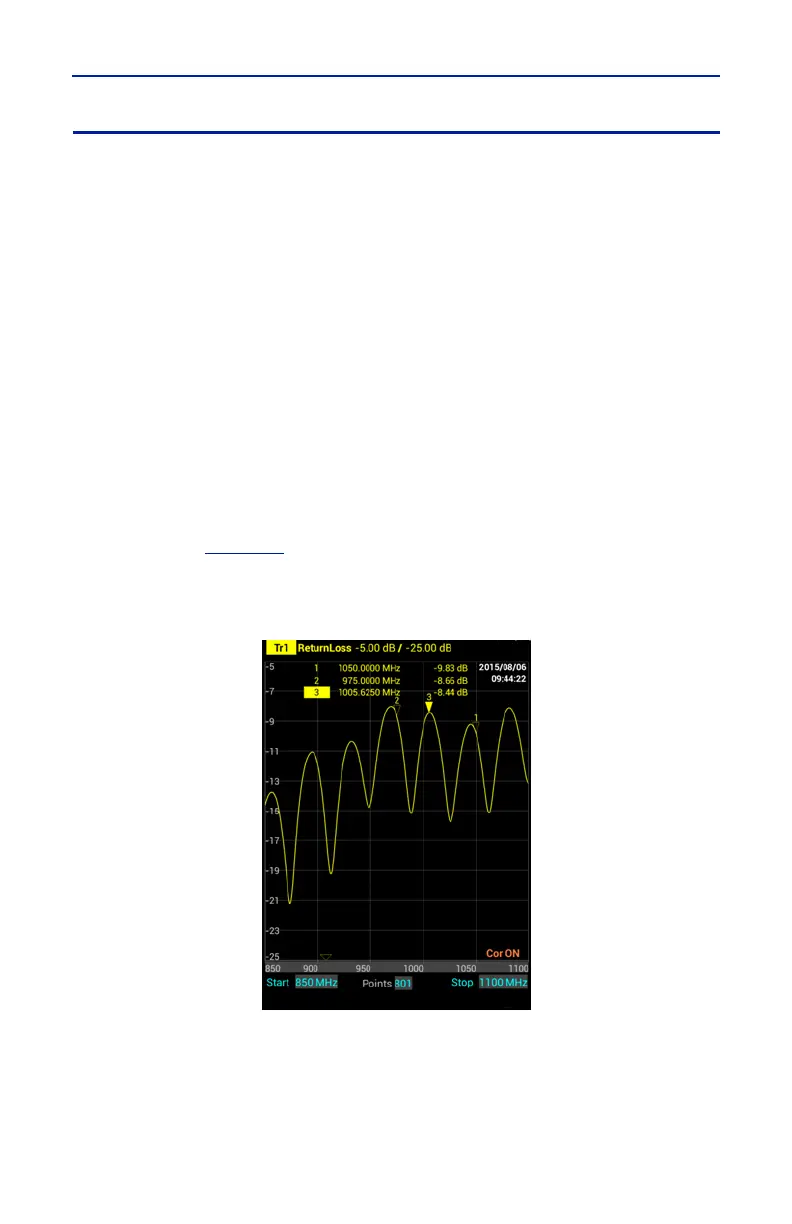
Figure 15
shows marker 3 at the peak signal position between
marker 1 and marker 2.
Figure 15 Marker 3, Peak Search: M1~M2


 To Next Page