Data Save and Export
43
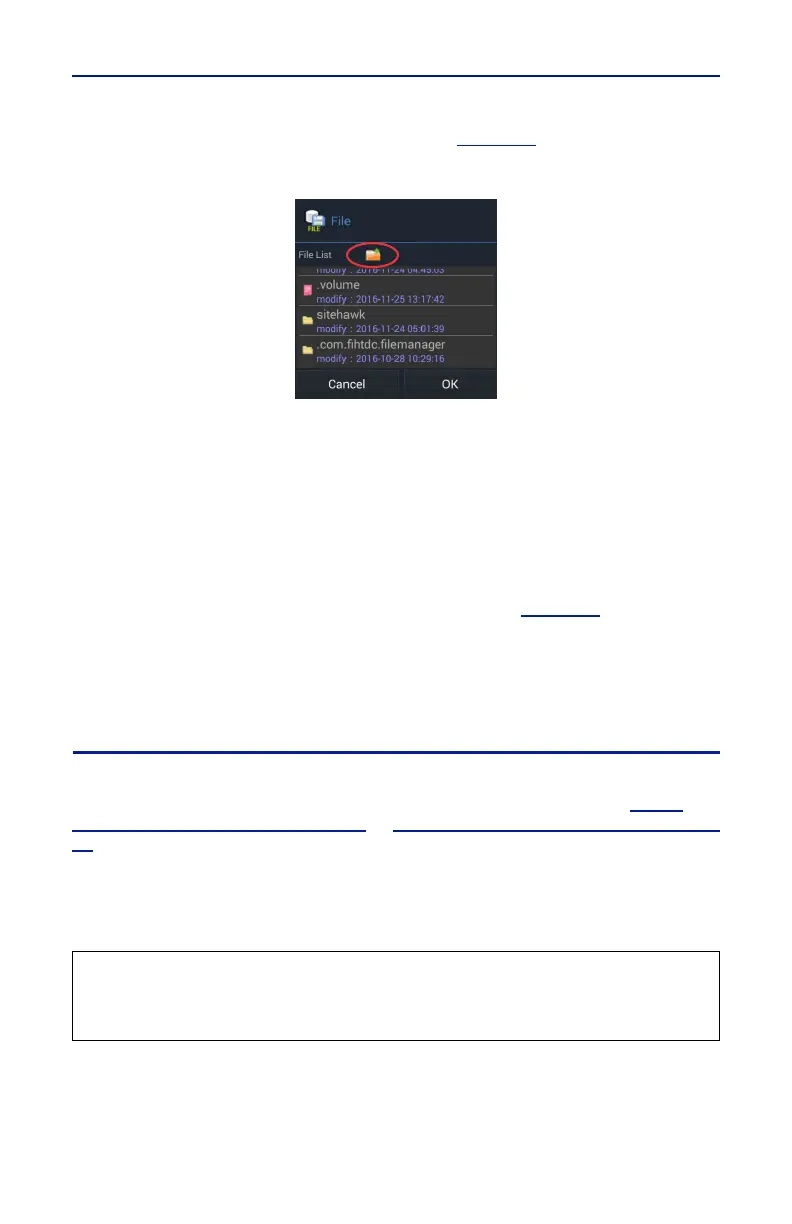
b. Select desired folder in the File List or press file folder icon to
browse for the desired folder. See
Figure 39
.
Figure 39 Directory Selection
Note: Only folders may be selected in the File List. This dialog box is
used to select the folder containing the files to be deleted.
c. Press OK.
5. Select the file types to delete.
Note: All file types are selected initially, any file type selected with a
check mark when DELETE is pressed will cause ALL the files of that file
type to be deleted.
a. To deselect all file types, press NONE. See
Figure 38
.
b. Press the check box next to each file type to select those files for
deletion.
6. Press DELETE.
Data Transfer Function
Data transfer from the FlightHawk-AV may be accomplished using a USB Drive or
via Bluetooth transfer. For instructions on how to make transfers see
"Data
Transfer via USB Drive" on page 43
or
"Data Transfer via Bluetooth" on page
46
.
Data Transfer via USB Drive
Data can be transferred from or to the FlightHawk-AV internal memory with the
use of an external USB drive and the USB adapter (supplied).
1. Connect the USB drive to the USB adapter, then connect the USB adapter to
the USB-C port at the bottom of the unit.
2. Press Home key on the FlightHawk-AV display.
3. Select the Files icon on the unit’s home screen.
CAUTION
Do not connect the unit to a PC USB port.
File transfer must be done using a USB Drive.


 To Next Page