FlightHawk RF Test Set
64
Importing Logs into Excel
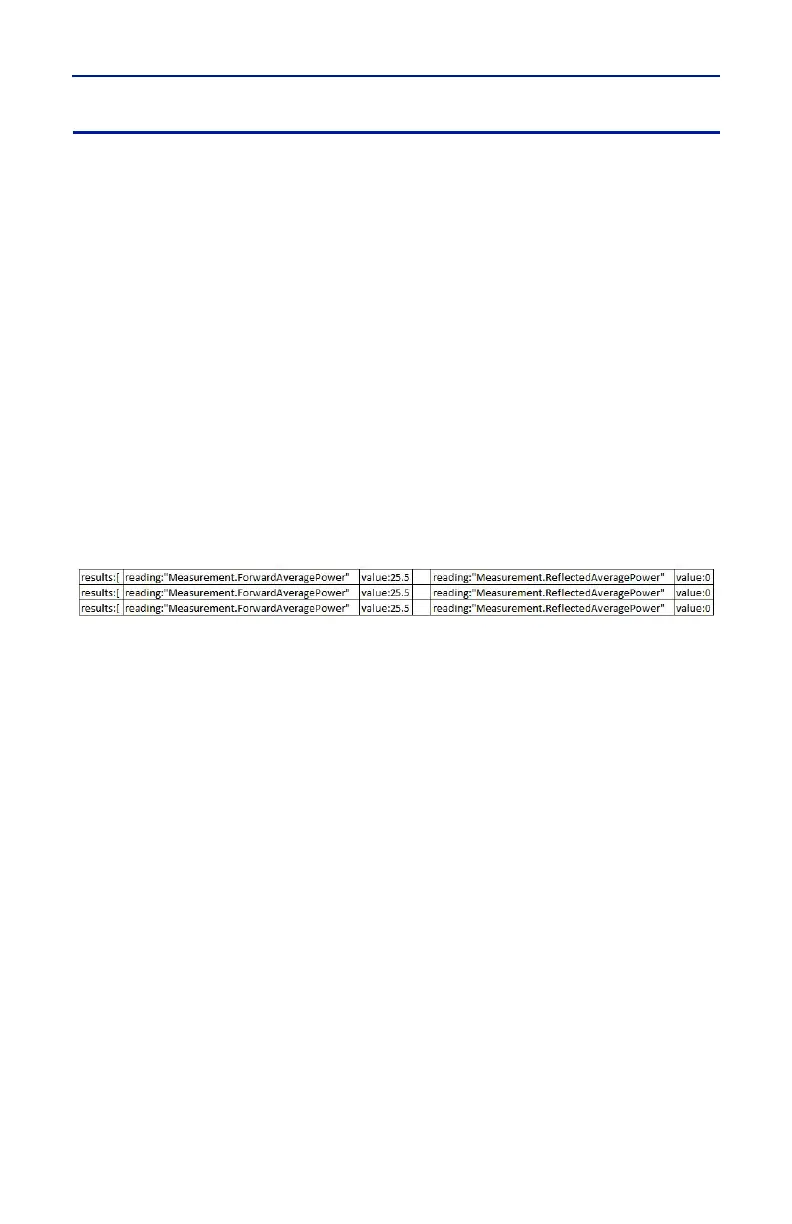
This procedure will display each group of results on one row with each
measurement and values grouped by columns.
1. Transfer the log files to a PC.
2. Open an Excel spreadsheet.
3. Select Data Tab.
4. Click From Text on the menu. The Import Text File dialog box will open.
5. Select All Files, in the drop down menu at the bottom of the dialog box. Log
files have the file extension .log.
6. Navigate to the folder containing the log file to import.
7. Select the file and click Import. This will open the Text Import Wizard.
8. On step 1, Select Delimited radio button, then click Next.
9. On step 2, select Comma and Other (add { ) as the delimiters, then click
Next.
10. On step 3, click finish.
Figure 57 Log File Open In Excel
Note: Columns have been removed in the example for simplicity.


 To Next Page