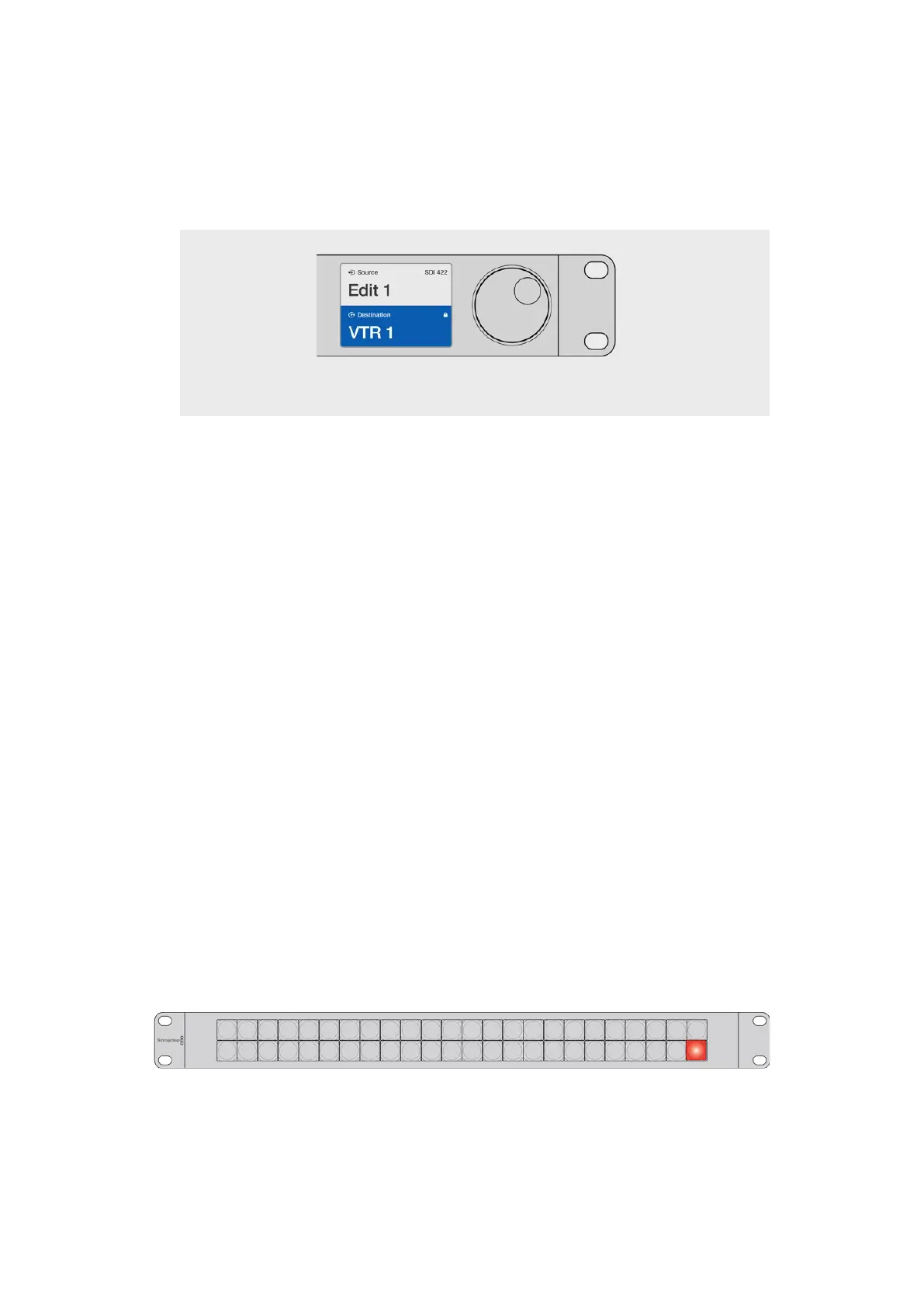
4 Press and hold the gold destination button until a lock icon appears in the destination field
of the LCD.
5 Press ‘destination’ again to return Videohub Master Control to its idle state and the
destination field will revert to gray.
The destination field shows a lock icon
if the destination is locked.
To unlock a destination using Videohub Master Control:
1 Press the destination button marked ‘DEST’. The destination field will highlight blue
on the LCD.
2 If the desired route is not already displayed on the LCD, use the pushbuttons and/or scroll
wheel to find the destination to be unlocked. The destination field will show a lock icon for
the locked destination.
3 Press and hold the gold DEST button until the lock icon disappears from the destination
field of the LCD.
4 Press DEST again to return Videohub Master Control to its idle state and the destination
field will revert to gray.
Using Macros
If you press a green macro button, it will simultaneously make the crosspoint changes you have
previously configured in Videohub Hardware Panel Setup. Each button can be configured with
up to 16 crosspoint routes. If you have the Take button enabled, the simultaneous change of
routes will only take place when you confirm by pressing the Take button. If for any reason the
macro cannot be performed, the button will flash.
Using Videohub Smart ControlPro as a Cut-Bus Controller
If Videohub Smart Control Pro has been configured as a Cut-Bus controller, the destination
device has already been chosen and you only need to choose a video source.
1 Select a white video source button. The button will light up to distinguish it from the other
sources. The video source will immediately connect and be viewable on the destination device.
2 If the Take button has been enabled, the new source button and the Take button will flash.
The route change will only take place when you confirm by pressing the Take button.
Videohub Smart Control Pro configured as a Cut-Bus controller and with a Take button
40Videohub Hardware Control Panels



 To Next Page