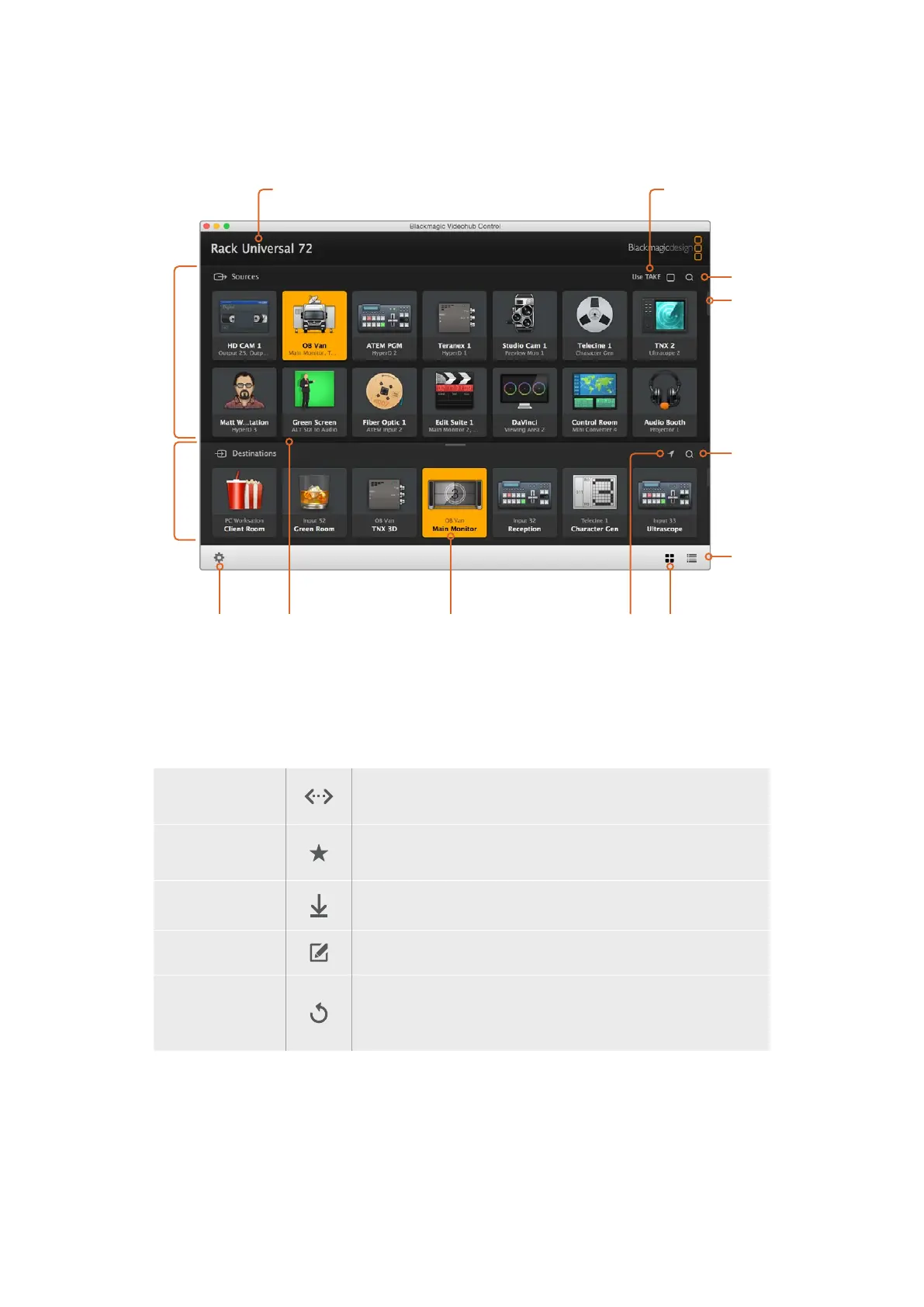
Blackmagic Videohub Control ataGlance
Scrollbars indicate
not all pushbuttons
are visible
Title Bar shows
Videohub type
Highlighted Pushbuttons
denote paired connections
Pushbutton View
List View
Sources AreaDestinations Area
Destinations
Area Search
Sources Area Search
Settings
Use TAKE
Reveal SourceDivider Bar
Click and drag the window edges to resize Blackmagic Videohub Control to fit your
screen size. Drag the Divider Bar up or down to reveal more or less of the “Sources”
and “Destinations” areas and use the Scroll Bars to scroll the areas.
Settings Menu
Select Videohub
Select from a list of Videohubs that are currently connected to
your network.
Save Layout
Save customized pushbutton layouts for the different
environments in which you use your Videohub.
Load Layout
Load previously saved pushbutton layouts.
Edit Buttons
Displays the Edit Buttons for editing the pushbuttons.
Reset All
Displays all of the inputs and outputs of the connected Videohub
and replaces customized icons with the default icon. Source,
destination and deck control settings are maintained.
54Blackmagic Videohub Control



 To Next Page