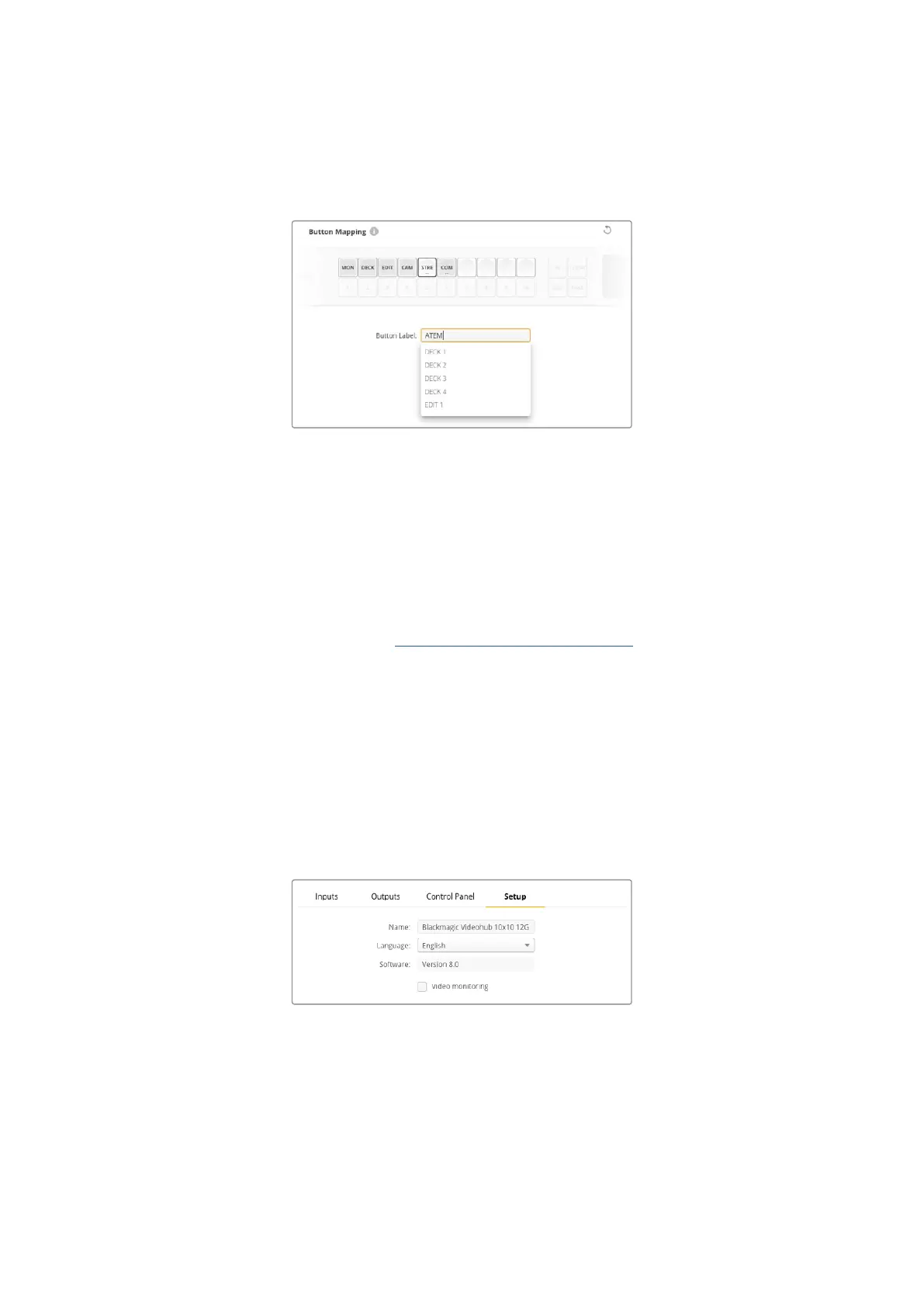
2 Click ‘save’.
Refer to the ‘advanced controls’ section for information on how to use mapped shortcut buttons
when switching a route.
Type a new name for the shortcut button and click ‘save’
Setup Settings
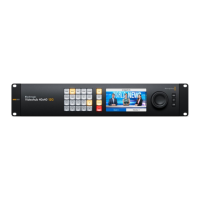
The setup settings tab lets you name your Videohub so you can identify it on a network.
Simplytype in a name and then click on the ‘set’ button.
To change the language used on your Videohub’s LCD, click in the language menu, select
yourlanguage and click ‘save’.
The software version is displayed so you can check it against the latest version on the
Blackmagic Design support center at www.blackmagicdesign.com/support
Video Monitoring
When video monitoring is enabled, the LCD will show a preview of the source currently routed
to a destination. For example, if you press the destination button and select an output, you will
see the source currently routed to that output.
Additionally, you can also check the source video before switching the route. For example, scrolling
through the sources using the search dial lets you visually confirm the desired video feed.
If you want to disable the video preview mode, deselect the ‘video monitoring’ setting in the
‘setup’ settings tab. This returns the LCD to the home screen, displaying the standard source
and destination text view.
Deselect the ‘video monitoring’ checkbox to disable the
source and destination video preview mode on the LCD
50Blackmagic Videohub Setup



 To Next Page