Using the Shortcut Buttons
After the inputs and outputs have been labeled, the shortcut buttons can use Videohub’s
filtering to make faster selections.
To use the shortcut buttons:
Select the Destination
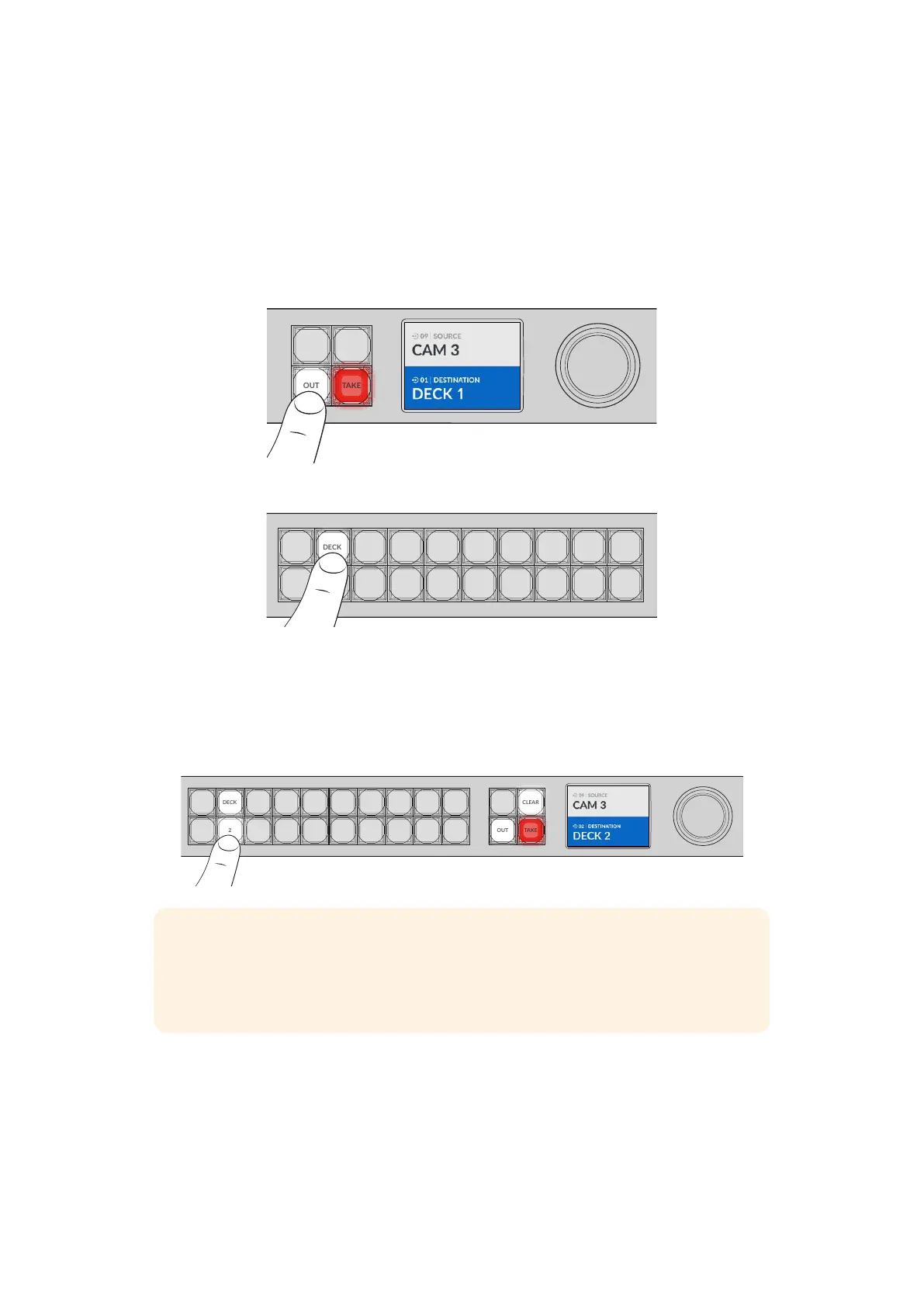
1 Press the ‘out’ button to enable the destination selection.
COMP SWITCH KEY ST/C
6 7 8 9
M/VIEW
0
OUT
CLEAR
TAKE
MON
DECK EDIT CAM STREAM
1 2 3 4 5
LOCK
MENU
SET
IN
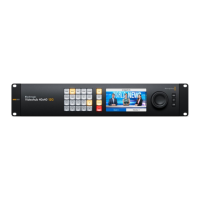
2 Press the shortcut button labeled ‘DECK’.
COMP SWITCH KEY S T/C
6 7 8 9
M/VIEW
0
MON
DECK EDIT CAM STREAM
1 2 3 4 5
Your Videohub now makes all outputs available that include DECK in their label, filters out
other destinations and then arranges them for selection on the numbered pushbuttons in
numerical order.
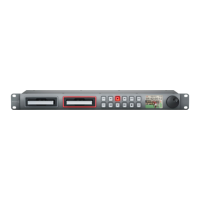
3 Press button ‘2’ to select ‘DECK 2’.
Button ‘2’ will illuminate and you can see the selected output and destination on the LCD.
COMP SWITCH KEY ST/C
6 7 8 9
M/VIEW
0 OUT
CLEAR
TAKE
MON
DECK EDIT CAM STREAM
1 2 3 4 5
IN
TIP If you have the LCD set to video monitoring you can see the video image currently
routed to that destination plus the new source as you select it. Confirm the selection
by pressing the ‘take’ button. Video monitoring can be enabled using the LCD menu or
Blackmagic Videohub Setup.
10Shortcut Buttons



 To Next Page