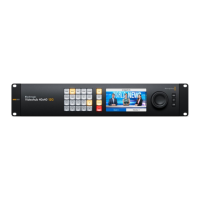
Edit Buttons
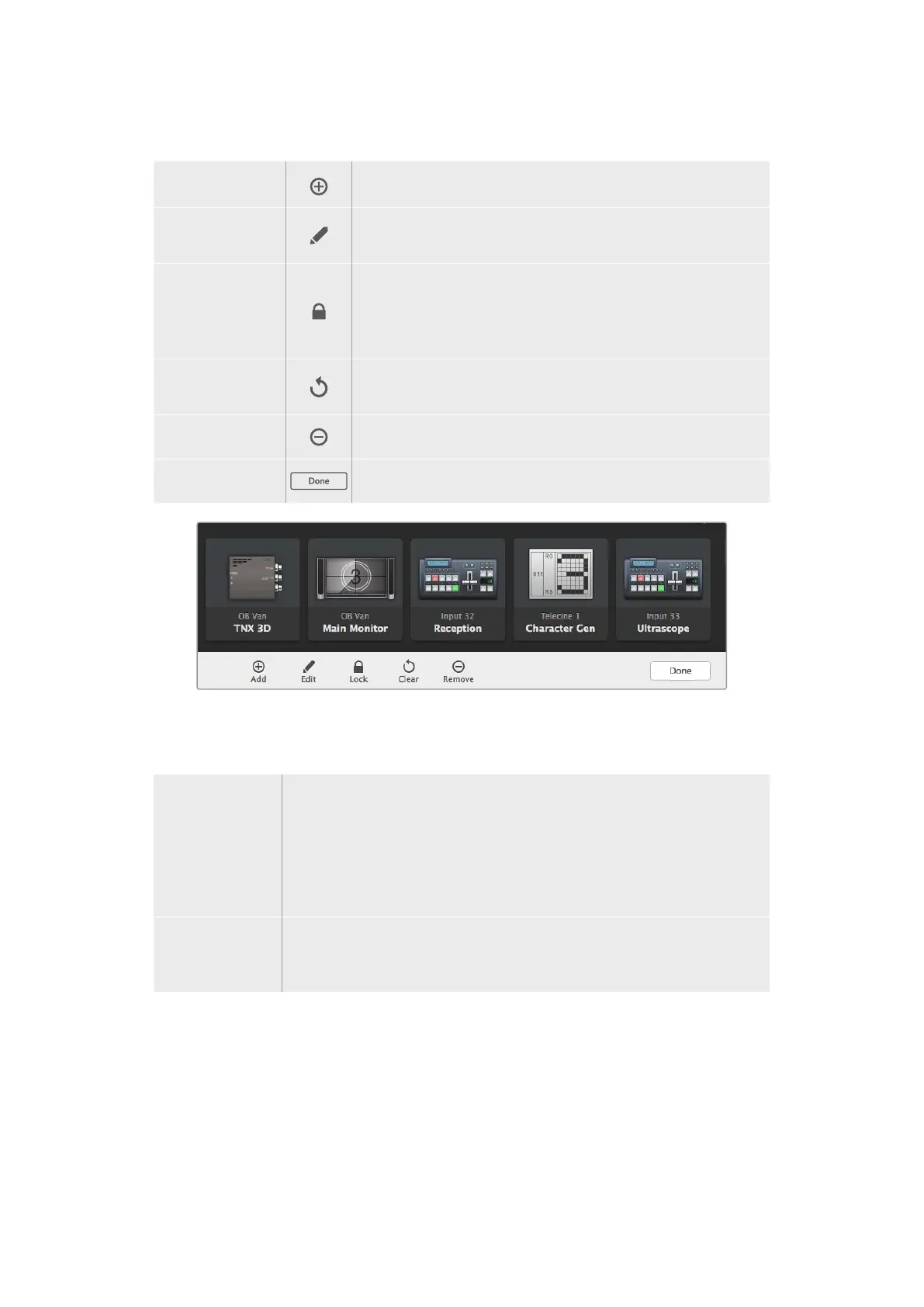
Add Add a source or destination pushbutton.
Edit
Allows you to set the SDI source or destination, deck control and the
icon for the selected pushbutton.
Lock and Unlock
Lock a destination to avoid accidentally changing the video source
which is routed to that destination. If you click on a pushbutton that’s
locked, the Lock button changes into an Unlock button. Simply click
the Unlock button to unlock the destination pushbutton.
Clear
Deletes source, destination and deck control settings as well as the
icon for the selected pushbutton.
Remove
Removes the selected pushbutton.
Done
Click the Done button to exit the edit mode.
Click ‘edit buttons’ Buttons to choose a thumbnail image for a source or destination
Using Pushbuttons
Adding
Pushbuttons
Select the Settings button and then select “Edit Buttons”. Click on the Add button
and choose whether to add a source or destination pushbutton.
The Set Button window appears and allows you to set the SDI source or
destination, RS-422 deck control and the icon for the pushbutton. In most cases,
deck control is grouped with the associated SDI connections, e.g., SDI Input 1
would be associated with the corresponding Remote 1.
Editing
Pushbuttons
Select “Edit Buttons” and click the pushbutton you wish to edit. Click on the
Edit button and modify the source or destination, deck control settings and the
icon as required.
55Blackmagic Videohub Control



 To Next Page