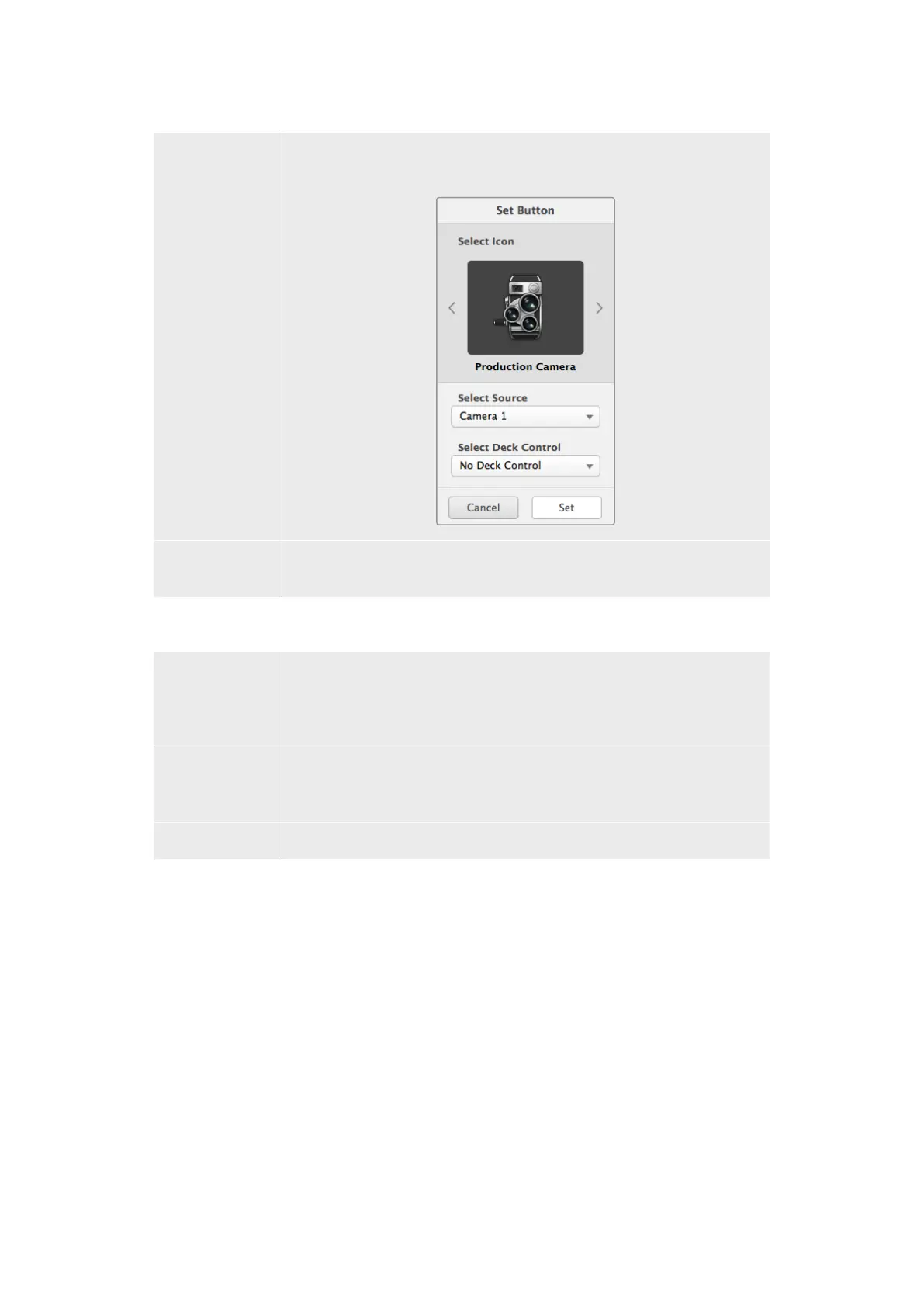
Set Button The Set Button window allows icon selection, source or destination selection
and deck control configuration.
Moving
Pushbuttons
Select the Settings button and then select “Edit Buttons”. Click and drag the
pushbutton to a new position.
Viewing and Switching Routes
Viewing Routes In order to see which video source has been routed to a video destination,
such as a monitor, press the button in the destinations panel to make the button
illuminate. The associated video source button will illuminate in the sources
panel, making it immediately obvious which source is connected to the monitor.
Reveal Source If you select a destination but the source is currently positioned offscreen,
clicking the Reveal Source button will scroll the Sources area to display the
source pushbutton.
Switching Routes Select the destination icon followed by the source icon.
Use TAKE Confirmation before Switching Routes
You may wish to enable the ‘use take’ feature to help prevent unintentional changes to video
routes. Once enabled, any attempt to change a video route using a pushbutton will cause a red
‘take’ button to appear. Select the button to confirm or click the current source or destination
pushbutton to cancel.
Locking and Unlocking Routes
Locking a destination will avoid accidentally changing the video source which is routed
to that destination. To lock a route, select the destination pushbutton and double click.
Apadlock icon will appear in the top-right corner of the destination pushbutton and will
prevent anyone else from using the destination device until it is unlocked from your computer.
Locking a destination still leaves the associated video source available for routing to multiple
destinationssimultaneously.
Double click the pushbutton to unlock the destination.
56Blackmagic Videohub Control



 To Next Page