You can also lock one or multiple destinations via the edit buttons page. Shift click the
destination pushbuttons you wish to lock and click the lock button. If you select a mixture of
locked and unlocked pushbuttons, you will have the option to lock the unlocked pushbuttons.
Locking a route between an input and an output also locks the RS-422 deck control connection
between the two devices to avoid other users accidentally seizing the deck control belonging
to the video source. The RS-422 connection between the video source and video destination
will remain locked until the destination pushbutton is unlocked.
TIP To toggle the lock status of a destination, simply double click the
destination pushbutton.
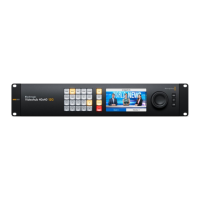
A black padlock icon with a curved line above will appear on any destination pushbuttons
locked by other Videohub devices. The video destination devices will not be available to
you until the destination pushbuttons have been unlocked from the other users’ computers
and iPads.
If you need to unlock a route set by another user, launch Videohub Setup, select the Outputs
tab and click the destination’s lock icon.
NOTE It is important to note which routing level is selected, as it will affect the
locking of routes. Universal Videohub consists of an SDI video level and an RS-422
deck control level. These levels can be switched together or can be separated for
individual switching.
If you have selected SDI 422 on the level controls, it will lock both ports, however,
if you select SDI or RS422 it will only lock the selected port. When the RS-422 port
is locked you can still switch to SDI video, and when the SDI port is locked you can
still switch to RS-422. This means that you can still route video signals even if the
RS-422 port is locked, and still have deck control even if the SDI port is locked.
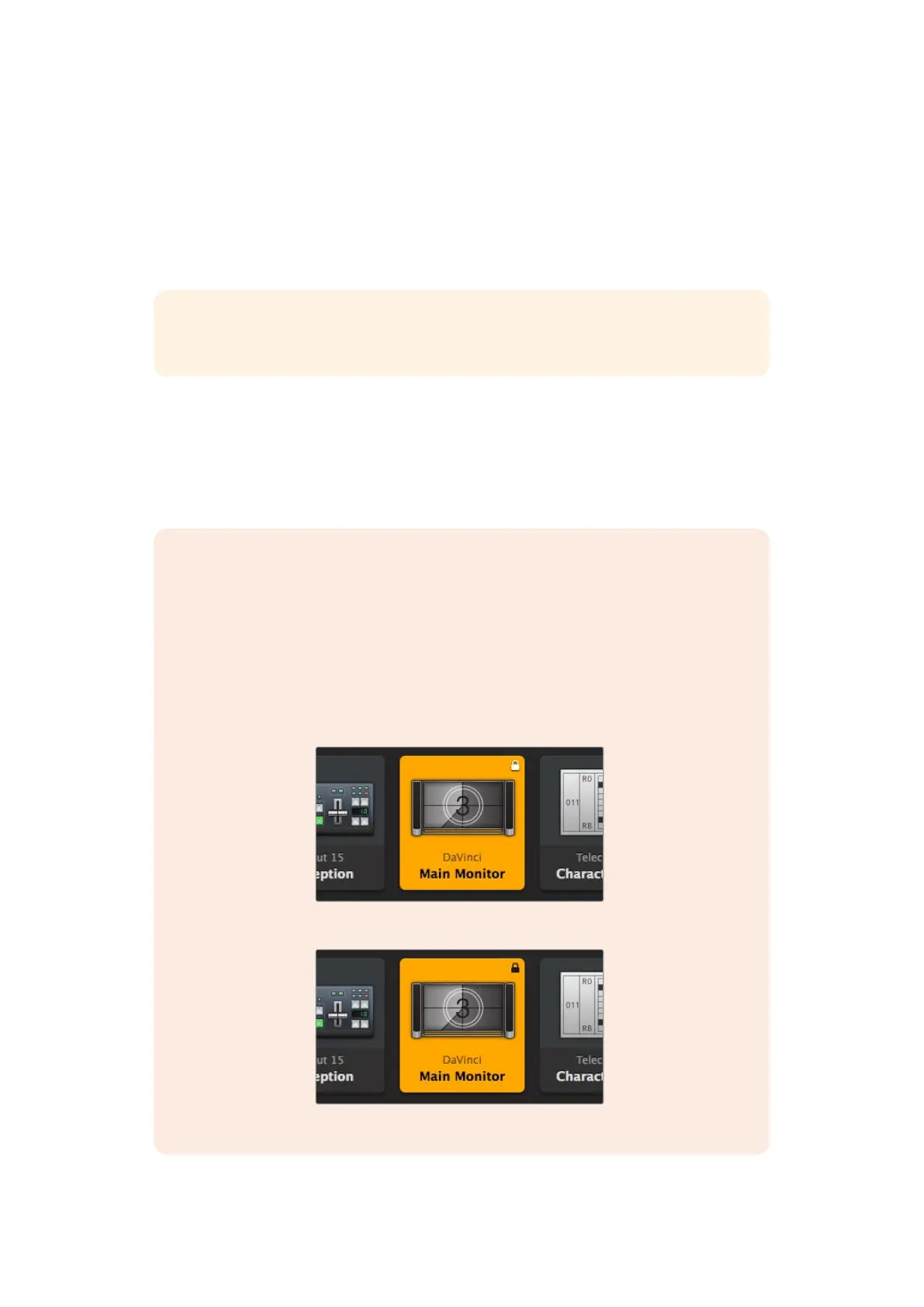
Locally locked destinations display a white padlock icon
Remotely locked destinations display a black padlock icon
57Blackmagic Videohub Control



 To Next Page