Display Screen
BBP
®
35/37 User’s Manual 12 Rev A
Display Screen
The BBP35/37 printer uses touch screen technology. Using your finger, touch the desired
option on the display screen.
Home Page
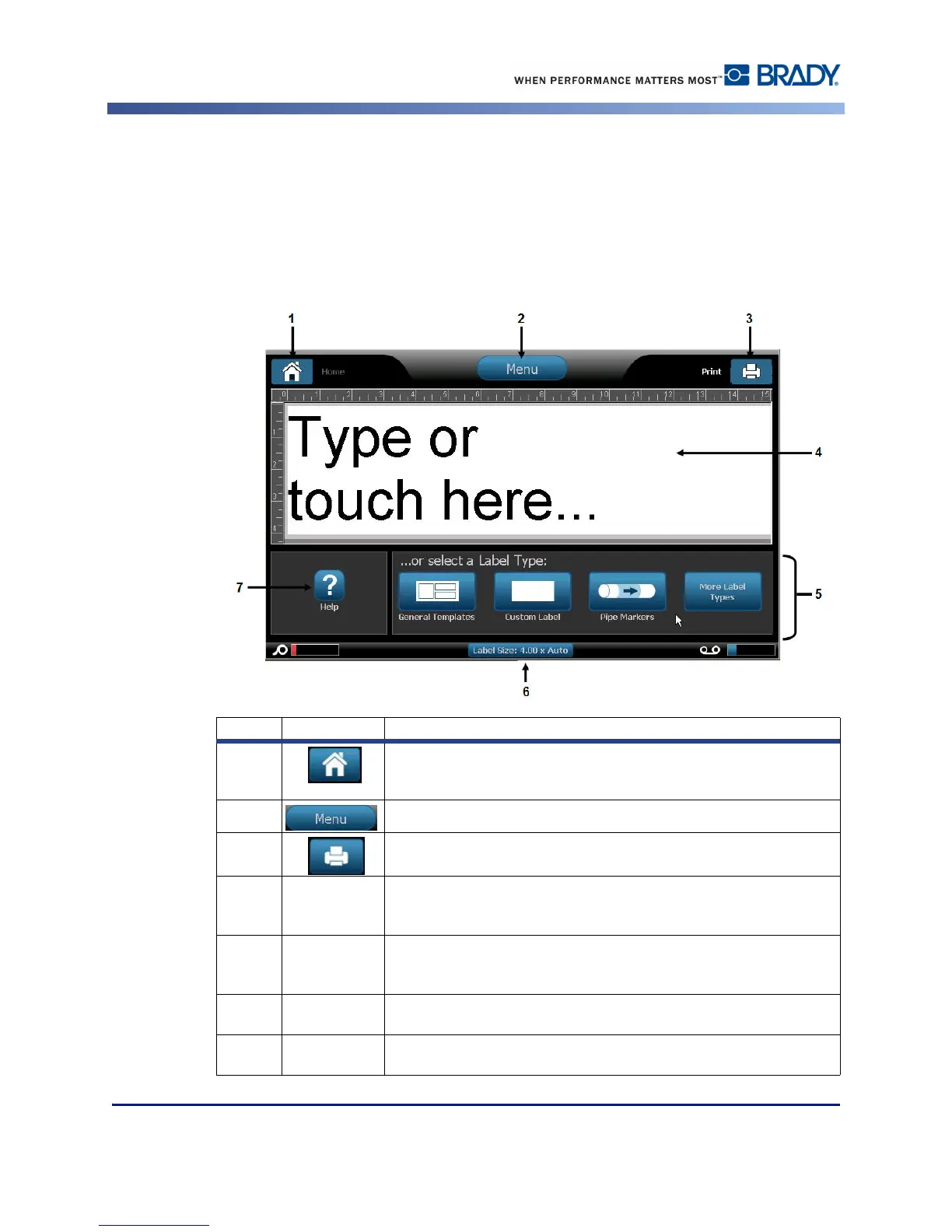
The Home page automatically displays when you first start the printer.
Item # Icon Description
1
Home: Returns you to the Home page from anywhere in the
application. When you are on the Home page, the button is
grayed out.
2
Menu: Displays File, Label and System options.
3
Print: Displays the Print dialog box for printing the current label.
If there is nothing in the Editor, the print button is grayed out.
4
Editor
Text or object entry area. Type, touch or select objects to display
and edit in this area. The Editor also shows the color and size of
the installed media and ribbon.
5
Control
Panel
Primary area for selecting options for creating, editing and
working with labels and objects. The panel changes depending
on what option is selected.
6
Status Bar
Shows the current label size and indicators for the amount of
media and ribbon remaining.
7
Tools Panel
Provides additional options for the specific tool selected. The
Tools panel changes according to the object selected.



 To Next Page