Display Screen
Rev A 13 BBP
®
35/37 User’s Manual
Menus
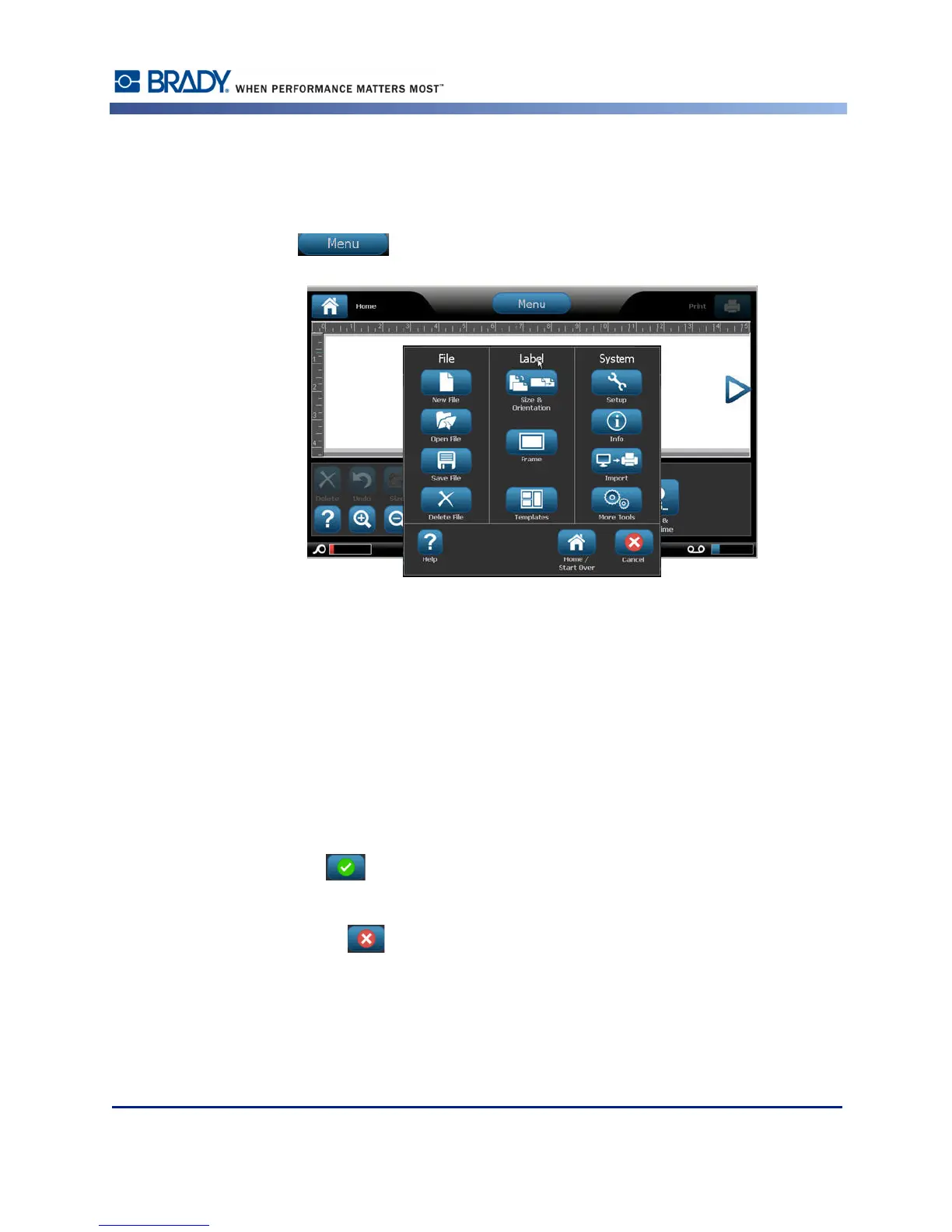
The main Menu button displays a list of sub-menus for different label or system functions. To
display menu or sub-menu options:
1. Touch to display the sub-menus.
2. In the pop-up list, touch the desired sub-menu option.
The selected sub-menu, in turn, can display another sub-menu.
3. Keep touching a sub-menu option until a dialog box displays.
Dialog Boxes
A dialog box contains various options for the specific sub-menu that you selected. It may
contain drop down field lists, spinner boxes, data fields, options boxes and scroll bars. A
dialog box enables you to make a number of changes to the label at one time. To accept all
edits in a dialog box:
1. Touch OK .
To cancel edits in a dialog box and/or to back out of sub-menus:
2. Touch Cancel .



 To Next Page