Getting Started
BBP
®
35/37 User’s Manual 36 Rev A
Changing Text Box Size
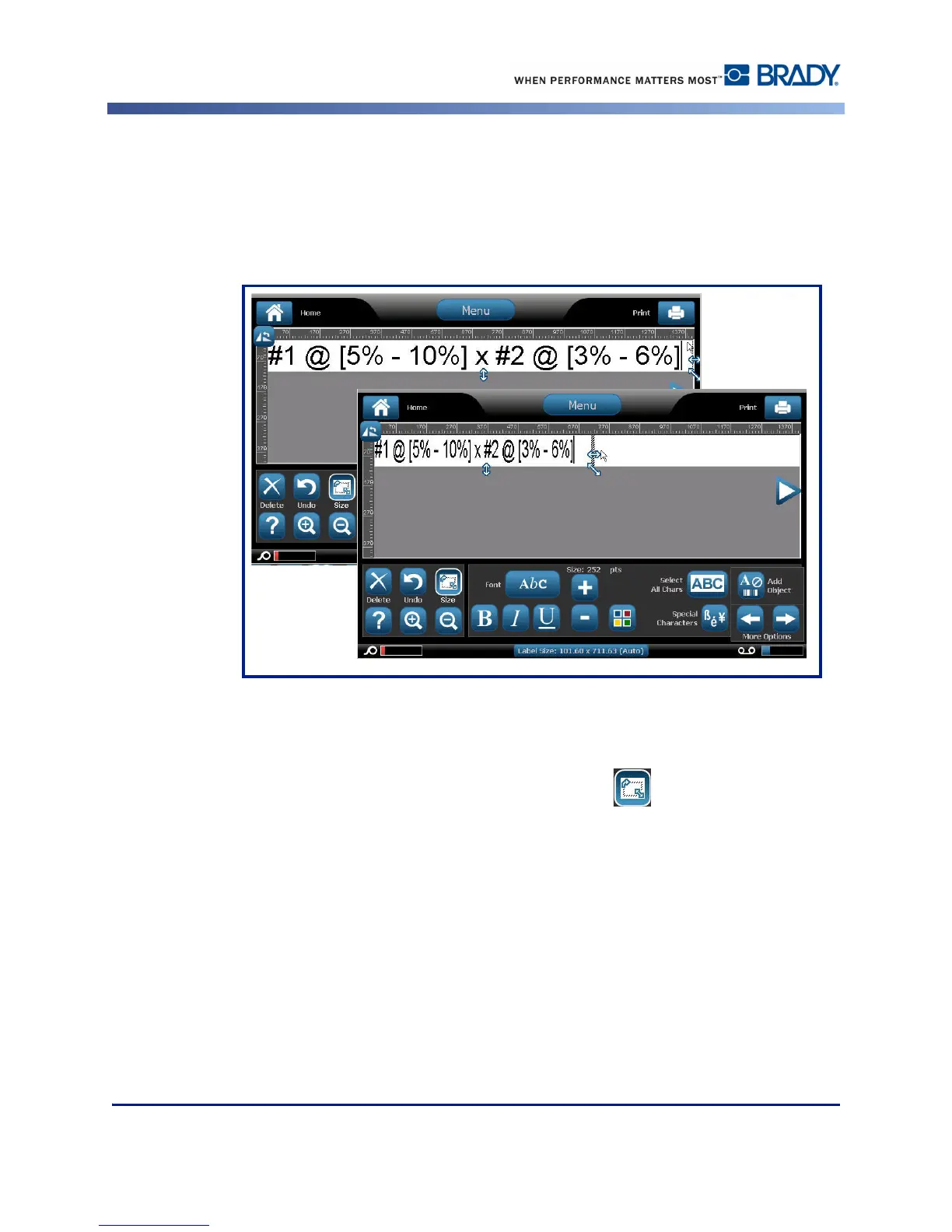
In addition to autosizing text to fit the label, you can adjust the size of the text box. Vertically
changing the size of the text box decreases the font size. Horizontally changing the size of the
text box expands or condenses the text. (See page 61 for information on expanding and
condensing text.)
Figure 4 • Changing kerning in text box
To change the size of the text box:
1. With the cursor in the text box, from Tools, touch Size button.
A left/right, up/down, and diagonal arrow display on the text box.
2. To increase or decrease the height of the text box, touch the up/down arrow and drag your
finger down, or up, on the screen.
3. To increase or decrease the length of the text box, touch the left/right arrow and drag your
finger right, or left, on the screen.
4. To increase or decrease the height and length of the text box at one time, touch the
diagonal arrow and drag your finger diagonally on the screen.



 To Next Page