170
Saving and recalling the custom
thread table using USB media
You can save a custom thread table data file to
USB media, and then you can recall the saved
data from USB media again.
■ Saving the custom thread table in
USB media
a
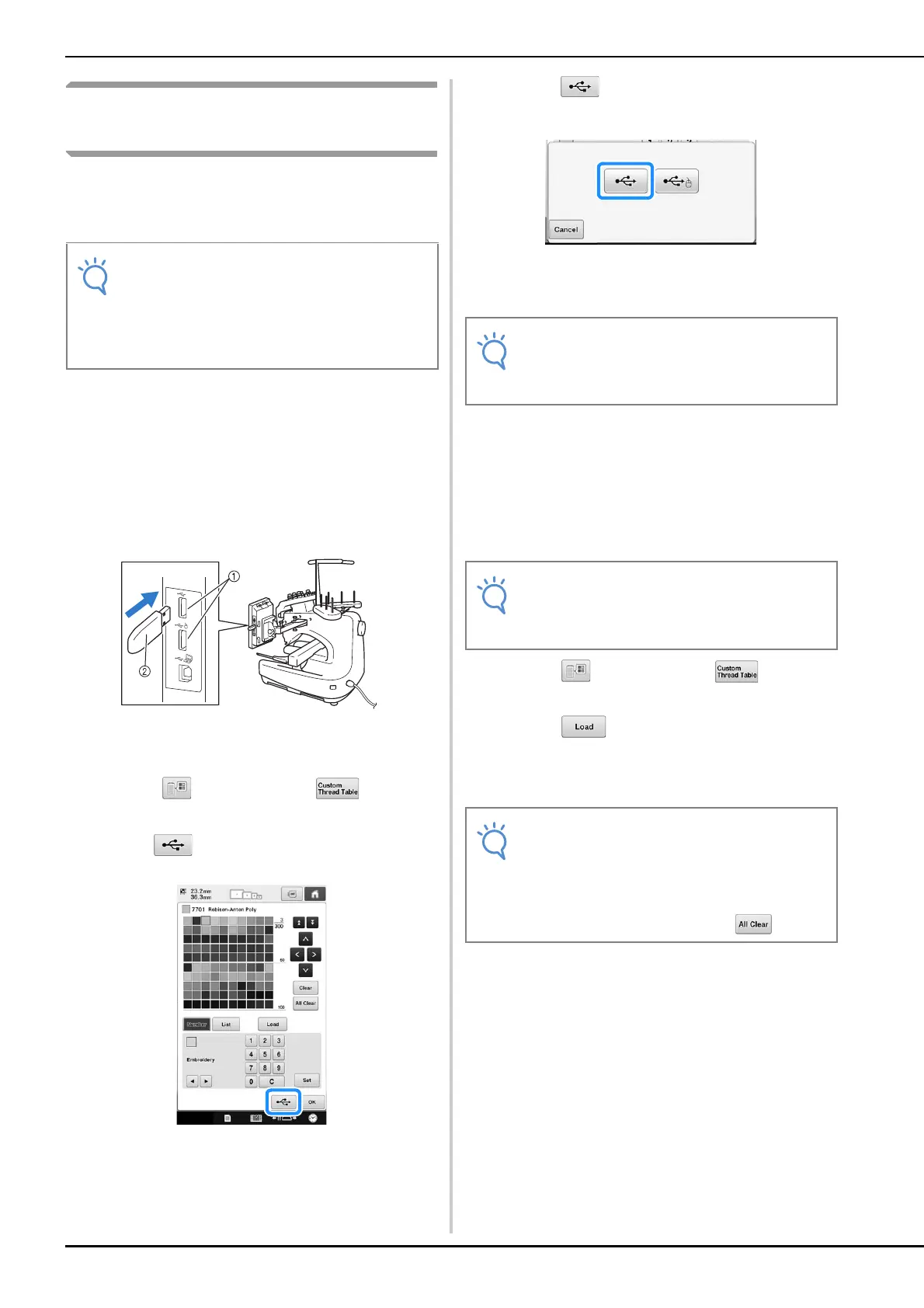
Insert the USB media into the USB port on
the right side of the machine.
For details on connecting USB media, refer to
“Using USB media” on page 75.
1 USB ports
2 USB media
b
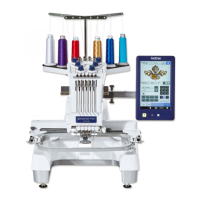
Touch and then touch .
c
Press .
d
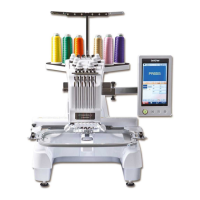
Touch , and then select the port where
the data is to be saved.
The “Saving…” screen is displayed. When the data
is saved, the display returns to the original screen
automatically.
■ Recalling the custom thread table in
USB media
a
Insert the USB media containing the custom
thread table data into the USB port for
media.
b
Touch and then touch .
c
Touch .
The “Saving…” screen is displayed. When the data
is loaded to the machine, the display returns to the
original screen automatically.
• Custom thread table data can only be saved
to USB media. You cannot save the data in
the machine’s memory or in the computer.
• Custom thread table data is saved as “.pcp”
data file.
• Do not insert or remove USB media while
“Saving…” screen is displayed. You will
lose some or all of the data you are saving.
• You can only recall one custom thread table
data at a time. Do not store two or more
“.pcp” data file in USB media.
• Do not insert or remove USB media while
“Saving…” screen is displayed. You will
lose some or all of the data you are saving.
• To delete all the specified colors from the
custom thread palette, touch .




 To Next Page