186
Changing the screen saver
settings
■ Specifying the length of time until
the screen saver is displayed
The screen saver is displayed when no machine
operation is performed for the specified length of
time.
A setting between “OFF” (0) and “60” minutes can
be set in 1-minute increments.
When the embroidery machine is purchased, “5
min” is selected.
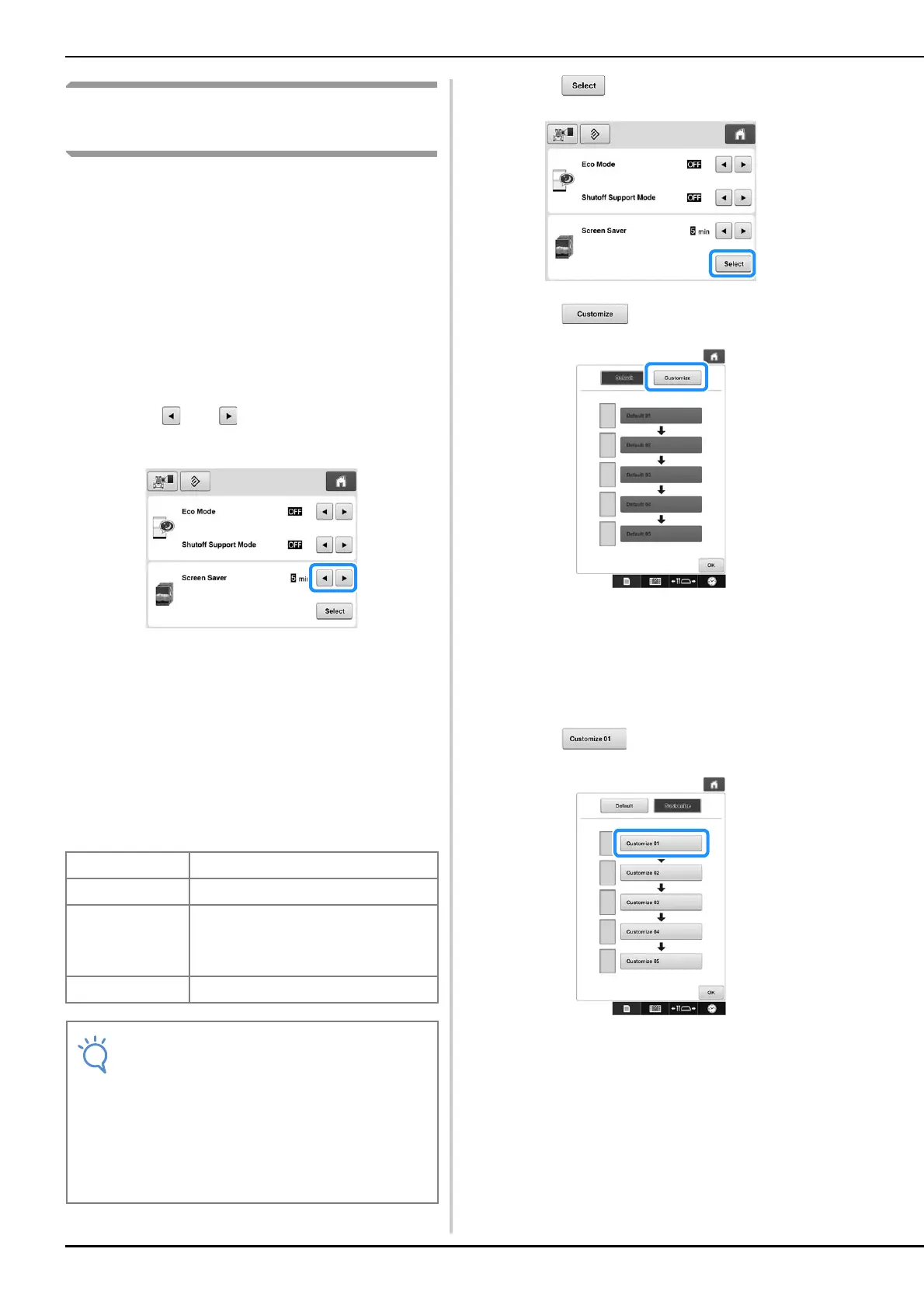
The screen saver settings can be specified from page
4 of the settings screen.
a
Touch and to select the desired
setting.
■ Changing the screen saver image
You can select your own personal images for the
screen saver of your machine.
Before changing the screen saver image, prepare the
image on your computer or USB media.
When the embroidery machine is purchased, the
default setting is selected.
The screen saver settings can be specified from page
4 of the settings screen.
a
Touch .
b
Touch .
c
Connect the USB media or the computer
(using a USB cable) that contains your
personal image to the USB port of the
machine.
• Refer to page 74 about USB connectivity.
d
Touch to select the first image.
• The images will appear in a list in this screen. Select
the desired number to specify the image.
Compatible image files
Format JPEG format (.jpg)
File size Max. 2 MB for each image
File dimension
800 × 1280 pixels or less, (If the width is
more than 800 pixels, the image
imported will be reduced to a width of
800 pixels.)
Number allowed 5 or less
• When using USB media, make sure that it
contains only your own personal images to
be selected for the screen saver.
• Images saved on an SD card cannot be
selected for the screen saver. Use images
from the computer or USB media.
• Folders are recognized. Open the folder that
holds your personal images.




 To Next Page