11
Chapter 1 Getting Started
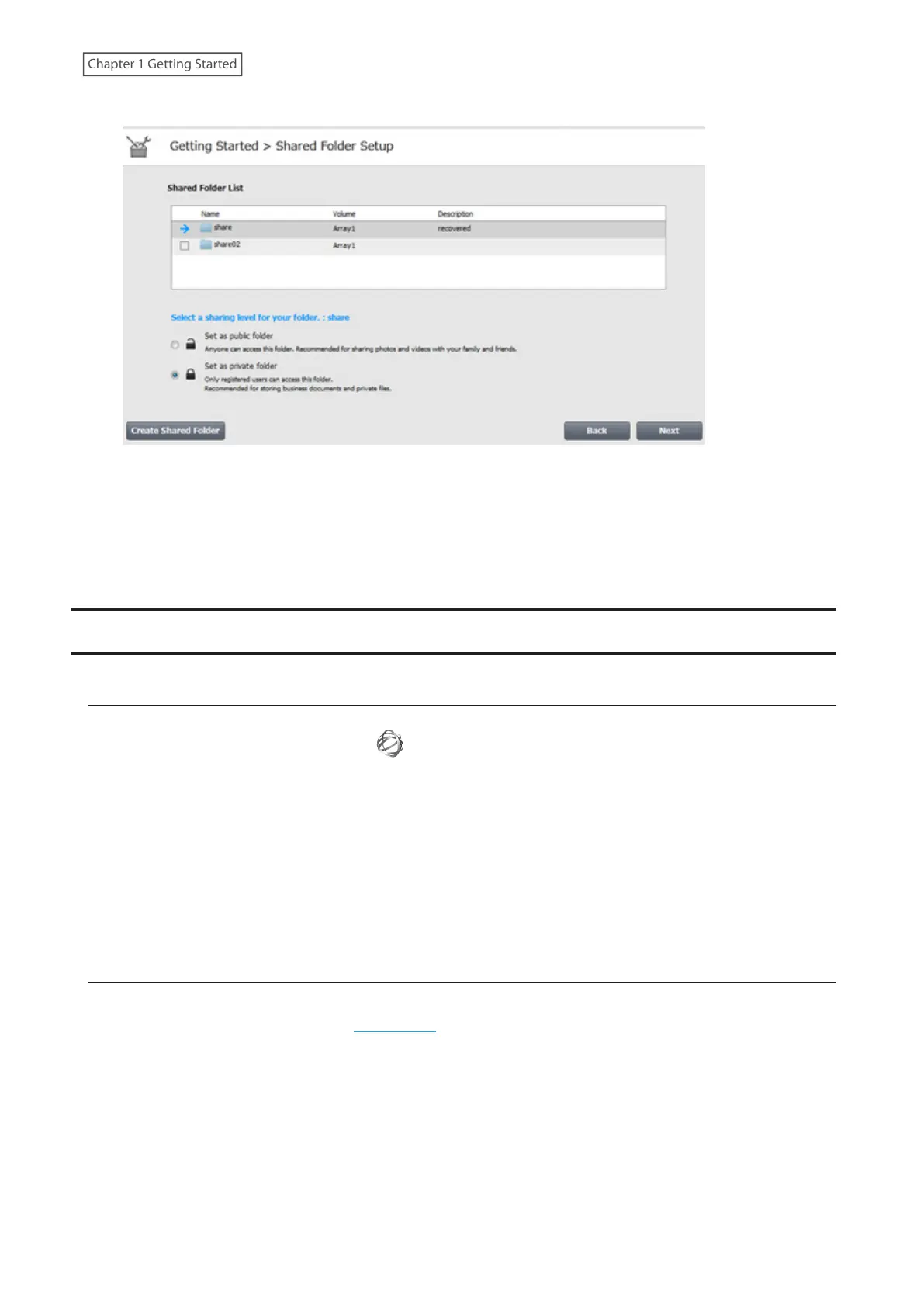
5 Configure levels of sharing for all existing shared folders (public or private) to finish the initial setup wizard.
Notes:
• Select “Set as private folder” to restrict access to the folder to specific users.
• Click [Create Shared Folder] to create a new shared folder from the wizard. By default, SMB and AFP
connections can be used to access this folder.
6 Click [OK] when completed.
Accessing Shared Folders
Accessing from a Computer
1 Double-click the NAS Navigator2 icon ( ) to start NAS Navigator2.
2 Double-click your LinkStation’s icon.
3 File Explorer will open with shared folders’ lists. For macOS, the LinkStation is mounted as a drive icon on the
desktop or it is displayed in the sidebar of the Finder.
Note: When you access a shared folder from a Windows PC, you may be asked to enter a username and password. In
such a case, enter “guest” for the username and leave the password field blank.
Accessing from a Mobile Device
To access shared folders from a mobile device with the following procedure, you must configure WebAccess settings
first. To configure WebAccess, refer to the “WebAccess” section in chapter 5.
1 Open SmartPhone Navigator.
2 Tap your LinkStation from the NAS list.
3 Tap [Browse].



 To Next Page