24
Notes:
• If protocols other than “SMB (Win/Mac)” or “Backup” under “LAN Protocol Support” are enabled, the hidden shares
option will be grayed out and cannot be selected.
• Configure hidden share attributes only through Settings. Configuring them through Windows is not supported
and may cause unexpected behavior.
To access a hidden folder, open File Explorer in your computer and enter “\\LinkStation name\shared folder name$\”
into the address bar. For example, if the LinkStation name is “LSXXX001” and the shared folder name is “share”, enter
“\\LSXXX001\share$\” to open it.
Configuring Users
Adding a User
Follow the procedure below to create a user. To create a user from a mobile device, refer to the “Adding a User”
section in chapter 9.
Note: The LinkStation can register a maximum 300 of users, which includes the default users “admin” and “guest”.
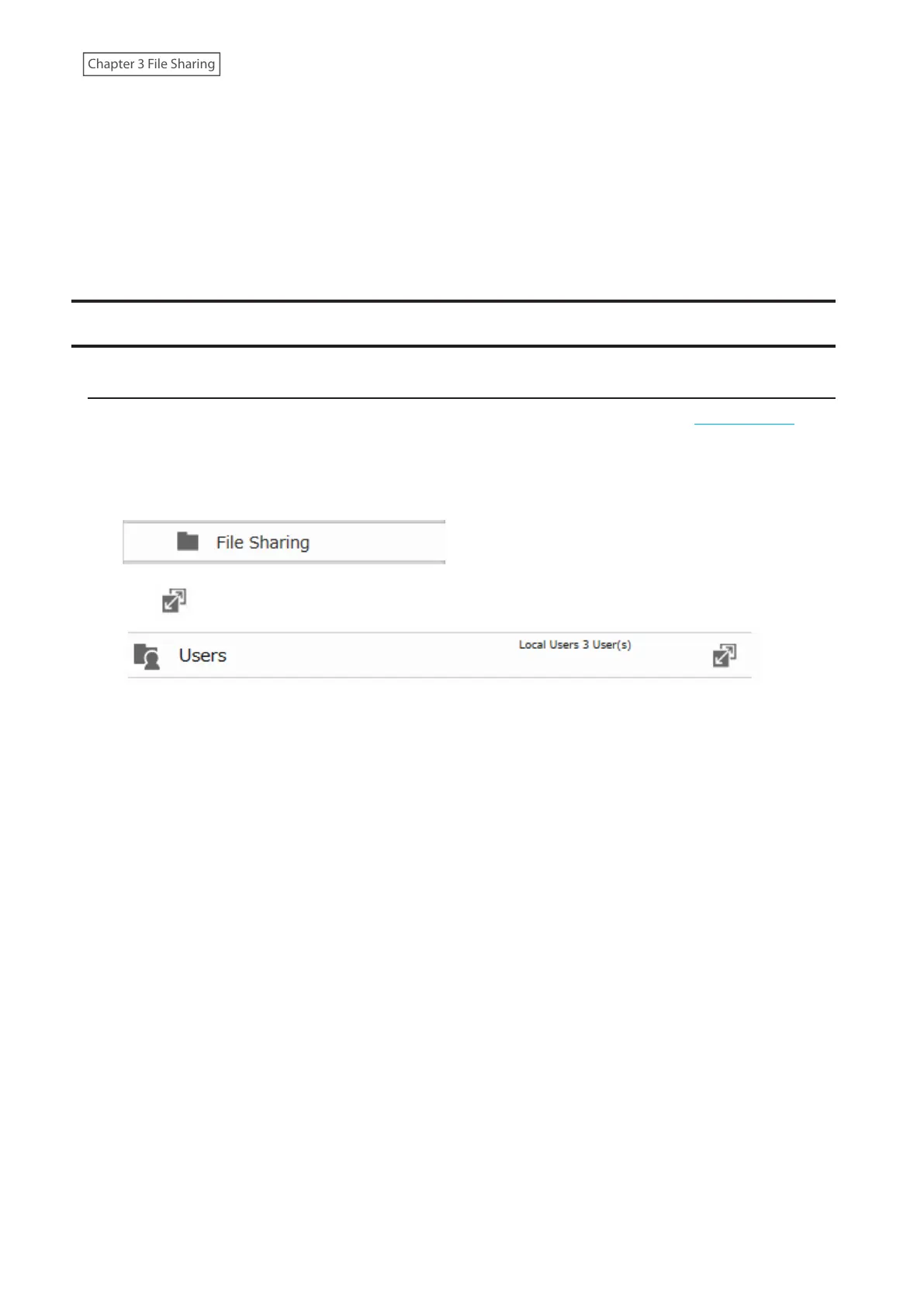
1 From Advanced Settings, click [File Sharing].
2 Click to the right of “Users”.



 To Next Page