51
Chapter 4 Storage Management
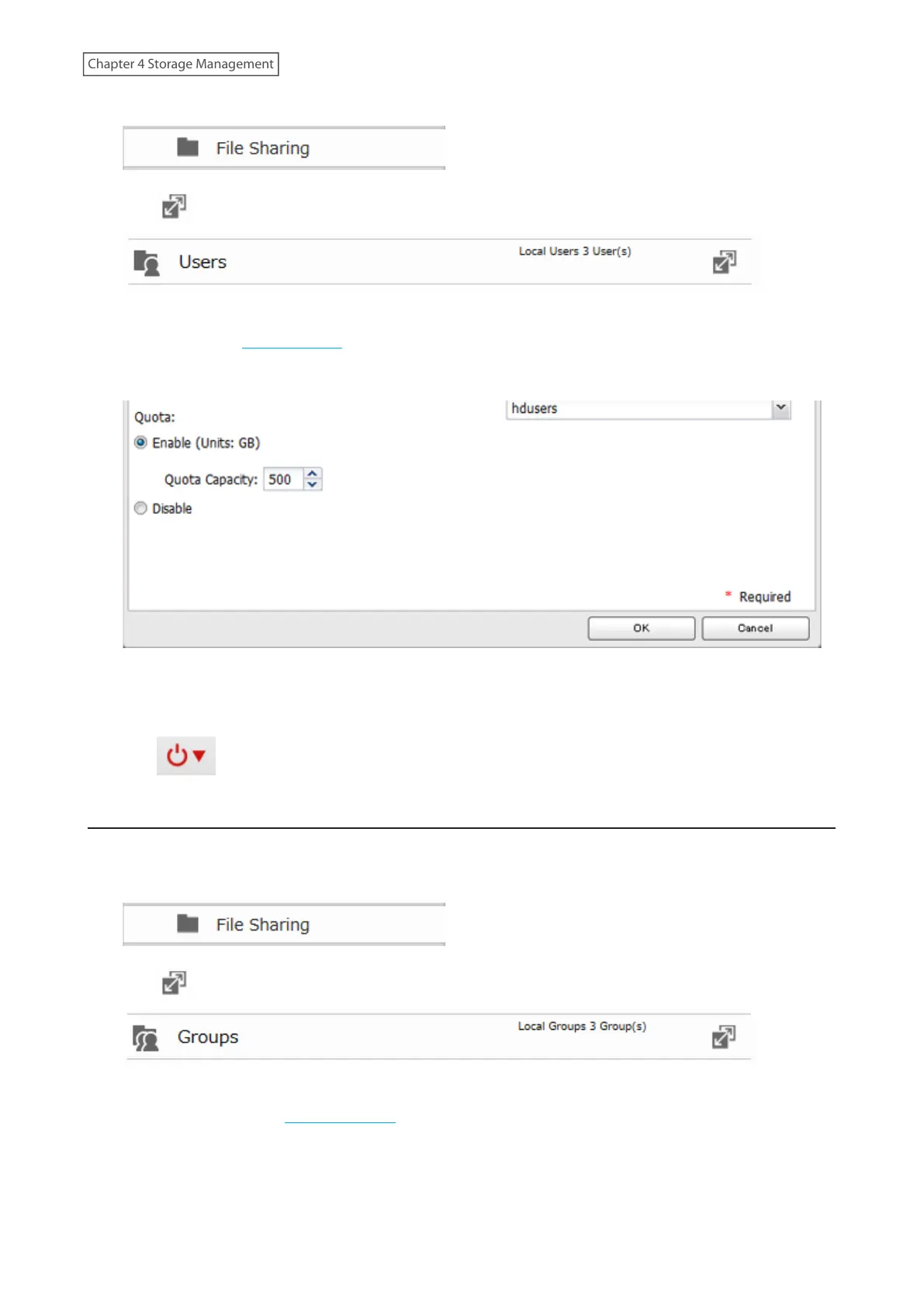
1 From Advanced Settings, click [File Sharing].
2 Click to the right of “Users”.
3 Select the user that will be given a quota and click [Edit]. If you want to set a quota for a new user, create a user
by referring to the “Adding a User” section in chapter 3.
4 Enable quotas, choose the maximum amount of space the user will be allowed to use, and click [OK].
Note: If you change the primary group, restart the LinkStation to apply the quota settings.
5 Click [Close].
6 Click at the top-right of Settings and select [Restart].
Quotas for Groups
Follow the procedure below to limit the space for shared folders that each group can use.
1 From Advanced Settings, click [File Sharing].
2 Click to the right of “Groups”.
3 Select the group that will be given a quota and click [Edit]. If you want to set a quota for a new group, create a
group by referring to the “Adding a Group” section in chapter 3.










 To Next Page