99
Chapter 8 Advanced Features
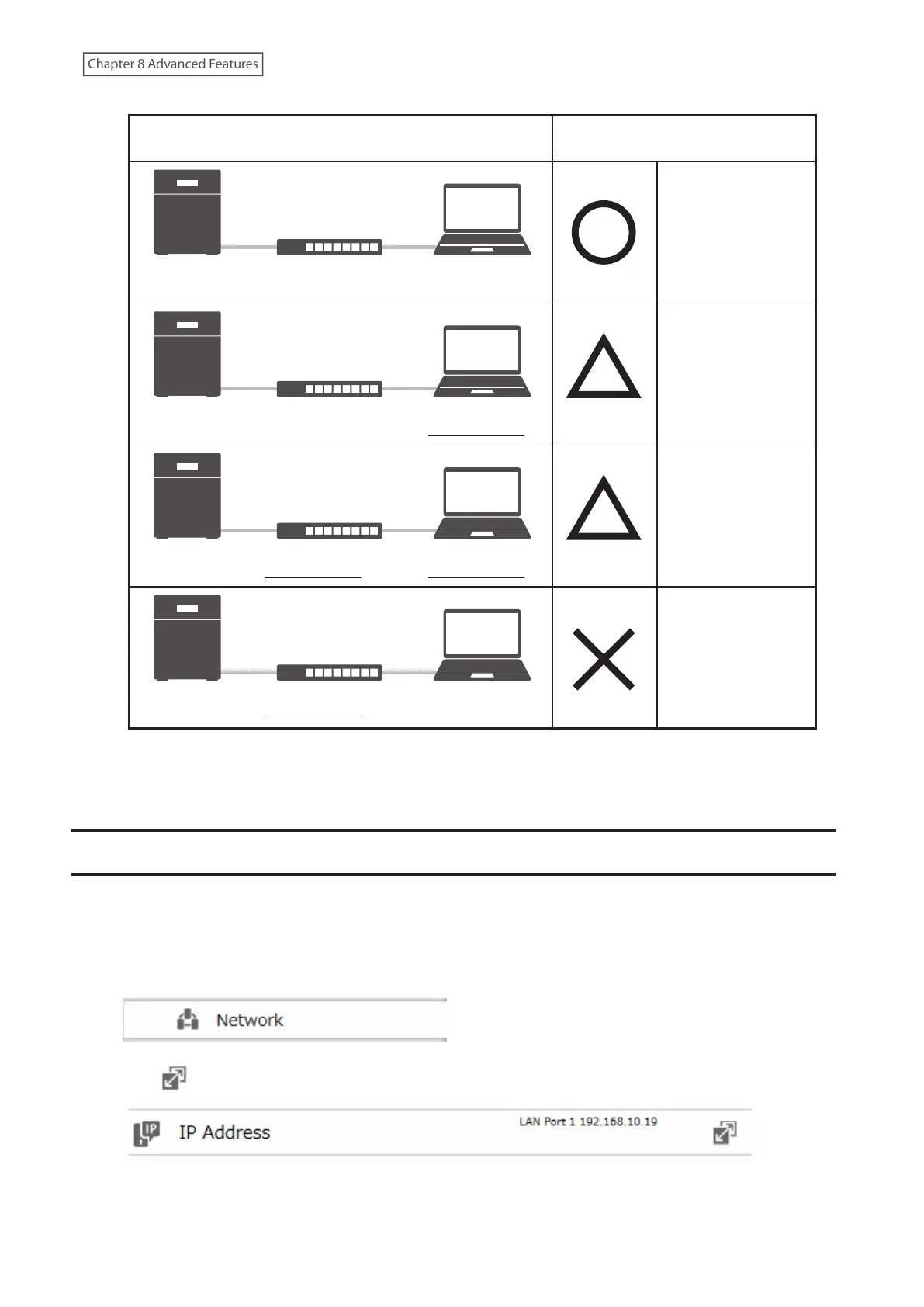
Jumbo Frame
Jumbo Frame
Compatible Switch
Jumbo Frame
Compatible PC
Jumbo Frame
Jumbo Frame
Compatible Switch
Jumbo Frame
Incompatible PC
Jumbo Frame
Jumbo Frame
Incompatible Switch
Jumbo Frame
Incompatible PC
Jumbo Frame
Jumbo Frame
Incompatible Switch
Jumbo Frame
Compatible PC
No data can be
transferred.
Transfer data
without using
jumbo frames.
Transfer data
without using
jumbo frames.
Transfer data using
jumbo frames.
TransmissionConnection
Note: Make sure the LinkStation’s Ethernet frame size is smaller than the hub or router’s. Larger frame sizes may not
transfer the data to the LinkStation correctly.
Changing the IP Address
Normally, the LinkStation’s IP address is set automatically by a DHCP server on your network. If you prefer, you can
set it manually. An easy way to do this is to change it on NAS Navigator2. The procedure to change the IP address in
Settings is below.
1 From Advanced Settings, click [Network].
2 Click to the right of “IP Address”.
3 Click the LAN port where the IP address will be changed.



 To Next Page