64
passwords for backup, but only one password can be used on the LinkStation. Folders that are configured
with a different password cannot be used.
• A backup password is not available when a new shared folder is created by a power user.
A backup destination has been created.
Note: If you want to back up to a Buffalo NAS device on another network, follow the procedure below to add the
Buffalo NAS device so it can be used as a backup destination.
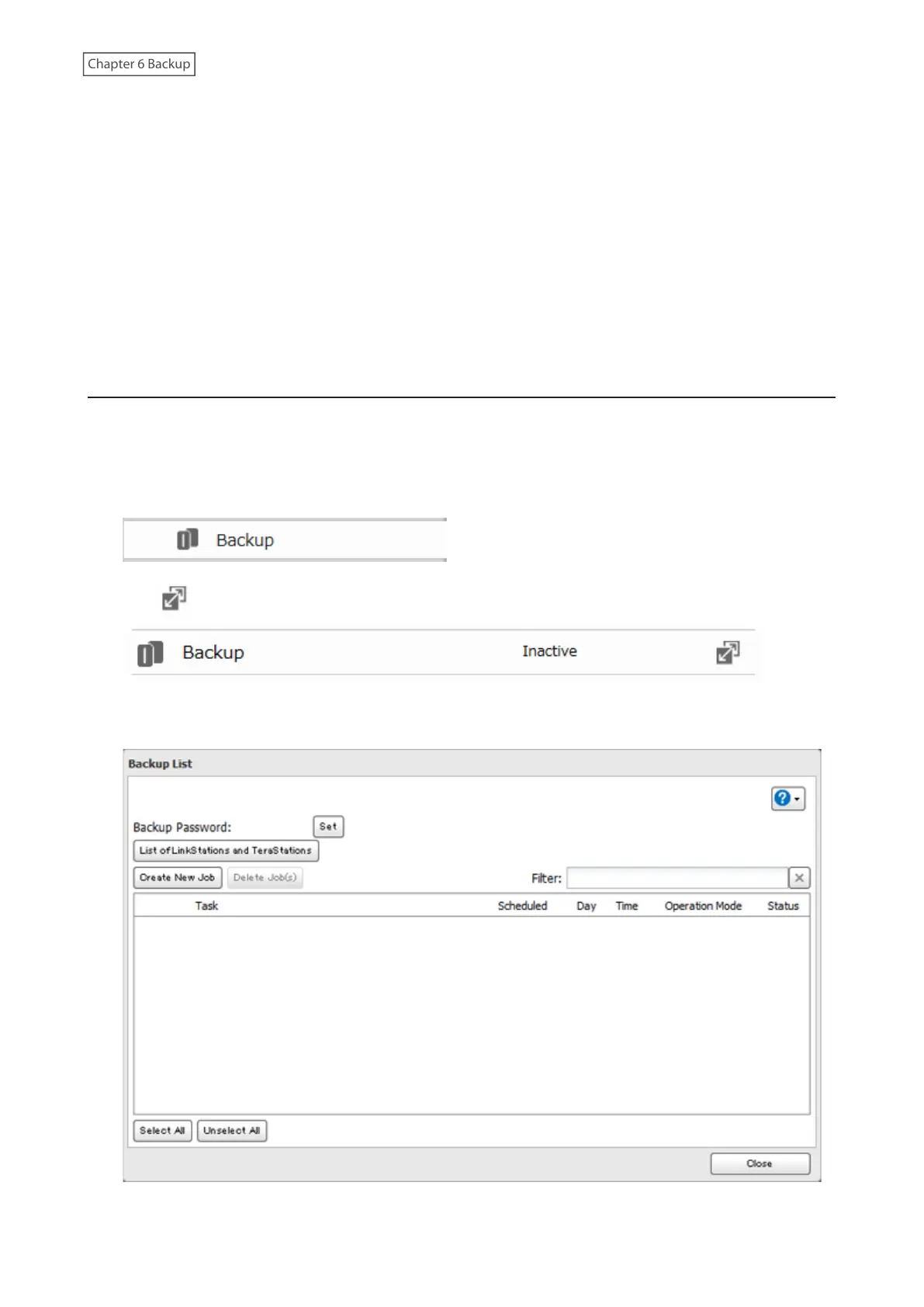
(1) From the Backup Job Settings screen, click [LinkStation and TeraStation List].
(2) Click [Add]; enter the IP address or hostname/FQDN of the destination Buffalo NAS device, then click [OK].
(3) Click [Close] when completed.
(4) Click [Refresh] and make sure the desired Buffalo NAS device has been added to the list.
Configuring a Backup Job
You can configure backup jobs by using another shared folder on the Buffalo NAS device or a USB drive connected
to the LinkStation as a destination. You can also back up to a Buffalo NAS device on another network as long as the
two networks are connected by a VPN or the route is configured properly.
1 From Advanced Settings, click [Backup].
2 Click to the right of “Backup”.
3 If you had configured a backup password for the backup source folder on another Buffalo NAS device or the
backup destination folder, click [Set]. If you hadn’t, skip to step 5.










 To Next Page