37
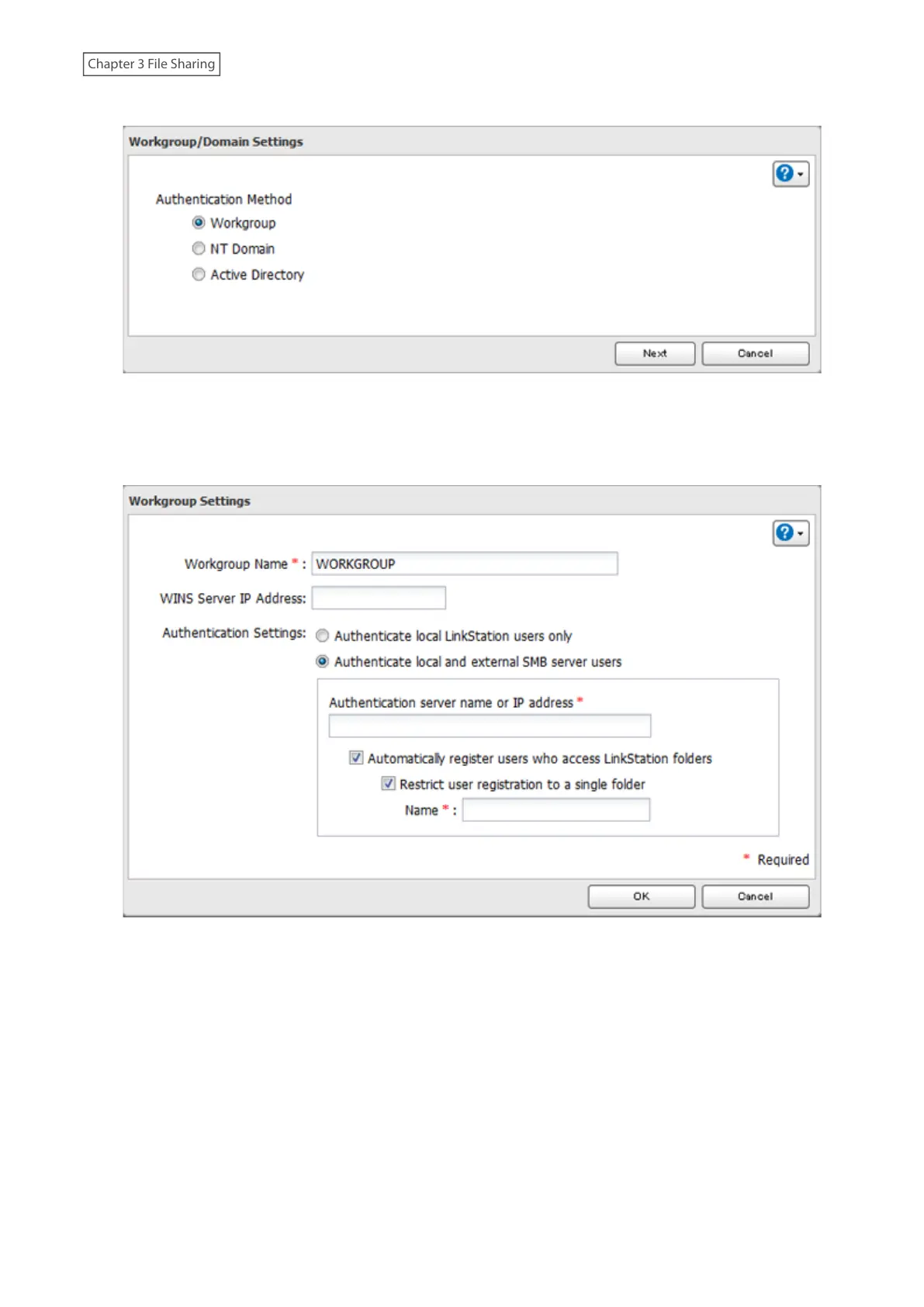
4 Select “Workgroup”, then click [Next].
5 Click [Yes].
6 Enter a workgroup name. Select “Authenticate local and external SMB server users” and enter the SMB server’s
IP address. You can also specify a server from another subnet.
7 If “Automatically register users who access LinkStation folders” is selected, users that access any of the
LinkStation’s folders will be automatically registered as external users. This process only applies to folders that
have access restrictions disabled. After new external users are added, disable this option to limit the number of
authenticated user accounts.
8 If “Restrict user registration to a single folder” is checked, the LinkStation will automatically create a read-
only shared folder. Enter the shared folder name. Users that access this specific folder will be automatically
registered as external users. If this setting is deselected at a later time, the LinkStation will automatically
remove the folder.
Note: Connect to the authentication folder via SMB, not FTP or AFP. Automatic user registration may not
work the first time if on macOS 10.8 (or later). If this occurs, try rebooting the LinkStation, then access the
authentication shared folder again.










 To Next Page