59
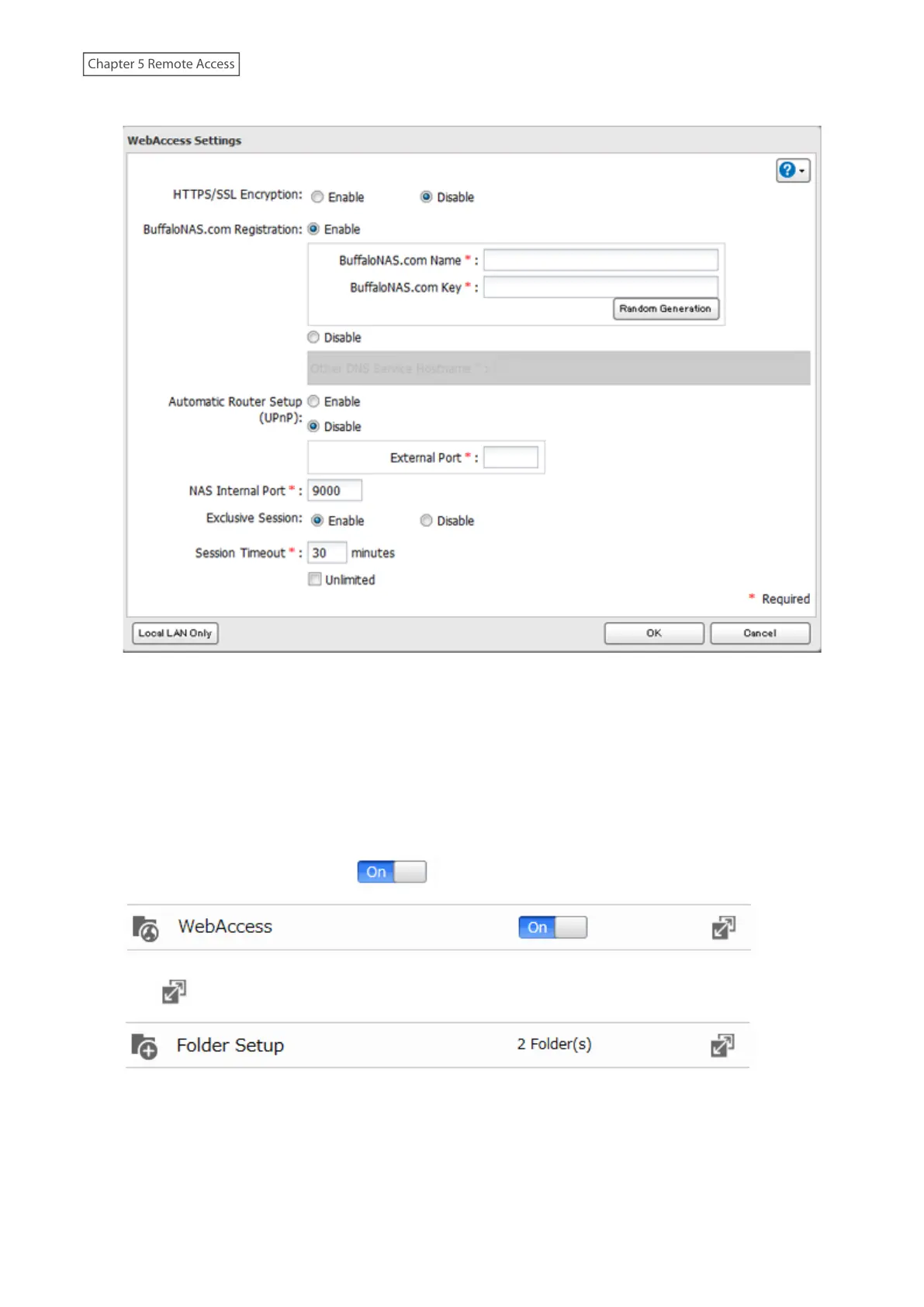
4 Configure the desired settings, then click [OK].
• To use SSL encryption for more secure data transfers, enable “HTTPS/SSL Encryption”. However, some
WebAccess applications may not support HTTPS/SSL encryption. Disable it if this is an issue. For more
details, refer to the WebAccess help guide.
• You may use the BuffaloNAS.com server as a DNS server, or disable it to use a different DNS server.
• Choose a “BuffaloNAS.com Name” and “BuffaloNAS.com Key” for your WebAccess account. Names and keys
may contain between 3 and 20 alphanumeric characters, underscores (_), and hyphens (-).
• If “Exclusive Session” is enabled, multiple users cannot be logged in to WebAccess at the same time. Only the
last login will be active.
• Enter a time in minutes (1 to 120, or “Unlimited”) before inactive users are logged out of WebAccess.
5 Move the WebAccess switch to the position to enable WebAccess.
6 Click to the right of “Folder Setup”.
7 Select a shared folder to publish.
Notes:
• For best results, create a new dedicated share for WebAccess.



 To Next Page