Setting up a printer on Windows XP
1
2
Refer to your printer’s manual installation instructions. You may need to install the printer driver from a software 3
disk.
Click [Start] - [Control Panel].4
Click [Network and Internet Connections] icon.5
Double-click on [My Network Places] - [View workgroup computers] - (Name of the TeraStation Server name) in 6
this order.
7
If “The printer driver to your computer will be automatically installed. (...) Would you like to continue?” is 8
displayed, click [Yes].
9
You have added a printer.
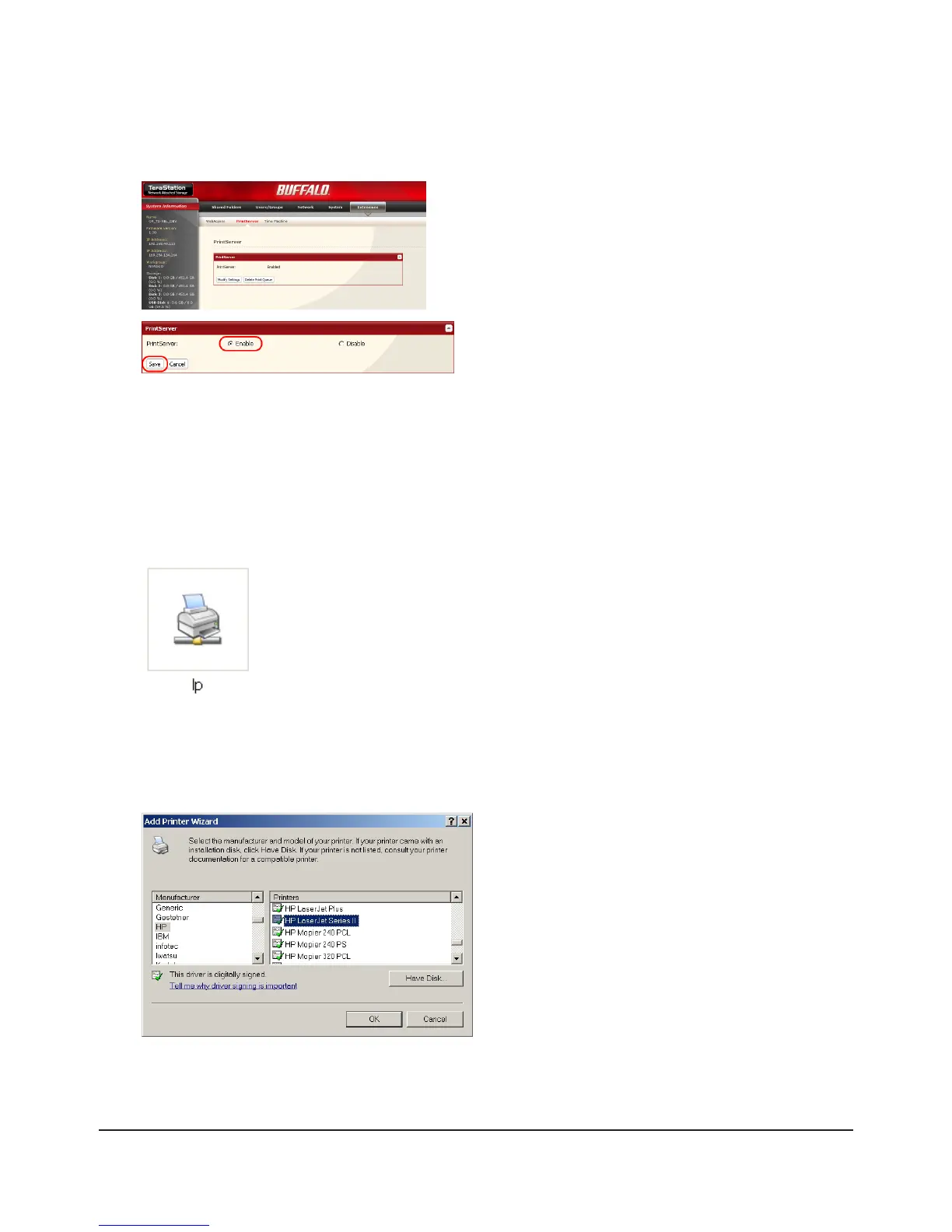
Choose [Enable] and click [Save].1
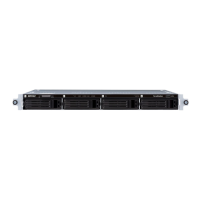
Double-click on the TeraStation’s printer icon (“lp”).
In the Web Admin interface, navigate to [Extensions] -
[PrintServer] and click [Modify Settings].
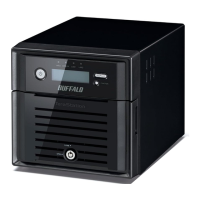
Select your printer. Choose the manufacturer on 1
the left and the model on the right. If your printer
is not listed, click [Have Disk] and follow the printer
manufacturer’s directions for installation.
Click [OK].2













 To Next Page