103
Playing and Erasing Recorded Images
5
Protecting an Image
You can erase-protect images to prevent accidental erasure.
You can press the < > button to switch between single-image and index display in order to
protect individual pictures.
1
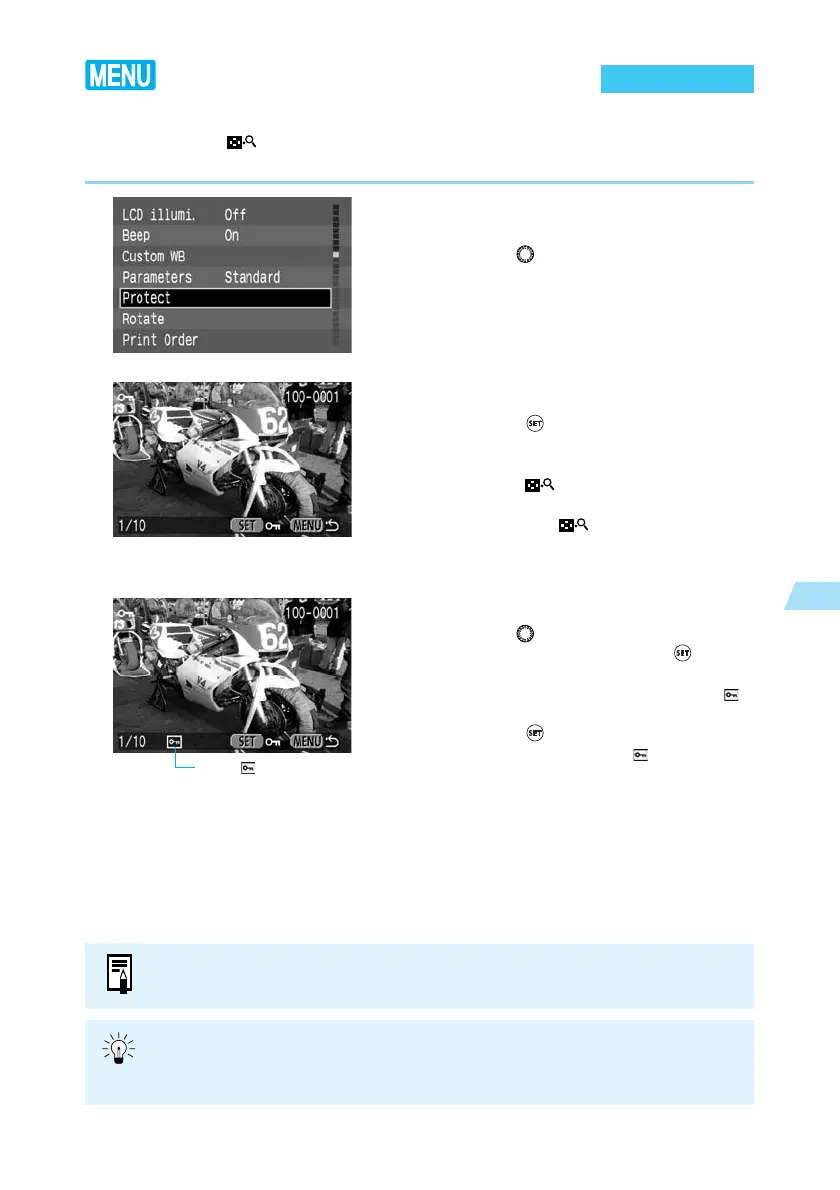
From the menu, select [Protect].
● Press the <
MENU
> button.
● Turn the < > dial to select [Protect].
2
Open the Protect Settings screen.
● Press the < > button.
➡ The display goes to the Protect Settings
screen.
● Press the < > button to show the
Protect Settings screen on an index display,
then press the < > button again to show
the Protect Settings screen on a single
image display.
3
Protect the image.
● Turn the < > dial to select the image you
want to protect, then press the < >
button.
➡ Protected images are identified with a < >
icon.
● Press the < > button again to cancel
protection and delete the < > icon.
● If you have other images to be protected,
repeat the above steps.
● Press the <
MENU
> button to exit Protect
mode.
The < > icon
Once an image is protected, it cannot be removed by the camera’s Erase function.
To erase a protected image, you must first remove the protection.
If you protect the images you need and erase all the images at once (→104), all
non-protected images will be erased. This is handy when you want to erase all the
images you do not need at once.










 To Next Page