Using
the
Menus
Many of the camcorder's functions can
be adjusted from the menus that open
after pressing the FUNC. button
((FUNC·I)·
For details about the available menu
options and settings, refer
to
the Menu
Options Lists
(OJ
63).
Selecting
a
FUNC.
Menu
Option
items not available will appear
grayed out.
• With some settings, you will need
to
make further selections and/or
press
@.
Follow the additional
operation guides that will appear
on the screen (such as the
iii
icon, small arrows, etc.).
4 Press [FUNC.) to save the settings
and close the menu.
You
can press
[FUNC.)
to
close the
menu at any time.
Selecting
an
Option
from
the
Setup
Menus
®
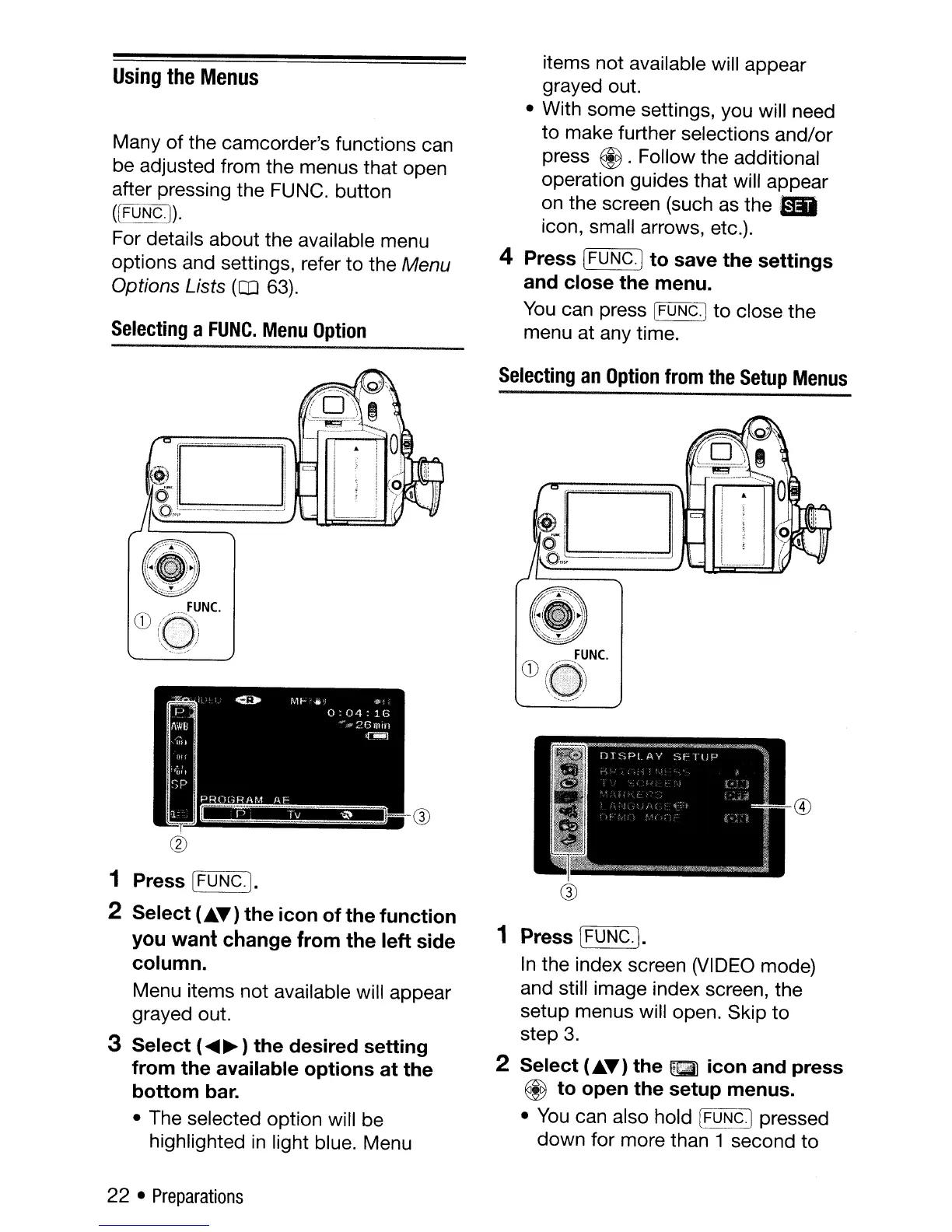
1 Press IFUNC.).
In
the index screen (VIDEO mode)
and still image index screen, the
setup menus will open. Skip
to
step 3.
2 Select (.....) the
~til
icon and press
@ to open the setup menus.
•
You
can also hold
[FUNCj
pressed
down
for more than 1 second to
®
1 Press [FUNC.].
2 Select (.....) the icon of the function
you
want
change from the left side
column.
Menu items
not
available will appear
grayed out.
3 Select (
.....
~
) the desired setting
from the available options at the
bottom
bar.
• The selected option will be
highlighted
in
light blue. Menu
22 •
Preparations



 To Next Page