[FUNG.) E)
[~
PRINT ORDER] Q Press
~
tliCID:
The image selection screen
appears.
Printing
Photos
FUNC
•
(CO
22)
FUNC.
•
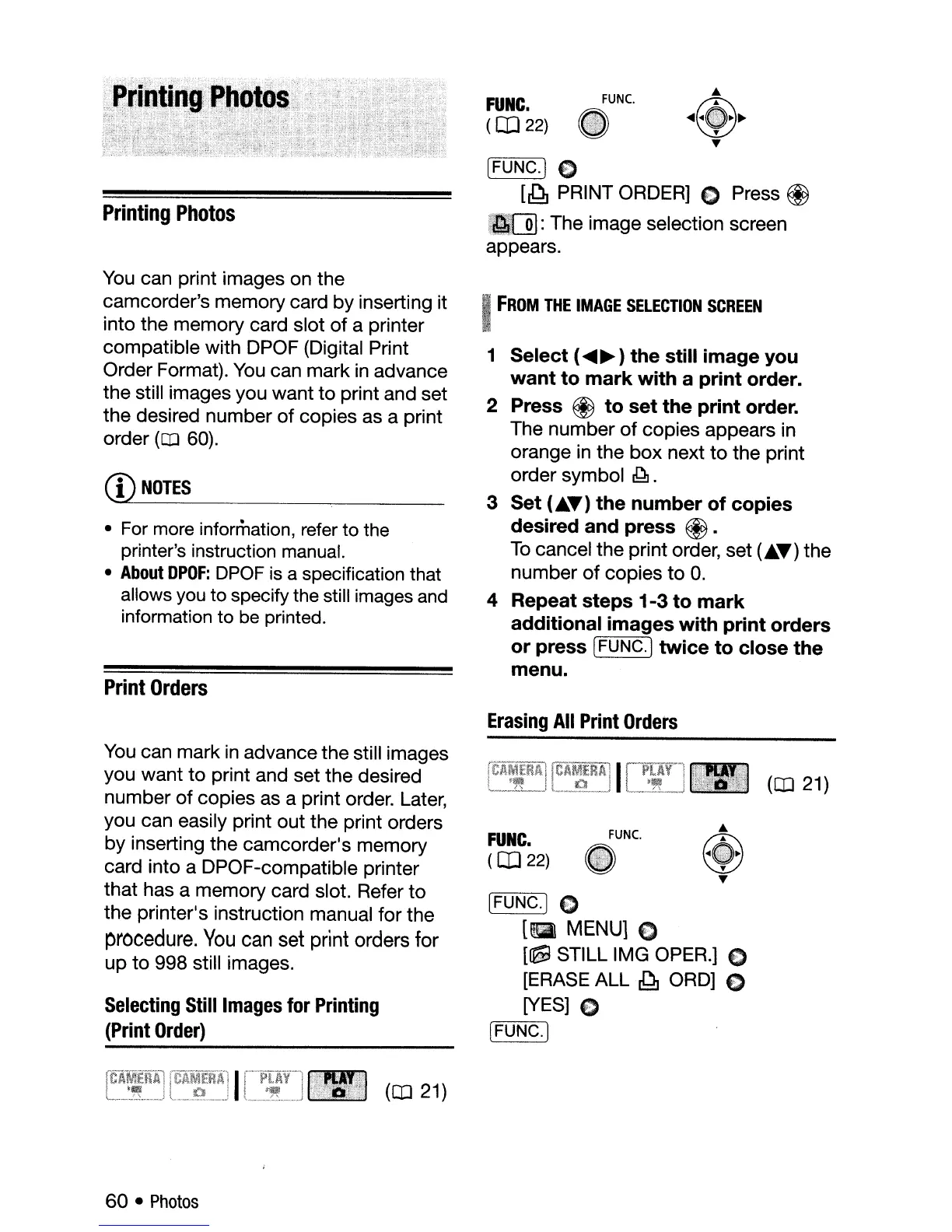
You
can print images on the
camcorder's memory card by inserting it
into the memory card slot
of
a printer
compatible with DPOF (Digital Print
Order Format).
You
can mark in advance
the still images you want
to
print and set
the desired number
of
copies as a print
order
(CD
60).
CD
NOTES
• For more information, refer to the
printer's instruction manual.
•
About
DPOF:
DPOF
is
a specification that
allows
you
to specify the still images
and
information to
be
printed.
Print
Orders
I
FROM
THE
IMAGE
SELECTION
SCREEN
1
Select
(
....
~
)
the
still
image
you
want
to
mark
with
a
print
order.
2 Press @
to
set
the
print
order.
The number
of
copies appears in
orange in the
box
next
to
the print
order symbol
~.
3
Set
(
....
)
the
number
of
copies
desired
and
press
@.
To
cancel the print order, set (
....
) the
number
of
copies
to
O.
4 Repeat
steps
1-3
to
mark
additional
images
with
print
orders
or
press
[FUNG.]
twice
to
close
the
menu.
Erasing
All
Print
Orders
[FUNG.] C
19
MENU]
€)
[mra
STILL IMG OPER.] E)
[ERASE ALL
~
ORD] E)
[YES] E)
~...,.."..---.,
(FUNG.]
You
can mark
in
advance the still images
you want
to
print and set the desired
number
of
copies as a print order. Later,
you can easily print out the print orders
by inserting the camcorder's memory
card into a DPOF-compatible printer
that has a memory card slot. Refer
to
the printer's instruction manual for the
procedure.
You
can
set print orders for
up
to
998 still images.
Selecting
Still
Images
for Printing
(Print
Order)
FUNC.
(CO
22)
..
@
~~
~
,.
~
(CD
21)
(CD
21)
60
•
Photos



 To Next Page