Disc type: @
DVD-RW·
VR
mode
FUNC
o
[FUNG.] E)
[tb MOVE] E) Move
(.T,
.....
~)
the orange marker
to
the scene's
new position*
0 Press @ 0
[YES]
* The original position of the scene and the
current position
of
the marker are displayed
at the bottom
of
the screen.
FUNC.
(OJ
22)
(CO
21)
FUNC
o
.
::
....
11
p~y
I
POINTS
TO
CHECK
FUNC.
(OJ
22)
Switching
Between
Original
and
Playlist
Scenes
(CO
21)
II
"l~J
POINTS
TO
CHECK
You
can divide scenes
in
order
to
leave
only the best parts and later cut out the
rest. Remember that when you divide
scenes
in
the playlist, you
do
not affect
your original recordings.
Disc type:
@ DVD-RW •
VR
mode
Dividing
Scenes
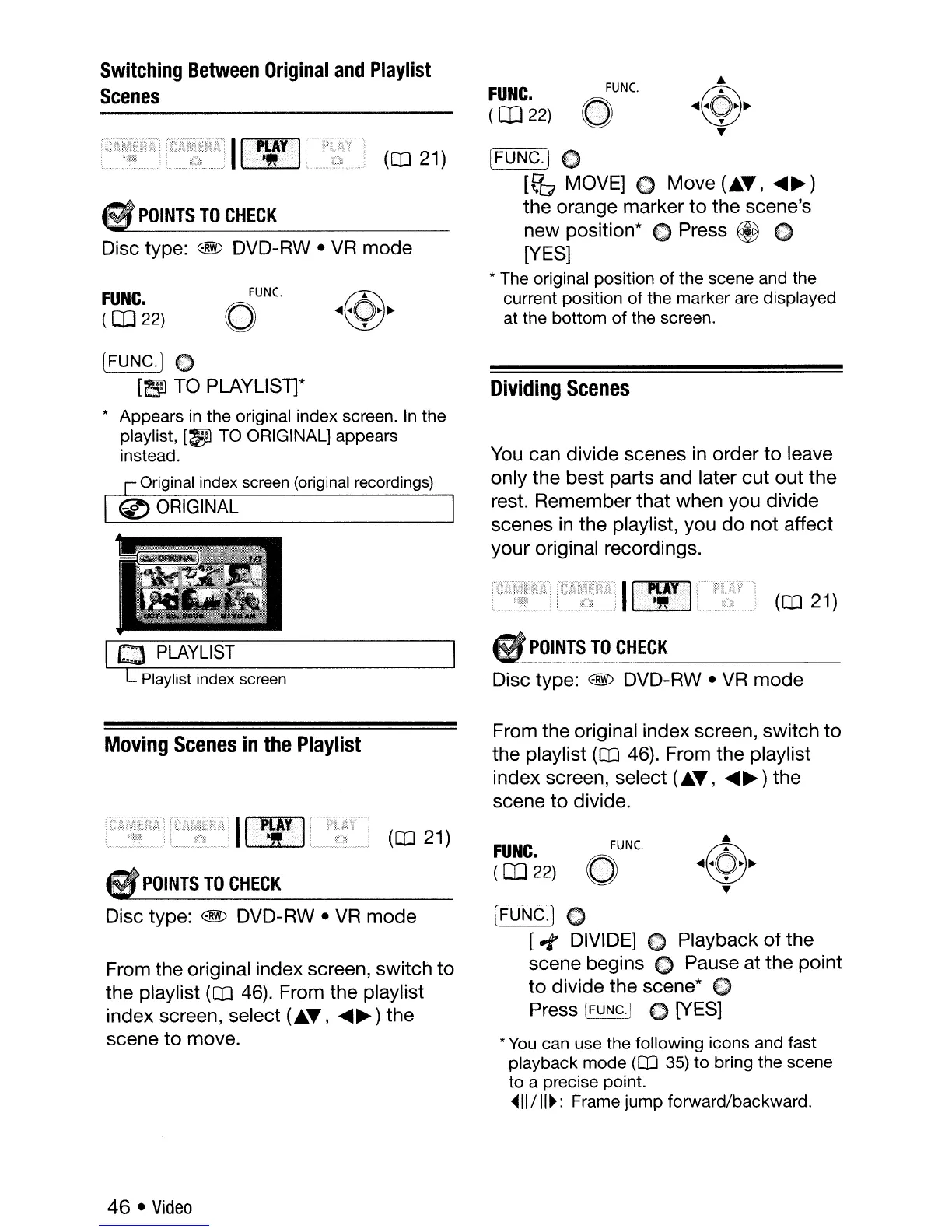
[ Playlist index
screen
[FUNG.]
€)
[!1J
TO
PLAYLlSll*
* Appears
in
the original index screen.
In
the
playlist,
[~
TO ORIGINAL] appears
instead.
C Original index screen (original recordings)
~ORIGINAL
1£:1
PLAYLIST
Moving
Scenes
in
the
Playlist
From the original index screen, switch
to
the playlist
([IJ
46).
From the playlist
index screen, select
(.T,
.....
~)
the
scene
to
divide.
. :
::
11
tV'
I
:.::
.
POINTS
TO
CHECK
(CO
21)
FUNG.
(OJ
22)
FUNC
o
Disc type: @
DVD-RW·
VR
mode
From the original index screen, switch to
the playlist
([IJ
46).
From the playlist
index screen, select
(.T,
.....
~)
the
scene
to
move.
[FUNG.) C
[-t
DIVIDE]
€)
Playback of the
scene begins
€)
Pause at the point
to
divide the scene* C
Press
[FUN~
C
[YES]
*
You
can use the following icons and fast
playback mode
([IJ
35)
to
bring the scene
to
a precise point.
~II/II~:
Frame jump forward/backward.
46 •
Video



 To Next Page