yourself
in
the
picture
when
recording
with
the
self
timer.
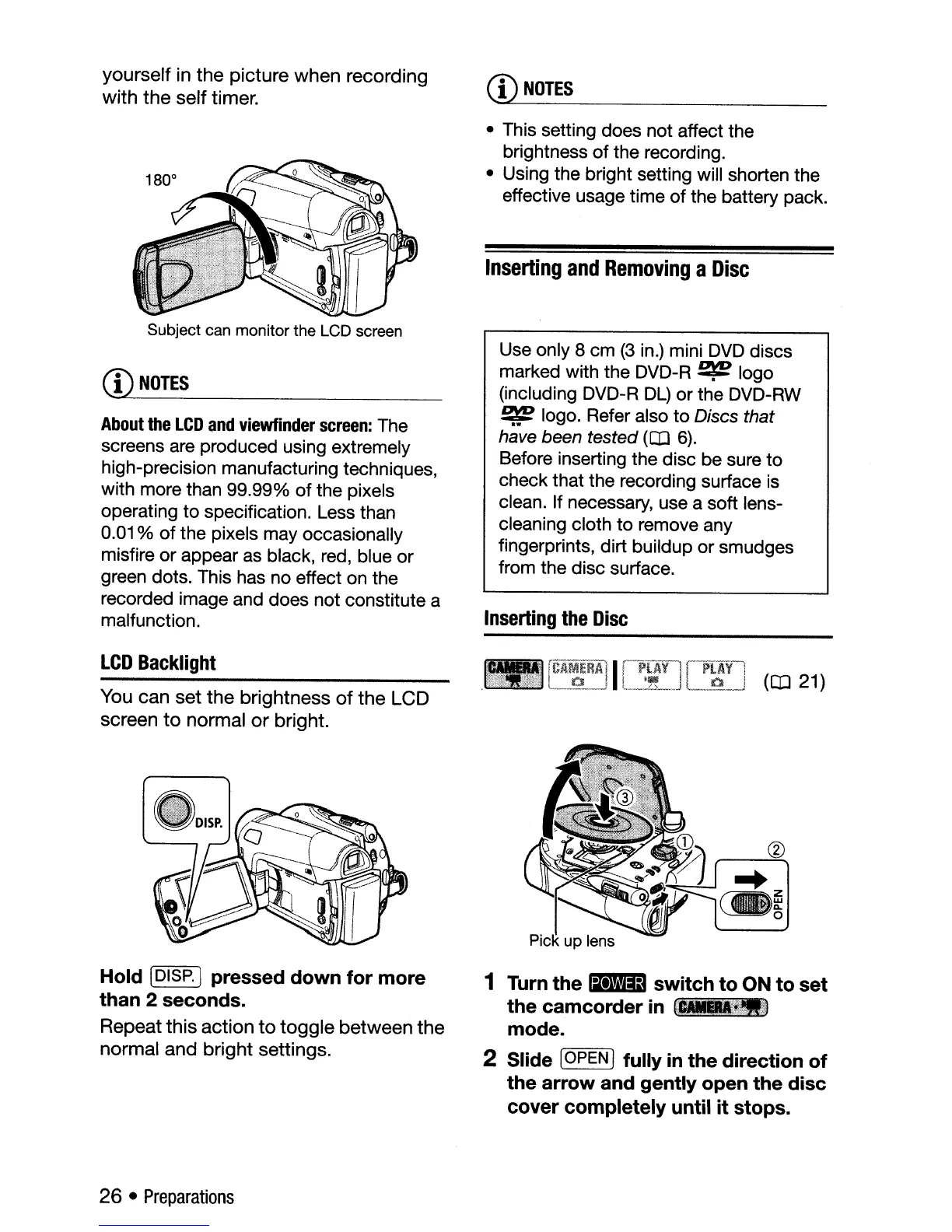
Subject can monitor the LCD screen
CD
NOTES
About
the
LCD
and
viewfinder
screen:
The
screens are produced using extremely
high-precision manufacturing techniques,
with more than
99.99%
of
the
pixels
operating
to
specification. Less than
0.01 %
of
the
pixels may occasionally
misfire
or
appear as black, red, blue
or
green dots. This has no effect on
the
recorded image and
does
not
constitute a
malfunction.
LCD
Backlight
You
can
set
the
brightness
of
the
LCD
screen
to
normal
or
bright.
Hold [DISP.j pressed
down
for
more
than 2 seconds.
Repeat
this
action
to
toggle
between
the
normal
and
bright
settings.
26 •
Preparations
CD
NOTES
• This setting
does
not
affect
the
brightness
of
the
recording.
• Using the bright setting will shorten
the
effective usage time
of
the
battery pack.
Inserting
and
Removing
a
Disc
Use only 8
cm
(3
in.) mini DVD discs
marked with
the
DVD-R
~
logo
(including DVD-R
DL)
or
the
DVD-RW
~
logo. Refer also
to
Discs that
have been tested
(OJ 6).
Before inserting the
disc
be
sure
to
check that the recording surface is
clean. If necessary, use a soft lens-
cleaning cloth
to
remove any
fingerprints, dirt bUildup
or
smudges
from
the
disc
surface.
Inserting
the
Disc
Pick
up
lens
1 Turn
the
ritiIIil
switch
to
ON
to
set
the
camcorder
in
_~.
mode.
2 Slide [OPEN 1
fully
in
the
direction
of
the
arrow
and gently open
the
disc
cover
completely
until
it
stops.



 To Next Page