~
Protecting Images
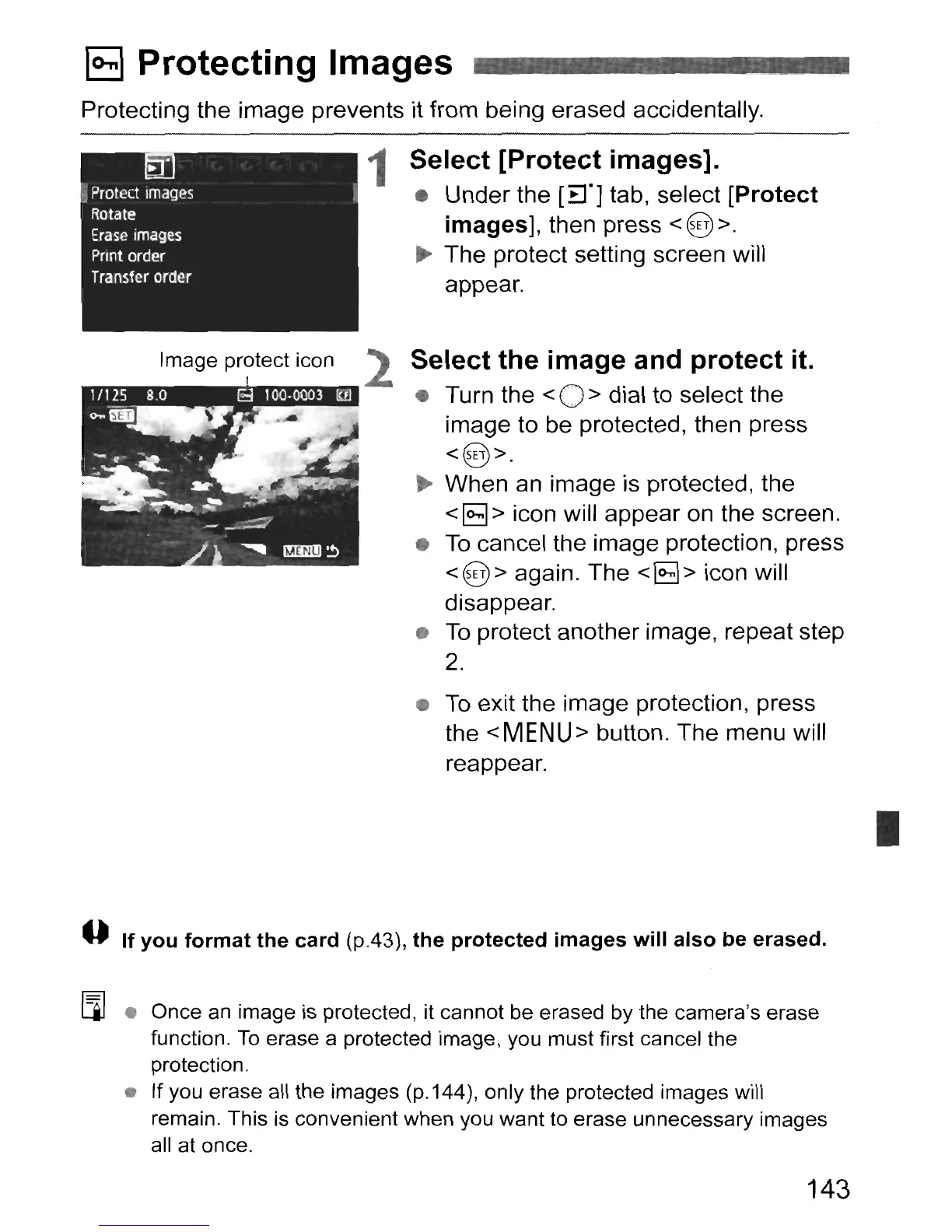
Protecting the image prevents it from being erased accidentally.
1
Select
[Protect
images].
• Under the
[Er]
tab, select
[Protect
images],
then press
<@>
.
..
The protect setting screen will
appear.
Image protect icon
2
Select
the
image
and
protect
it.
• Turn the < 0 > dial to select the
image to be protected, then press
<@>
.
..
When an image is protected, the
<a>
icon will appear on the screen.
•
To
cancel the image protection, press
<@> again. The
<~>
icon will
disappear.
•
To
protect another image, repeat step
2.
•
To
exit the image protection, press
the
<MENU>
button. The menu will
reappear.
I
--
If
you
format
the
card
(p.43),
the
protected
images
will
also
be erased.
[i] • Once an image is protected, it cannot be erased by the camera's erase
function.
To
erase a protected image, you must first cancel the
protection.
• If you erase all the images (p.144), only the protected images will
remain. This is convenient when you want to erase unnecessary images
all at once.
143


 To Next Page