t(
PictBridge
6
Preparing to Print
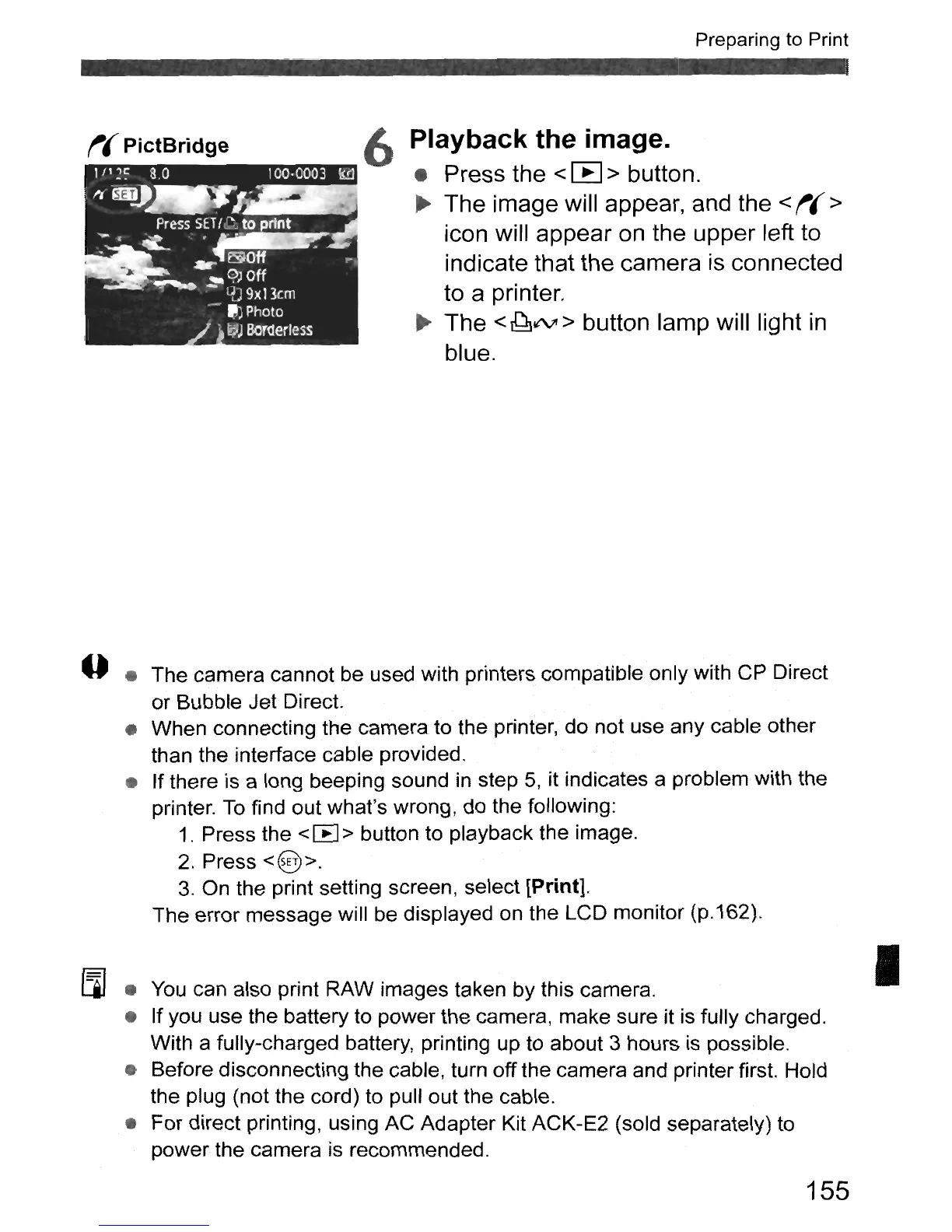
Playback the image.
• Press the <
[B
> button.
~
The image will appear, and the <
fI(
>
icon will appear on the upper left to
indicate that the camera
is
connected
to a printer.
... The
<
ddlltV'
> button lamp will light
in
blue.
--
• The camera cannot be used with printers compatible only with CP Direct
or Bubble Jet Direct.
• When connecting the camera to the printer, do not use any cable other
than the interface cable provided.
• If there
is
a long beeping sound in step
5,
it indicates a problem with the
printer.
To
find out what's wrong, do the following:
1.
Press the
<[E]>
button to playback the image.
2.
Press
<@>.
3.
On the print setting screen, select [Print].
The error message will be displayed on the LCD monitor (p.162).
(]I
•
You
can also print RAW images taken by this camera.
• If you use the battery to power the camera, make sure it is fully charged.
With a fully-charged battery, printing up to about 3 hours
is
possible.
• Before disconnecting the cable, turn off the camera and printer first. Hold
the plug (not the cord) to pull out the cable.
• For direct printing, using AC Adapter Kit ACK-E2 (sold separately) to
power the camera is recommended.
155
•


 To Next Page