4.
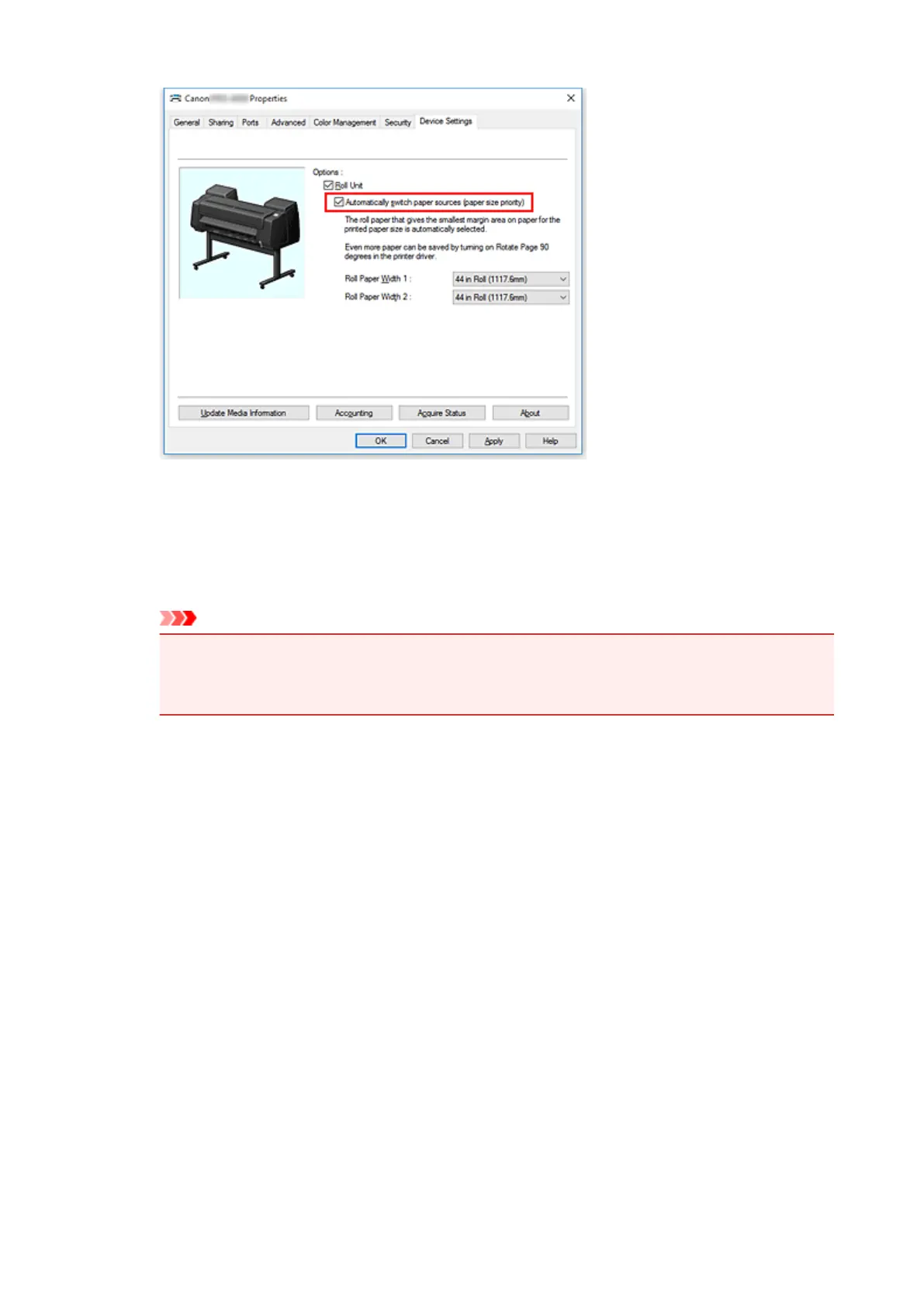
Click Acquire Status
When the confirmation message appears, click Yes.
Your computer gets the paper size information from the printer and displays the width of the roll
paper that is actually loaded in the printer.
Important
• When you replace the roll paper loaded in the printer, always click Acquire Status to obtain
the roll paper width information. If the roll paper width is not set correctly, you may not be able
to print the document as intended.
5.
Open the printer driver setup window
6.
Select the media type
Select the type of paper loaded in the printer from the Media Type list on the Main tab.
7.
Select the paper size
From the Page Size list on the Page Setup tab, select the same size as that of the document that
was created with the application software.
8. For Paper Source, select Roll Paper (Auto)
9. Select roll paper width
For Roll Paper Width, select the width of the roll paper loaded in the printer.
10. Set the other items
To rotate the document 90 degrees and print it, select the Rotate Page 90 degrees check box.
475


 To Next Page
 Loading...