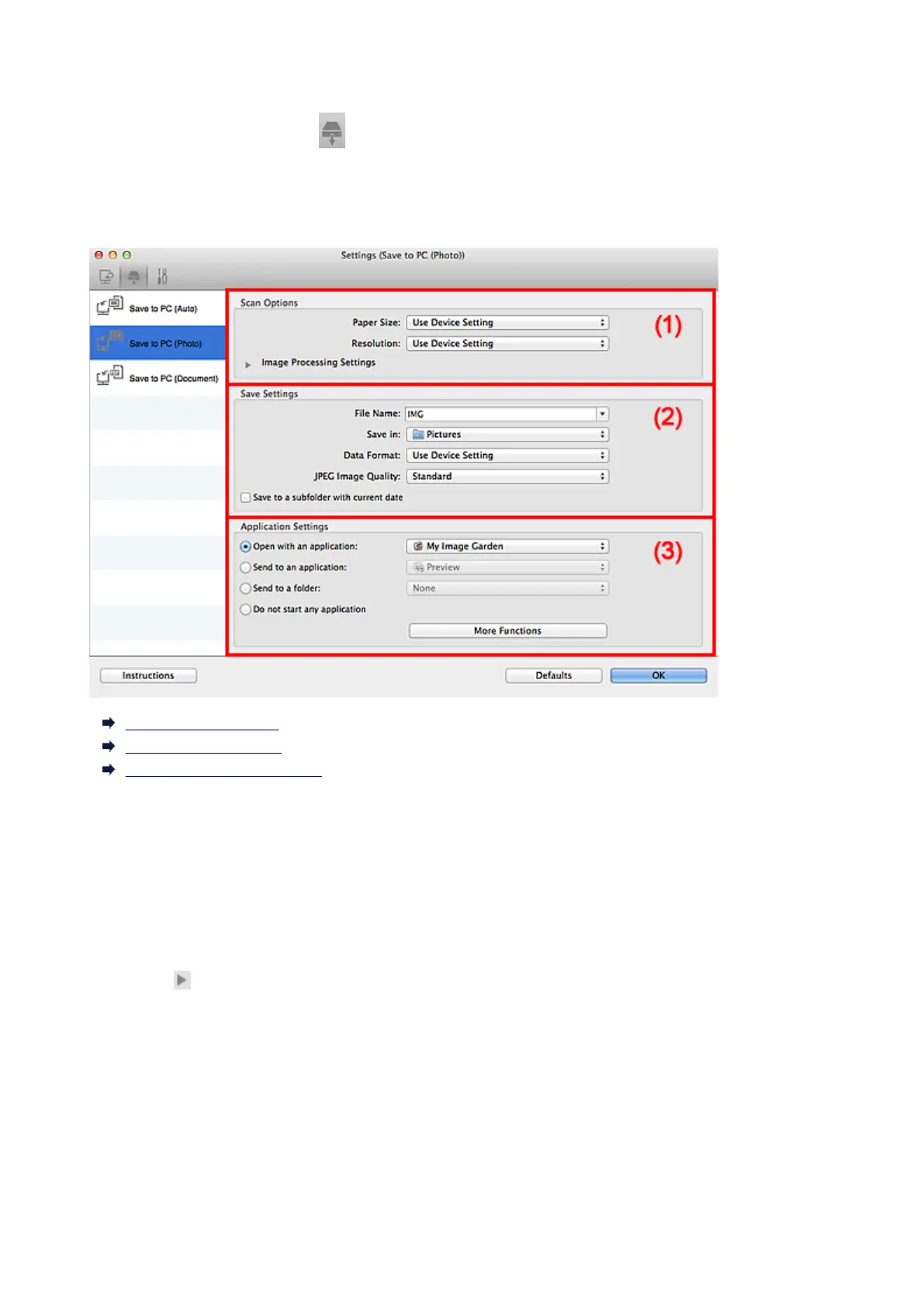
Settings (Save to PC (Photo)) Dialog
Click Save to PC (Photo) on the (Scanning from the Operation Panel) tab to display the Settings
(Save to PC (Photo)) dialog.
In the Settings (Save to PC (Photo)) dialog, you can specify how to respond when saving images to a
computer as photos after scanning them from the operation panel.
(1) Scan Options Area
(2) Save Settings Area
(3) Application Settings Area
(1) Scan Options Area
Paper Size
Set from the operation panel.
Resolution
Set from the operation panel.
Image Processing Settings
Click (Right Arrow) to set the following.
Sharpen outline
Emphasizes the outline of the subjects to sharpen the image.
(2) Save Settings Area
File Name
Enter the file name of the image to be saved. When you save a file, the date and four digits are
appended to the set file name in the "_20XX0101_0001" format.
438









 To Next Page