16
Preparing to Download Images
Items to Prepare
z
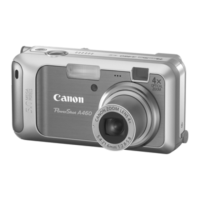
Camera and computer
z
Canon Digital Camera Solution Disk supplied with the camera
z
Interface cable supplied with the camera (always use the supplied interface
cable)
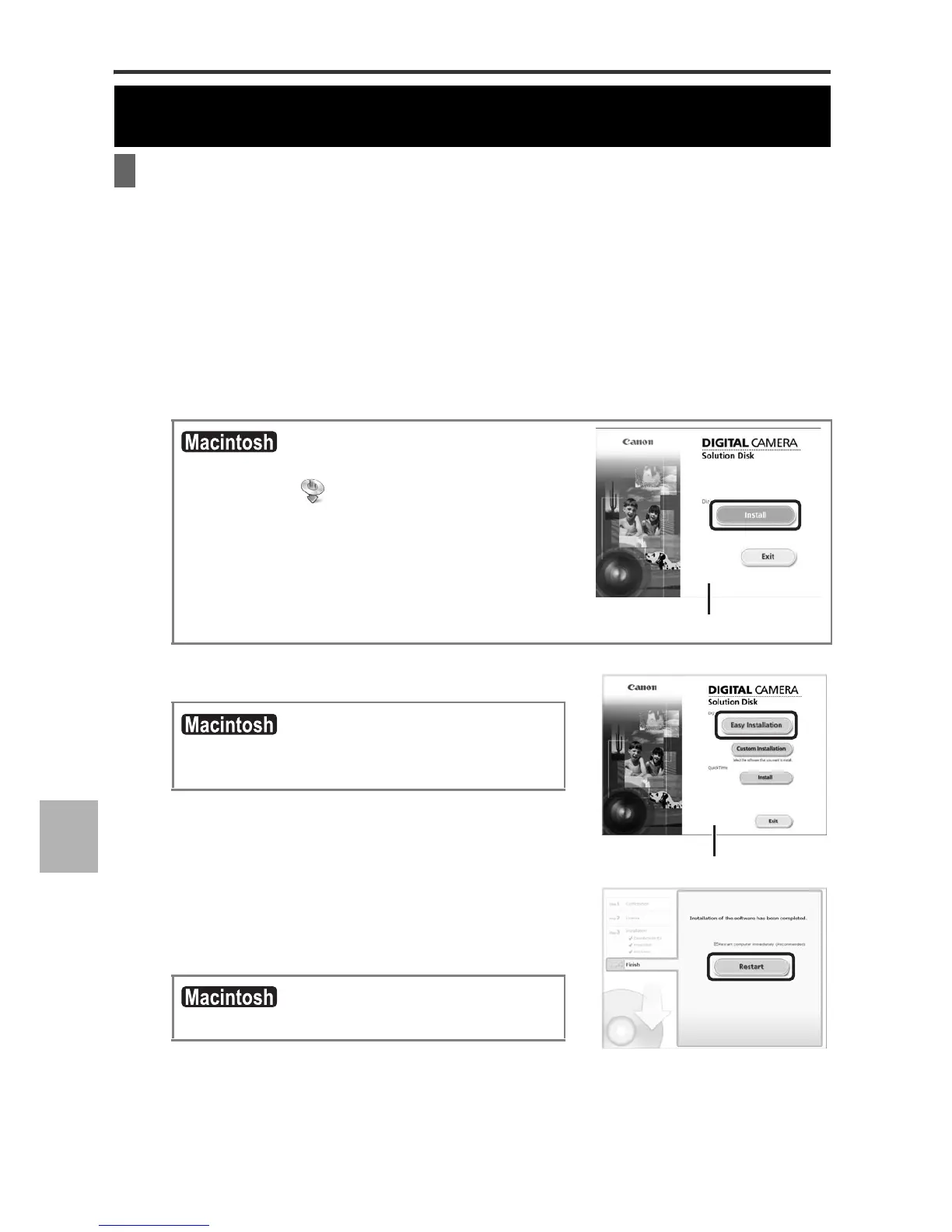
1 Install the software.
1. Place the Canon Digital Camera Solution Disk in the computer's
CD-ROM drive.
2. Click [Easy Installation].
Proceed with the installation, confirming the
contents as you proceed.
3. When the installation is finished, the
[Finish] or [Restart] button appears. Click
the one that appears.
4. When the screen returns to the desktop display, remove the Canon
Digital Camera Solution Disk from the CD-ROM drive.
Ensure that you install the software first before connecting the camera to the
computer.
Double-click the [Canon Digital Camera
Installer] icon in the CD-ROM window.
When the installer panel appears, click [Install].
Select [Easy Installation] as the setup type
and click [Next].
When the installation is finished, click [OK].
Installer panel
Installer panel
Downloading Images to a Computer





 To Next Page