42
You can easily change the colors in an image when it is shot for
both stills and movies, allowing you to enjoy producing various
effects. Depending on the shooting conditions, however, the images
may appear rough or you may not get the expected color. Before
photographing important subjects, we recommend taking trial shots
and checking the results. By setting the [Save Original] function
(p. 45) to [On] when shooting stills, you can also record both the
altered image and the original, unaltered image.
Depending on the Special Scene mode, the ISO speed may
increase, increasing the amount of noise in the image.
Shooting with Color Accent Mode
Changing the Colors and Shooting
Shooting Mode
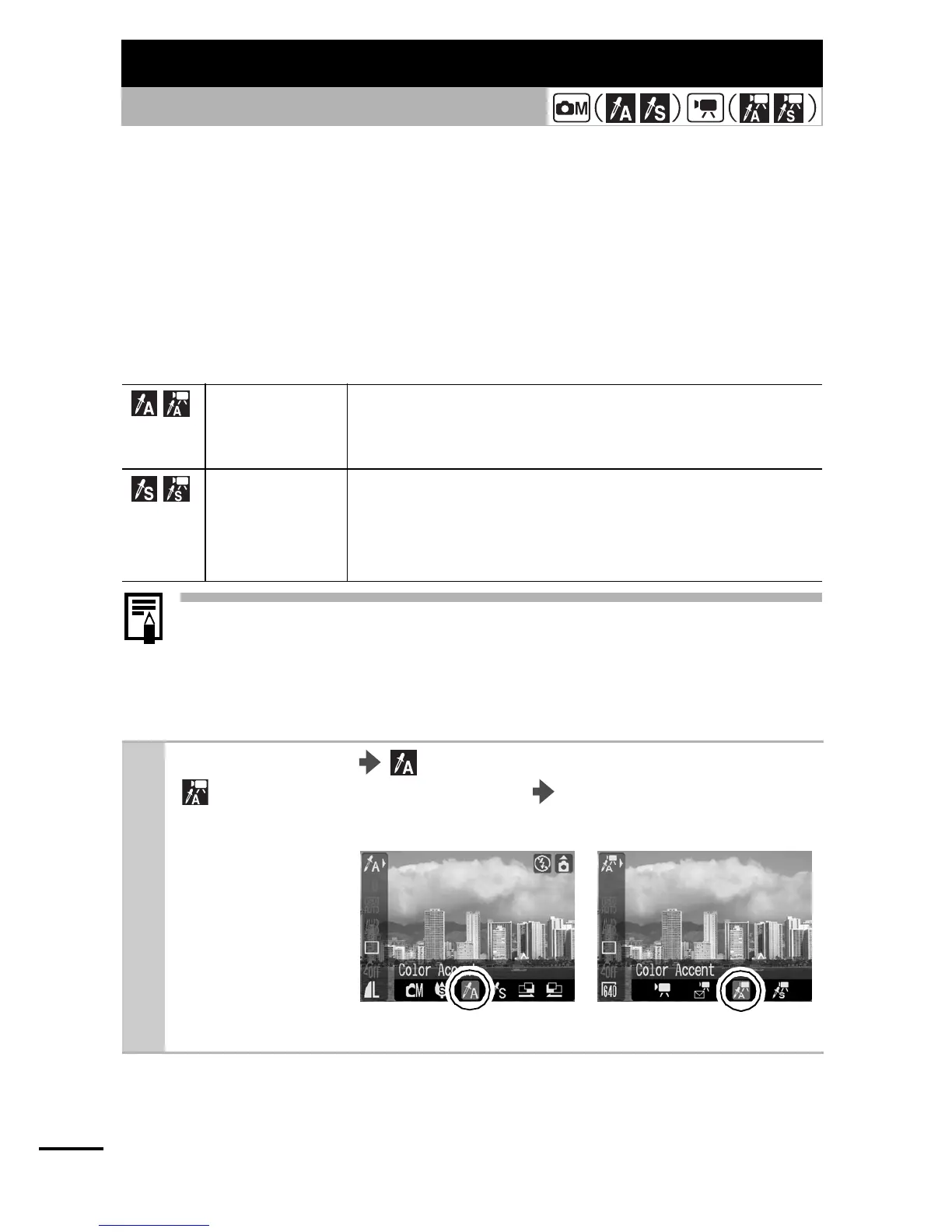
Color Accent Shoot with all colors, with the exception of the
color specified in the LCD monitor, in black and
white.
Color Swap Specify a color in the LCD monitor, and shoot with
another color replacing the one specified. The
specified color can only be swapped with one
other color.
1
FUNC. Menu (Color Accent: still image)/
(Color Accent: movie)
FUNC./SET
button
.
See Menus and
Settings (p. 21).
Still images Movies





 To Next Page