56
1
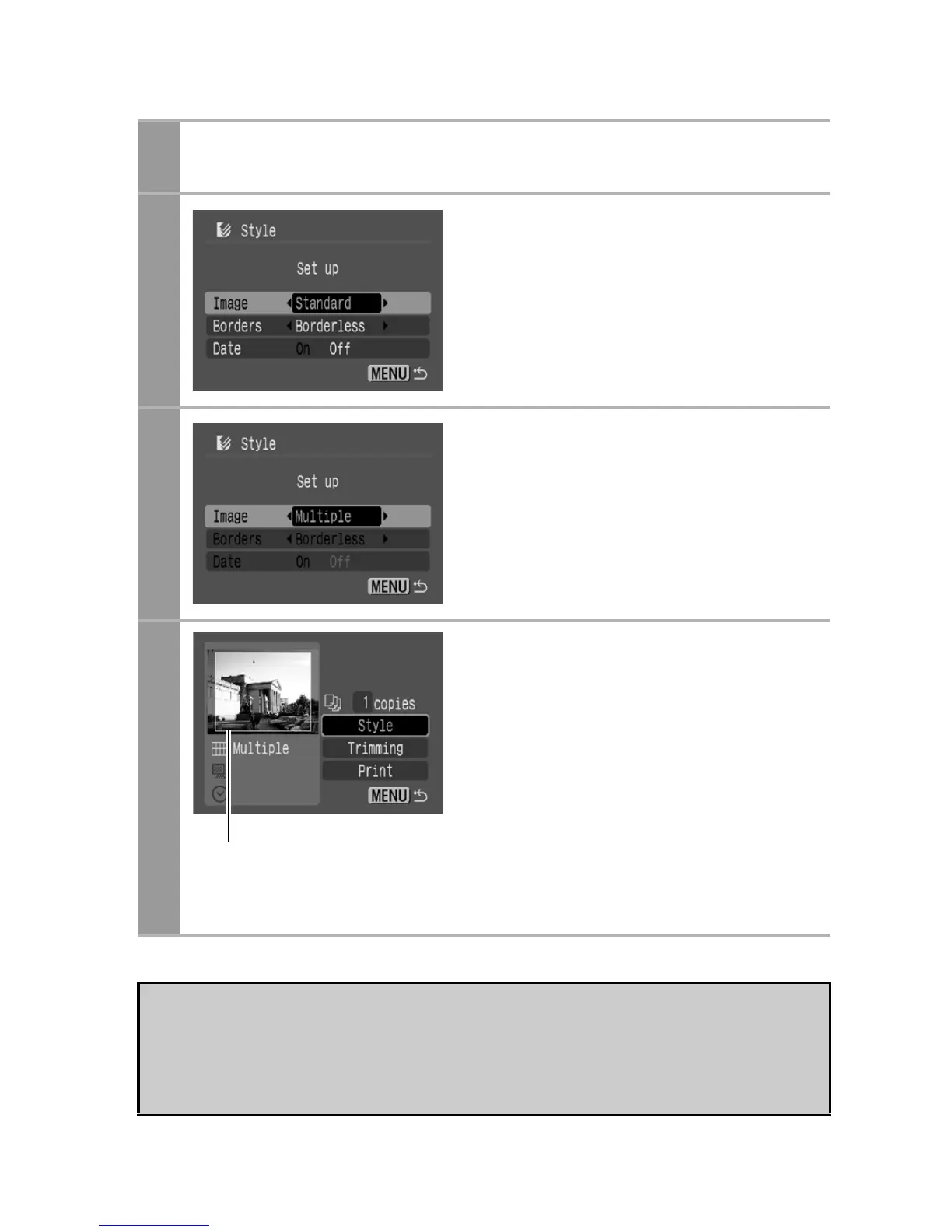
In the print order screen, select [Style] and press
the SET button.
2
Select [Image], [Borders], or
[Date].
3
Select settings as needed.
4
Press the MENU button to
end the setting selection
process.
With borderless or multiple prints,
the top, bottom and sides of the
image may be cropped slightly. If
you have not specified a trimming
setting, a frame will appear around
the area of the image that will be
printed, allowing you to check the
portion that will be cropped.
If you select an image which has had the shooting date
embedded in it using a camera with the Postcard Print mode,
[Date] in the [Style] menu will be set to [Off]. If you set [Date] to
[On], dates will appear twice on the printed image.
Print Area Frame





 To Next Page