Printing Photographs Directly from a Digital Camera
Printing
Photographs
Directly
from
a
Canon
Bubble
Jet
Direct
Compatible
Digital
Camera
The
following is a list
of
media types that
can
be
set
on
a
Canon
Bubble
Jet
Direct
compatible digital camera or digital video camera (PictBridge incompatible) along
with
their
limitations when connected to this printer.
•
Media
Types
for
Digital
Camera
When you connect a digital camera, you
can
use the following media:
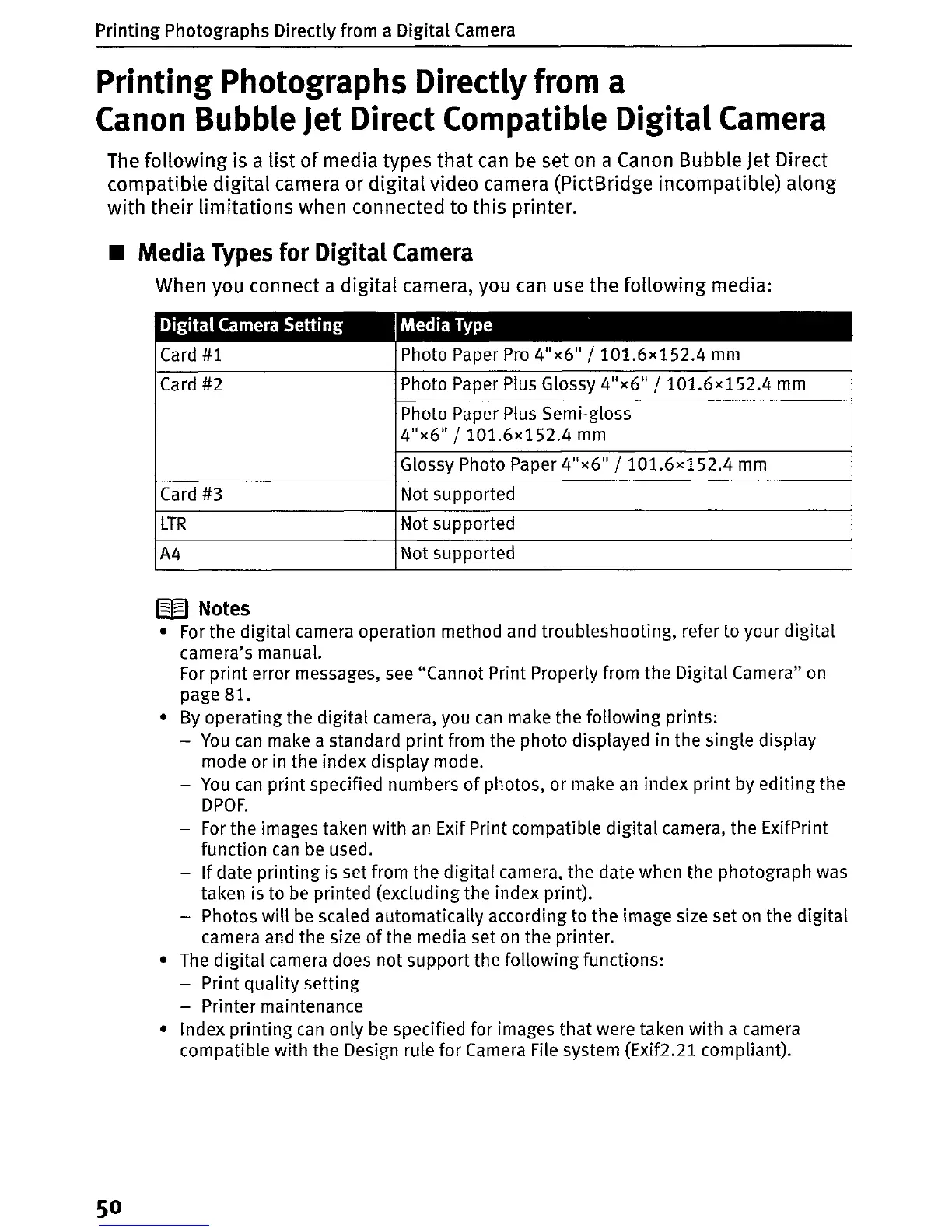
Digital
Camera
Setting
IMedia Type
Card
#1
Photo Paper
Pro
4
11
x6
11
j101.6
x
152.4
mm
Card #2
Photo Paper Plus Glossy
4"x6
11
j101.6
x
152.4
mm
Photo Paper Plus Semi-gloss
4
11
x6"
j101.6
x
152.4
mm
Glossy Photo Paper 4
11
x6
11
j101.6
x
152.4
mm
Card #3
Not supported
LTR
Not supported
A4
Not supported
W Notes
•
For
the digital camera operation method and troubleshooting, refer to your digital
camera's manual.
For
print error messages,
see
"Cannot Print Properly from the Digital Camera" on
page 81.
•
By
operating the digital camera, you
can
make the following prints:
-
You
can make a standard print from the photo displayed in the single display
mode or in the index display mode.
-
You
can
print specified numbers
of
photos, or make
an
index print by editing the
DPOF.
-
For
the images taken with
an
Exif Print compatible
digital
camera, the ExifPrint
function
can
be used.
-
If
date printing
is
set from the digital camera, the date when the photograph was
taken is to
be
printed (excluding the index print).
- Photos will be scaled automatically according to the image size set
on
the
digital
camera and the size
of
the media set
on
the printer.
•
The
digital camera does not support the following functions:
- Print quality setting
- Printer maintenance
• Index printing
can
only
be
specified for images
that
were taken with a camera
compatible with the Design rule for Camera File system (Exif2.21 compliant).
50





 To Next Page