EasyManua.ls Logo

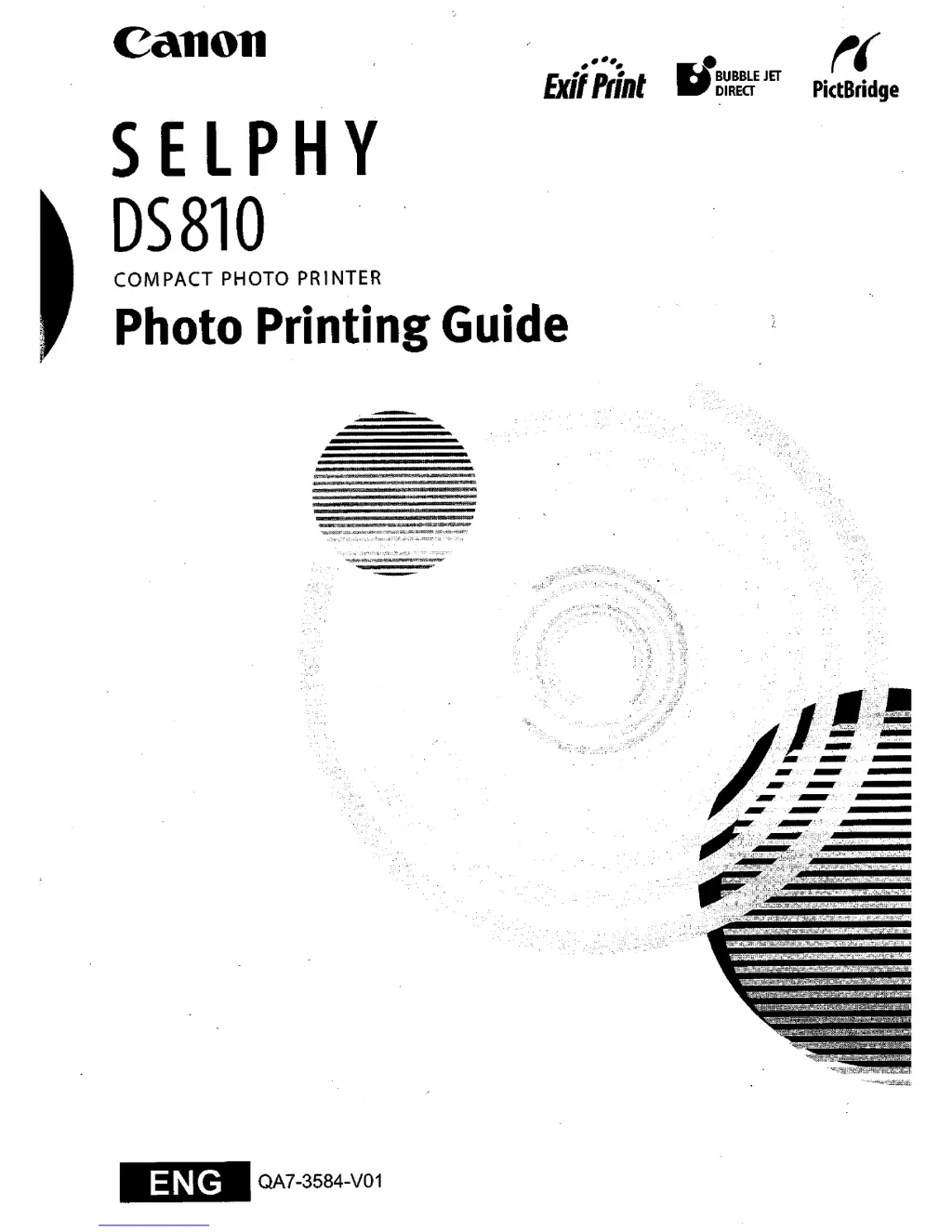
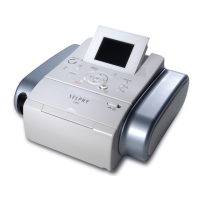
Canon SELPHY DS810 - User Manual

Canon SELPHY DS810
108 pages
Print Icon
To Next Page IconTo Next Page
Loading...
Canon
~~~~~
Exi",;nl
SElPHY
D5810
COM
PACT
PHOTO
PR
INTER
Photo
Printing
Guide
~BUBBLEJET
"DIREO
t(
PictBridge
-,*,,,Wi-iil'
,~"
- ,
<,"';~~-
..
'="A:':+,';";;;'-:J-.,"·;;-"':;';'_'·''-'-''''-'
}
'.ii
ll
/J
,
'.y~~
'.i ;
•.
~="""'
...
'--
_.....-
--
-
_._.-
__
..
,-
__.•....
.-
.';L:_"
jl!'~~S/?iJ.·
....,.'
QA7-3584-V01

Table of Contents

Other manuals for Canon SELPHY DS810

Questions and Answers

Summary

Introduction

Symbols

Explains symbols used in the guide.

Easy Setup Instructions

Unpack the Printer

Details the items included in the printer box.

Preparing the Printer

Guides on setting up the printer on a flat surface and connecting power.

Installing the Print Head

Step-by-step instructions for installing the print head.

Installing an Ink Tank

Instructions for installing an ink tank, including cautions.

Printer Parts and Their Functions

Front View

Identifies and describes the external components of the printer.

Operation Panel

Details the buttons, lamps, and displays on the printer's control panel.

Rear View

Identifies external ports and connections on the rear of the printer.

Inside the Printer

Shows internal components like the print head holder and levers.

Menu Screen

Explains how to navigate the printer's menu system and its main options.

Tool Box Submenus

Details the Maintenance and Device settings available within the Tool Box.

Print Menus in Print Studio

Describes various print options available in the Print Studio menu.

Preparation When Using the Printer

Turning On;Off the Printer

Provides instructions on how to power the printer on and off safely.

Using a Memory Card

Lists supported memory card types and how to insert them.

Inserting a Memory Card

Detailed guide on inserting various types of memory cards into the printer.

Removing a Memory Card

Instructions for safely removing a memory card from the printer.

Loading Paper

Explains how to load paper and lists media types to avoid.

Loading the Print Media

Step-by-step guide for loading paper correctly into the printer.

Media Types for Card Direct Printing

Table detailing paper types, sizes, and load limits for direct printing.

Changing the Print Settings

To Change Print Setting

Explains how to adjust various print settings via the printer's operation panel.

Print Setting Items

Lists and describes available print settings on Tab 1.

Print Setting Items

Lists and describes available print settings on Tab 2.

Printing from the Memory Card

Printing Photograph

Instructions for printing photos directly from a memory card.

Printing Photograph Displayed on the LCD-Photo Gallery

Guides on viewing and printing photos from the memory card via the LCD.

Specifying How Many Copies to Print for Each Photograph-Photo Print

Explains how to select the number of copies for individual photos.

Other Useful Functions

Introduces features for printing photos as postcards or stickers.

Searching for Photos with the Shooting Date-Search

Details how to search and print photos by shooting date.

Printing a Specified Area-Trimming

Instructions on how to select and print a specific portion of a photo.

Printing Multiple Photos on One Sheet of Media-Layout Print

Guides on printing multiple photos on a single sheet in various layouts.

Printing Stickers from a Photo-Sticker Print

Instructions for printing photos on Canon Photo Stickers.

Printing with Adjusted Color Balance-Color Balance

Explains how to print color samples and select a preferred hue.

Other Print Functions

Covers printing all photos, index prints, and DPOF prints.

Changing the Other Settings

Date display

How to change the date format for printing.

Adjust contrast

How to adjust LCD contrast for better readability.

Slide show setting

How to configure photo display settings for slideshows.

Language selection

How to change the display language of the printer's LCD.

Reset setting

How to reset printer settings to factory defaults.

Printing Photographs Directly from a Digital Camera

Connecting a PictBridge Compliant Device

Guides on connecting PictBridge compliant devices for direct printing.

Confirming or Changing the Device Settings

Explains how to configure device settings for printing.

About Date;File No. print

How to print date or file numbers on photos.

Printing Photographs Directly from a Canon Bubble Jet Direct Compatible Digital Camera

Media Types for Digital Camera

Lists media types compatible with Canon Bubble Jet Direct cameras.

Printing Photographs from a Wireless Communication Device

Setting the Page Size, Media Type, and Layout When Printing from a Mobile Phone or a PDA

Configures print settings for wireless printing from mobile devices.

Performing Infrared Communication

Steps for printing photos using infrared communication.

Performing Bluetooth Communication

Steps for printing photos using Bluetooth communication.

Setting Items

Details device name, access refusal, security, and passkey settings.

Printing with the Computer

Installing the Printer Driver

Guides on installing the printer driver for Windows and Macintosh.

How to View the On-screen Manual

Instructions on accessing the printer's on-screen manuals.

Printing Maintenance

When Printing Becomes Faint or Colors are Incorrect

Troubleshoots faint prints or incorrect colors by cleaning the print head.

Printing the Nozzle Check Pattern

Prints a pattern to check ink ejecting from nozzles.

Print Head Cleaning

Cleans the print head to resolve issues like white stripes.

Print Head Deep Cleaning

Performs a more powerful cleaning cycle for print quality issues.

Aligning the Print Head

Adjusts the print head position to improve print quality.

Replacing an Ink Tank

Step-by-step guide for replacing an empty ink tank.

Resetting the Ink Counter

Resets the ink counter after replacing an ink tank.

How Low Ink Warning Works

Explains how the low ink warning system operates.

Troubleshooting

An Error Message is Displayed on the LCD

Provides solutions for common error messages shown on the LCD.

Accompanied by Ink Tank icon with?

Explains the meaning of the ink tank icon and how to resolve it.

Cannot See the Display Properly on the LCD;Cannot See the Display on the LCD

Troubleshoots issues with the printer's LCD display.

Paper Does Not Feed Properly;Paper Jam

Guides on resolving paper feeding problems and paper jams.

Printing is Blurred;Colors are Wrong;White Streaks appear

Addresses issues with print quality like blurred images or incorrect colors.

Printed Surface is Scratched or Ink Blots

Solutions for physical defects on the printed surface.

Cannot Print Properly from the Digital Camera

Troubleshooting steps for direct printing from digital cameras.

Cannot Install the Printer Driver

Guides on resolving issues during printer driver installation.

Cannot Print Properly through Wireless Communication

Troubleshoots problems with wireless printing.

Appendix

For the Optional Bluetooth Unit Users

Safety precautions specifically for users of the optional Bluetooth unit.

Specifications

Lists technical specifications of the printer and Bluetooth unit.

Additional System Requirements for On-screen Manual

Lists system requirements for viewing the on-screen manuals.

Safety Precautions

General safety warnings and precautions for using the printer.

Regulatory Information

FCC and Canadian radio interference regulations compliance.

Ordering Information

Serial Number Location

Shows where to find the printer's serial number.

Canon U.S.A., Inc. Limited Warranty-U.S. Only

Getting Help from Canon

Customer Technical Support Sequence

Outlines various ways to get technical support and help from Canon.

Summary

Introduction

Symbols

Explains symbols used in the guide.

Easy Setup Instructions

Unpack the Printer

Details the items included in the printer box.

Preparing the Printer

Guides on setting up the printer on a flat surface and connecting power.

Installing the Print Head

Step-by-step instructions for installing the print head.

Installing an Ink Tank

Instructions for installing an ink tank, including cautions.

Printer Parts and Their Functions

Front View

Identifies and describes the external components of the printer.

Operation Panel

Details the buttons, lamps, and displays on the printer's control panel.

Rear View

Identifies external ports and connections on the rear of the printer.

Inside the Printer

Shows internal components like the print head holder and levers.

Menu Screen

Explains how to navigate the printer's menu system and its main options.

Tool Box Submenus

Details the Maintenance and Device settings available within the Tool Box.

Print Menus in Print Studio

Describes various print options available in the Print Studio menu.

Preparation When Using the Printer

Turning On;Off the Printer

Provides instructions on how to power the printer on and off safely.

Using a Memory Card

Lists supported memory card types and how to insert them.

Inserting a Memory Card

Detailed guide on inserting various types of memory cards into the printer.

Removing a Memory Card

Instructions for safely removing a memory card from the printer.

Loading Paper

Explains how to load paper and lists media types to avoid.

Loading the Print Media

Step-by-step guide for loading paper correctly into the printer.

Media Types for Card Direct Printing

Table detailing paper types, sizes, and load limits for direct printing.

Changing the Print Settings

To Change Print Setting

Explains how to adjust various print settings via the printer's operation panel.

Print Setting Items

Lists and describes available print settings on Tab 1.

Print Setting Items

Lists and describes available print settings on Tab 2.

Printing from the Memory Card

Printing Photograph

Instructions for printing photos directly from a memory card.

Printing Photograph Displayed on the LCD-Photo Gallery

Guides on viewing and printing photos from the memory card via the LCD.

Specifying How Many Copies to Print for Each Photograph-Photo Print

Explains how to select the number of copies for individual photos.

Other Useful Functions

Introduces features for printing photos as postcards or stickers.

Searching for Photos with the Shooting Date-Search

Details how to search and print photos by shooting date.

Printing a Specified Area-Trimming

Instructions on how to select and print a specific portion of a photo.

Printing Multiple Photos on One Sheet of Media-Layout Print

Guides on printing multiple photos on a single sheet in various layouts.

Printing Stickers from a Photo-Sticker Print

Instructions for printing photos on Canon Photo Stickers.

Printing with Adjusted Color Balance-Color Balance

Explains how to print color samples and select a preferred hue.

Other Print Functions

Covers printing all photos, index prints, and DPOF prints.

Changing the Other Settings

Date display

How to change the date format for printing.

Adjust contrast

How to adjust LCD contrast for better readability.

Slide show setting

How to configure photo display settings for slideshows.

Language selection

How to change the display language of the printer's LCD.

Reset setting

How to reset printer settings to factory defaults.

Printing Photographs Directly from a Digital Camera

Connecting a PictBridge Compliant Device

Guides on connecting PictBridge compliant devices for direct printing.

Confirming or Changing the Device Settings

Explains how to configure device settings for printing.

About Date;File No. print

How to print date or file numbers on photos.

Printing Photographs Directly from a Canon Bubble Jet Direct Compatible Digital Camera

Media Types for Digital Camera

Lists media types compatible with Canon Bubble Jet Direct cameras.

Printing Photographs from a Wireless Communication Device

Setting the Page Size, Media Type, and Layout When Printing from a Mobile Phone or a PDA

Configures print settings for wireless printing from mobile devices.

Performing Infrared Communication

Steps for printing photos using infrared communication.

Performing Bluetooth Communication

Steps for printing photos using Bluetooth communication.

Setting Items

Details device name, access refusal, security, and passkey settings.

Printing with the Computer

Installing the Printer Driver

Guides on installing the printer driver for Windows and Macintosh.

How to View the On-screen Manual

Instructions on accessing the printer's on-screen manuals.

Printing Maintenance

When Printing Becomes Faint or Colors are Incorrect

Troubleshoots faint prints or incorrect colors by cleaning the print head.

Printing the Nozzle Check Pattern

Prints a pattern to check ink ejecting from nozzles.

Print Head Cleaning

Cleans the print head to resolve issues like white stripes.

Print Head Deep Cleaning

Performs a more powerful cleaning cycle for print quality issues.

Aligning the Print Head

Adjusts the print head position to improve print quality.

Replacing an Ink Tank

Step-by-step guide for replacing an empty ink tank.

Resetting the Ink Counter

Resets the ink counter after replacing an ink tank.

How Low Ink Warning Works

Explains how the low ink warning system operates.

Troubleshooting

An Error Message is Displayed on the LCD

Provides solutions for common error messages shown on the LCD.

Accompanied by Ink Tank icon with?

Explains the meaning of the ink tank icon and how to resolve it.

Cannot See the Display Properly on the LCD;Cannot See the Display on the LCD

Troubleshoots issues with the printer's LCD display.

Paper Does Not Feed Properly;Paper Jam

Guides on resolving paper feeding problems and paper jams.

Printing is Blurred;Colors are Wrong;White Streaks appear

Addresses issues with print quality like blurred images or incorrect colors.

Printed Surface is Scratched or Ink Blots

Solutions for physical defects on the printed surface.

Cannot Print Properly from the Digital Camera

Troubleshooting steps for direct printing from digital cameras.

Cannot Install the Printer Driver

Guides on resolving issues during printer driver installation.

Cannot Print Properly through Wireless Communication

Troubleshoots problems with wireless printing.

Appendix

For the Optional Bluetooth Unit Users

Safety precautions specifically for users of the optional Bluetooth unit.

Specifications

Lists technical specifications of the printer and Bluetooth unit.

Additional System Requirements for On-screen Manual

Lists system requirements for viewing the on-screen manuals.

Safety Precautions

General safety warnings and precautions for using the printer.

Regulatory Information

FCC and Canadian radio interference regulations compliance.

Ordering Information

Serial Number Location

Shows where to find the printer's serial number.

Canon U.S.A., Inc. Limited Warranty-U.S. Only

Getting Help from Canon

Customer Technical Support Sequence

Outlines various ways to get technical support and help from Canon.

Canon SELPHY DS810 Specifications

General IconGeneral
BrandCanon
ModelSELPHY DS810
CategoryPrinter
LanguageEnglish

Related product manuals