Troubleshooting
Cannot
Install the Printer
Driver
Possible Cause
ITry
This
IM!mrma
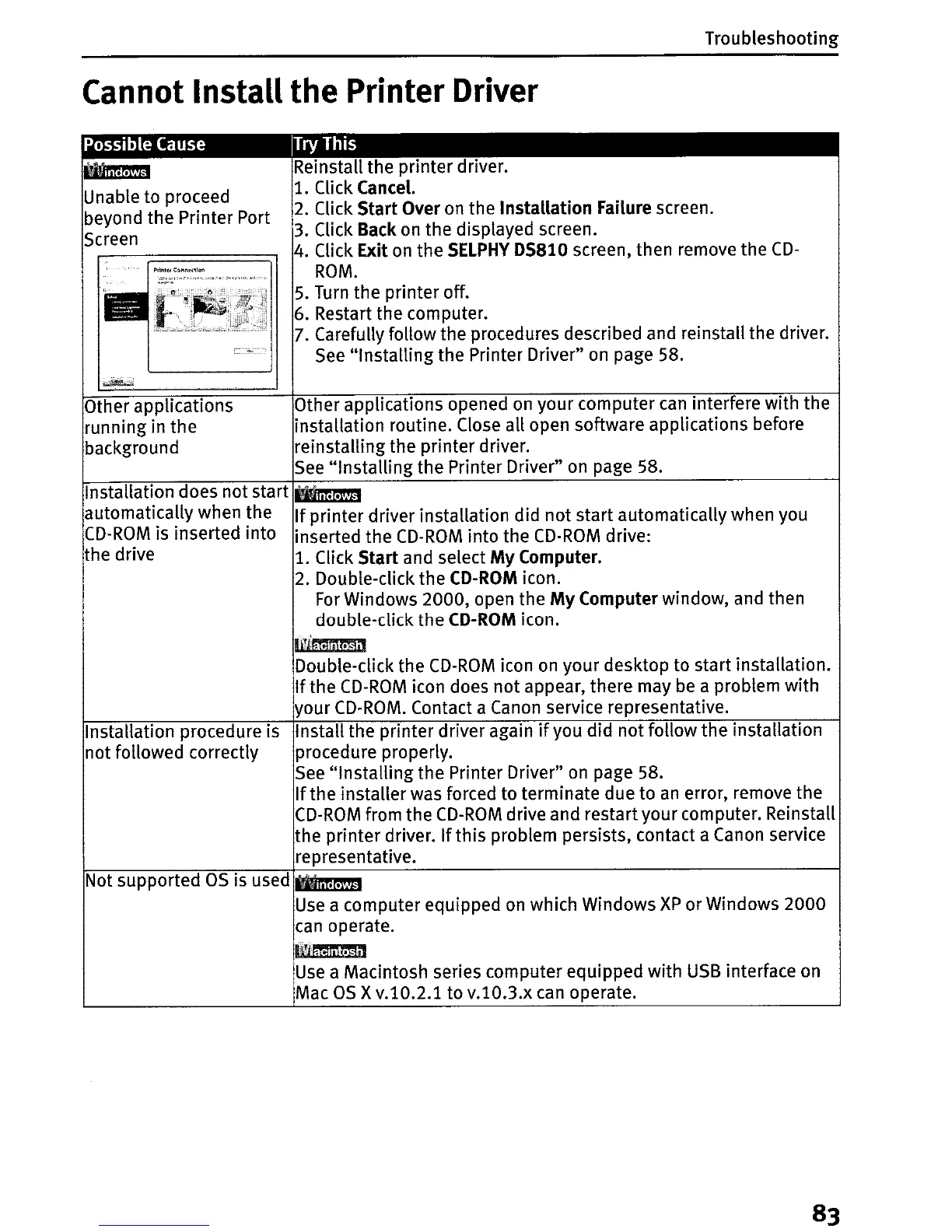
Unable to proceed
beyond the Printer Port
Screen
Other applications
running in
the
background
Reinstall the printer driver.
1. Click Cancel.
2.
Click
Start
Over on the Installation Failure screen.
3.
Click Back
on
the displayed screen.
4. Click Exit
on
the
SELPHY
05810
screen, then remove the
CD-
ROM.
5.
Turn
the printer off.
6. Restart the computer.
7.
Carefully follow the procedures described and reinstall the driver.
See
"Installing
the Printer Driver" on page 58.
Other applications opened
on
your computer
can
interfere with the
installation routine. Close
aU
open software applications before
reinstalling the printer driver.
See
"Installing the Printer Driver"
on
page 58.
Installation does not start
Mdtmrma
automatically when the
If
printer driver installation did
not
start automatically when you
CD-ROM
is inserted into inserted the
CD-ROM
into the
CD-ROM
drive:
the drive
1.
Click
Start
and select
My
Computer.
2.
Double-click the
CD-ROM
icon.
For
Windows 2000, open the
My
Computer window, and then
double-click the
CD-ROM
icon.
Ik1J'~
Double-click the
CD-ROM
icon
on
your desktop to start installation.
If
the
CD-ROM
icon does not appear, there may
be
a problem with
your
CD-ROM.
Contact a Canon service representative.
Installation procedure is Install the printer driver again
if
you did not follow the installation
not followed correctly procedure properly.
See
"Installing
the Printer Driver"
on
page 58.
If
the installer was forced to terminate due to
an
error, remove the
CD-ROM
from the
CD-ROM
drive and restart your computer. Reinstall
the printer driver. Ifthis problem persists, contact a Canon service
representative.
Not supported
as
is used
.Uf.rma
Use
a computer equipped on which Windows
XP
or Windows 2000
can
operate.
Im,mm;'I
Use
a Macintosh series computer equipped with
USB
interface on
Mac
as
xv.10.2.1 to
v.l0.3.x
can
operate.
83





 To Next Page