Printing
Maintenance
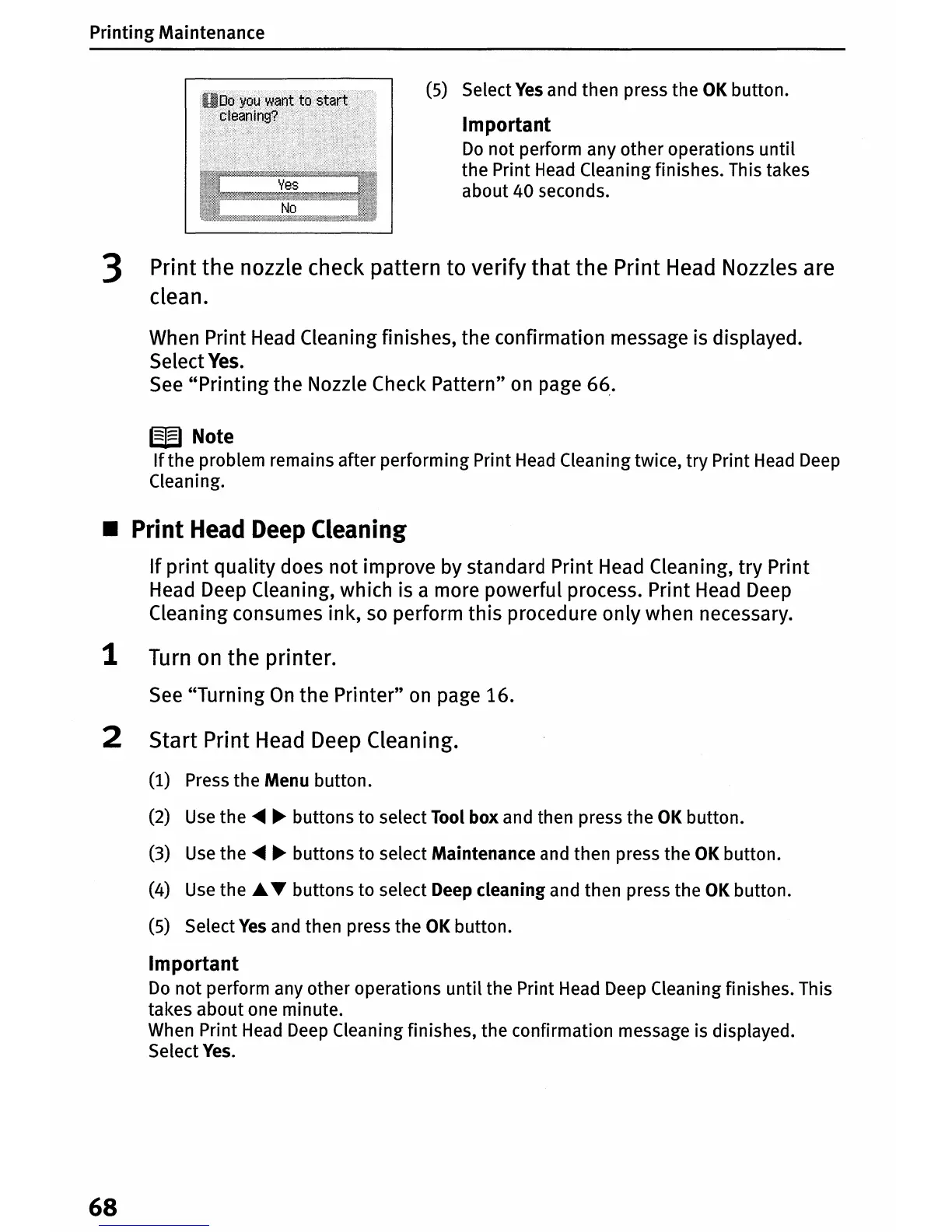
(5) Select
Yes
and
then
press
the
OK
button.
Important
Do
not
perform any
other
operations
until
the
Print Head Cleaning finishes. This takes
about
40
seconds.
3 Print the nozzle check pattern to verify
that
the Print
Head
Nozzles are
clean.
When Print
Head
Cleaning finishes, the confirmation message is displayed.
Select
Yes.
See
"Printing
the Nozzle Check Pattern"
on
page
66,.
W Note
If
the
problem remains
after
performing
Print Head Cleaning twice,
try
Print Head Deep
Cleaning.
• Print
Head
Deep
Cleaning
If
print
quality does not improve by standard Print Head Cleaning, try Print
Head Deep Cleaning, which is a more powerful process. Print
Head
Deep
Cleaning consumes ink, so perform this procedure only when necessary.
1
Turn
on
the printer.
See
"Turning
On
the Printer"
on
page 16.
2 Start Print
Head
Deep Cleaning.
(1) Press
the
Menu
button.
(2) Use
the
~
~
buttons
to
select Tool
box
and then press
the
OK
button.
(3) Use
the
~ ~
buttons
to
select Maintenance and then press
the
OK
button.
(4) Use
the'"
T
buttons
to
select Deep
cleaning
and
then
press
the
OK
button.
(5) Select
Yes
and then press
the
OK
button.
Important
Do
not
perform any
other
operations
until
the
Print Head Deep Cleaning finishes. This
takes
about
one
minute.
When Print Head Deep Cleaning finishes,
the
confirmation
message is displayed.
Select Yes.
68



 To Next Page