Printing Maintenance
3 Print the nozzle check pattern to verify
that
the Print
Head
Nozzles are
clean.
See
"Printing the Nozzle Check Pattern"
on
page 66.
W Notes
•
If
the problem remains, replace the Ink
Tank.
See
"Replacing
an
Ink Tank"
on
page 71.
•
If
Ink
Tank
replacement does not resolve the problem, the Print
Head
may
be
worn
out.
Contact a
Canon
service representative.
• Aligning
the
Print
Head
If
print quality is poor, adjust the Print
Head
position. It may solve the problem.
1 Prepare to print.
(1)
Turn
on
the printer.
See
"Turning
On
the Printer"
on
page 16.
(2)
Load
the supplied paper or
Canon
4
11
x6"J 101.6x152.4mm paper into the Paper
Support.
See
"Loading Paper"
on
page 20.
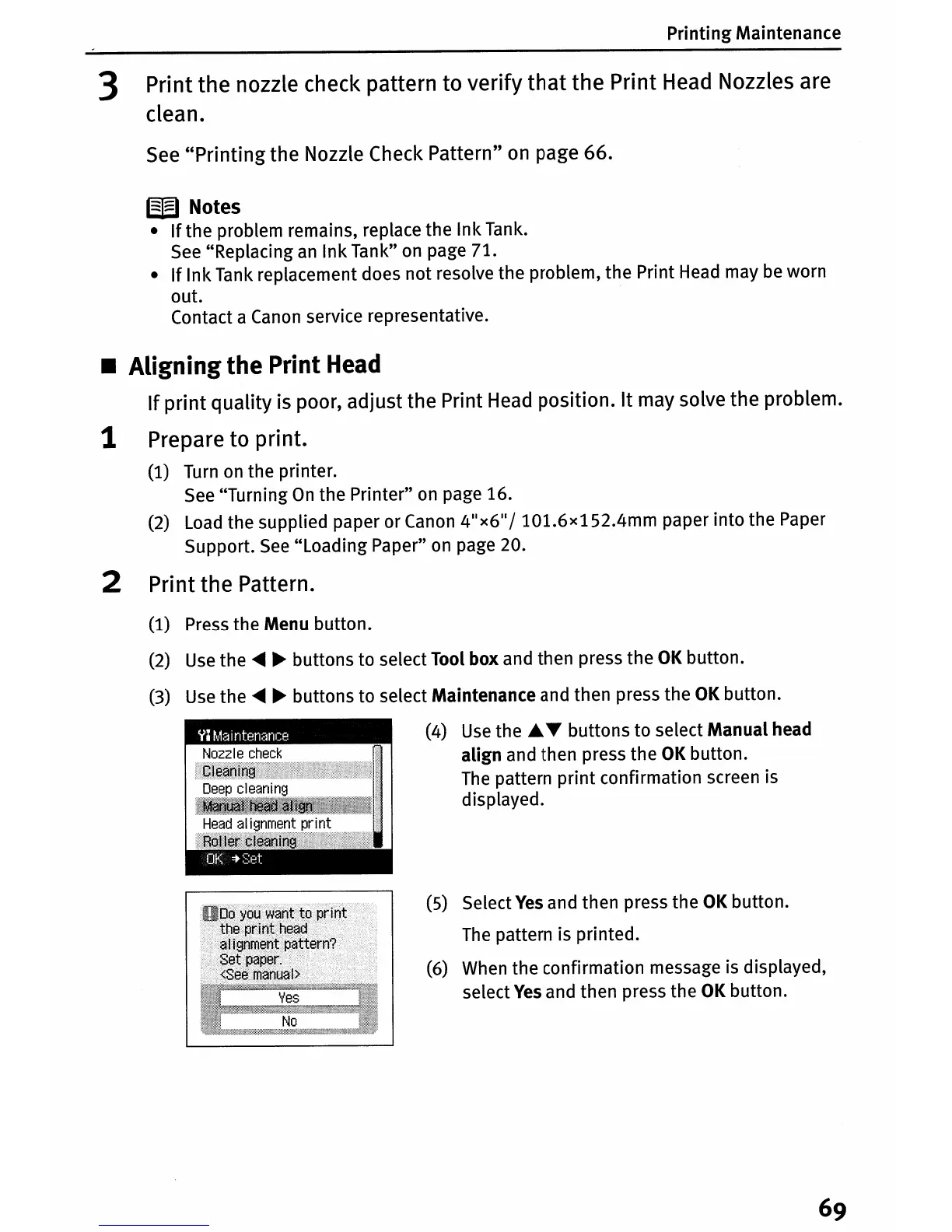
2 Print the Pattern.
(5) Select
Yes
and then press the
OK
button.
The
pattern is printed.
(6) When the confirmation message is displayed,
select
Yes
and then press the
OK
button.
VI
Maintenance
(1) Press the Menu button.
(2)
Use
the
~
~
buttons to select Tool box and then press the
OK
button.
(3)
Use
the
~ ~
buttons to select Maintenance and then press the
OK
button.
(4)
Use
the"
..
buttons to select Manual head
align and then press the
OK
button.
The
pattern print confirmation screen is
displayed.





 To Next Page