Troubleshooting
Troubleshooting
Let's take a
look
at
countermeasures against problems which may occur
during
use
of
the printer.
W
Note
Here, we will discuss errors indicated
on
the
LCD,
problems
that
might occur during
direct printing from the digital camera.
If
you cannot find the symptom corresponding
to a certain problem, refer to the
User's Guide.
• "An Error Message is Displayed
on
the
LCD"
on
page 75
• "Cannot
See
the Display Properly
on
the LCD/Cannot
See
the Display
on
the
LCD"
on
page 77
• "Paper
Does
Not
Feed
Properly/Paper Jam"
on
page 77
•
"Printing
is Blurred/Colors are Wrong/White Streaks appear" on page 78
• "Printed Surface is Scratched or Ink Blots"
on
page 79
• "Cannot Print Properly from the Digital Camera"
on
page
81
• "Cannot Install the Printer Driver"
on
page 83
• "Cannot Print Properly through Wireless Communication"
on
page 84
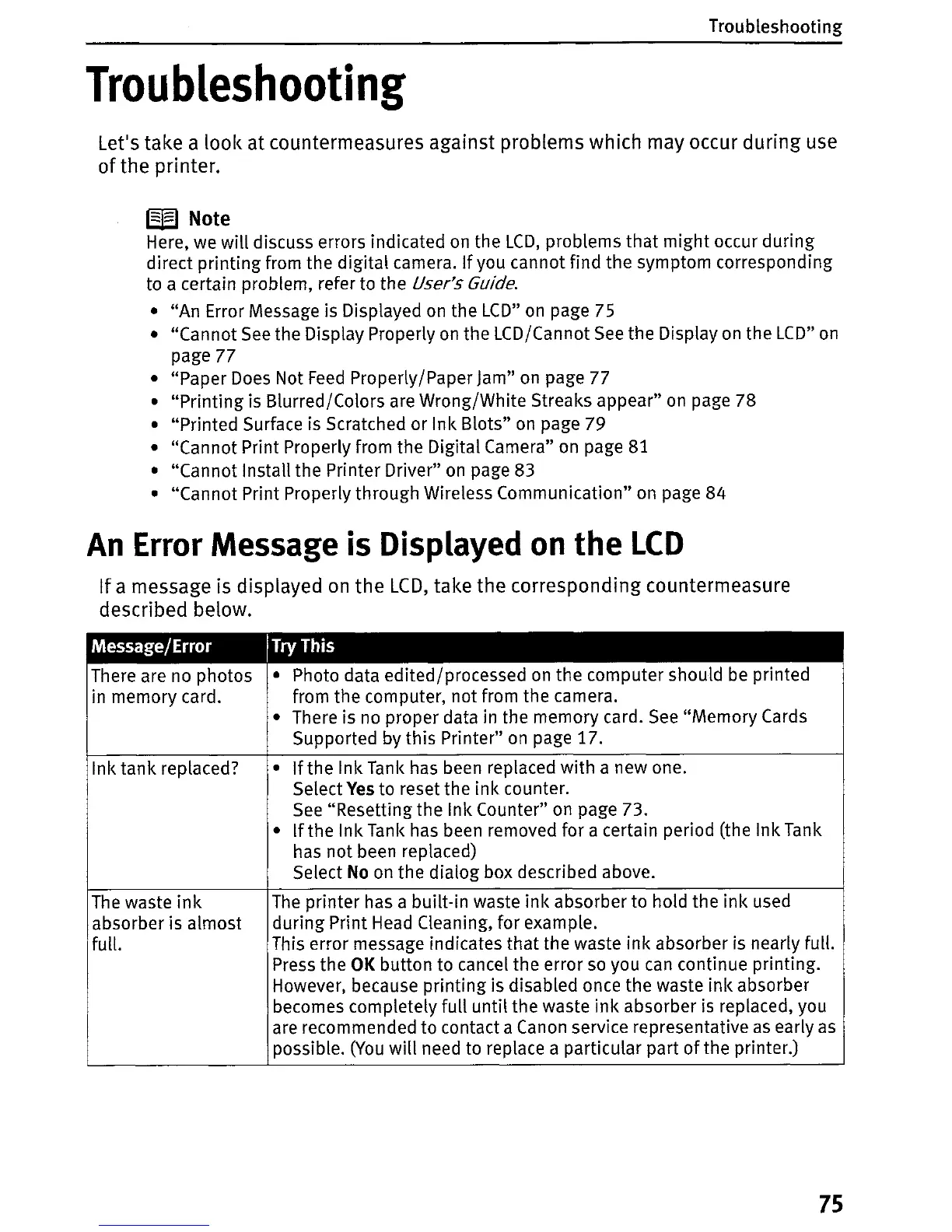
An
Error
Message
is
Displayed
on
the
LCD
If
a message is displayed
on
the
LCD,
take the corresponding countermeasure
described below.
Message/Error
I
Try
This
There are no photos • Photo data edited/processed
on
the computer should
be
printed
in memory card. from the computer, not from the camera.
• There is
no
proper data in the memory card.
See
"Memory Cards
Supported
by
this Printer"
on
page 17.
Ink tank replaced?
•
If
the Ink
Tank
has been replaced with a new one.
Select
Yes
to reset the ink counter.
See
"Resetting the Ink Counter" on page 73.
•
If
the Ink
Tank
has been removed for a certain period (the Ink Tank
has not been replaced)
Select
No
on
the dialog box described above.
The
waste
ink
The
printer has a built-in waste
ink
absorber to hold the ink used
absorber is almost during Print Head Cleaning, for example.
full. This error message indicates that the waste
ink
absorber is nearly full.
Press the
OK
button to cancel the error
so
you
can
continue printing.
However, because printing is disabled once the waste
ink
absorber
becomes completely full until the waste ink absorber
is
replaced, you
are recommended to contact a Canon service representative
as
early
as
possible.
(You
will
need to replace a particular part
of
the printer.)
75





 To Next Page