Troubleshooting
Message/Error
ITry This
Incompatible device
detected.
**** Error code
Disconnect the camera cable and reconnect it.
Depending
on
the model or brand
of
your device, you may have to
select a print mode compliant with PictBridge before connecting the
device.
You
may also have to turn
on
the device or select Play mode manually
after connecting the device to the printer.
Perform necessary operations according
to
the instruction manual
supplied with your device.
If
the error is
still
unresolved, there is a possibility
that
you are using a
digital camera or
digital
video camcorder
that
is not supported by this
printer.
Use
a digital camera or
digital
video camcorder compatible
with this printer.
An
error requiring servicing might have occurred.
(POWER
lamp and
Alarm lamp flash alternately.)
Disconnect the printer cable from the printer, and then turn the printer
off
and unplug the printer from the power supply. Plug the printer back
in and turn the printer back
on
after leaving
it
for a while.
If
the problem remains, contact a Canon service representative.
W Note
Accompanied by
Ink
Tank icon
with
I?I
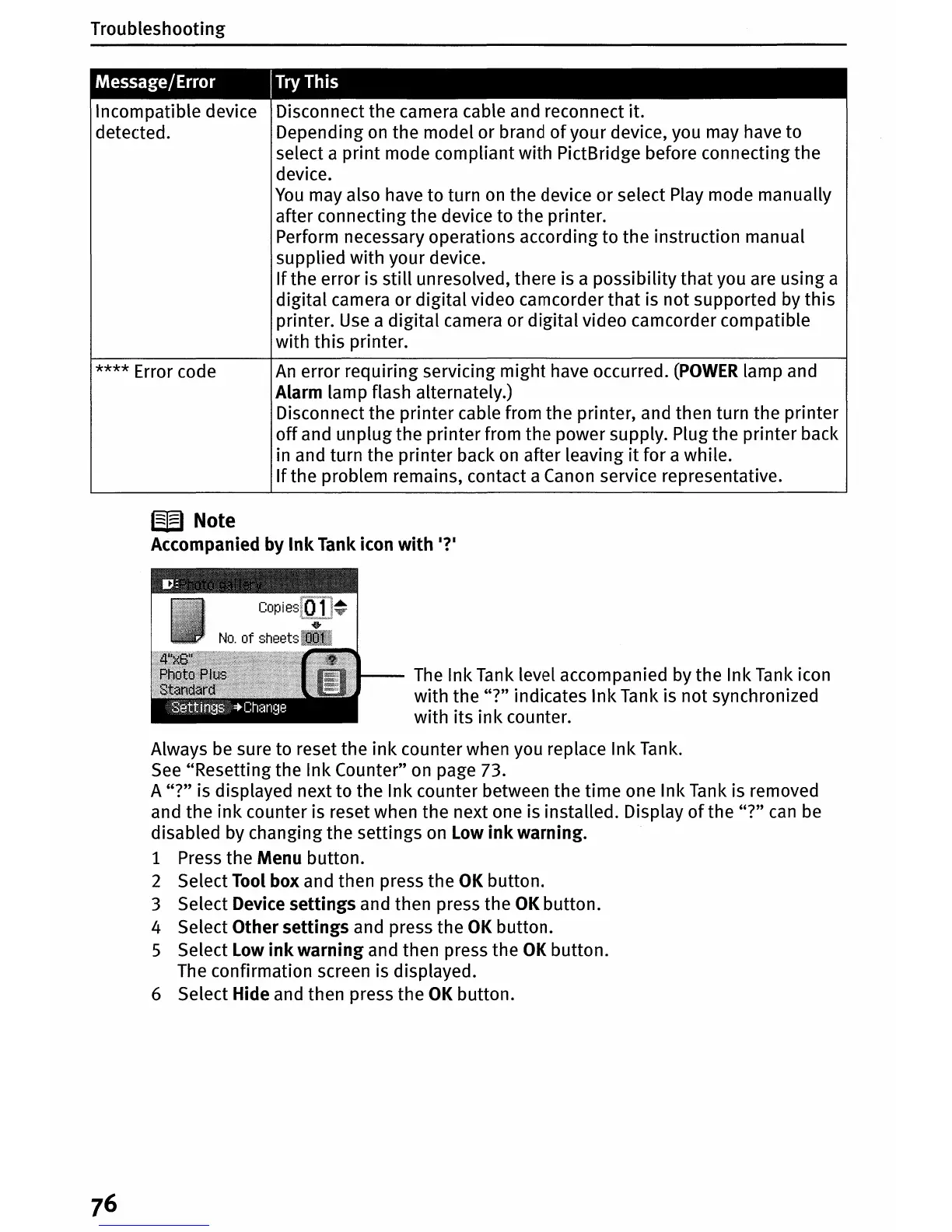
The
Ink Tank level accompanied by the Ink Tank icon
with the "?" indicates Ink Tank is not synchronized
with its
ink
counter.
Always be sure to reset the
ink
counter when you replace Ink Tank.
See
"Resetting the Ink Counter"
on
page 73.
A "?" is displayed next to the Ink counter between the time one Ink Tank is removed
and the
ink
counter is reset when the next one is installed. Display
of
the "?"
can
be
disabled by changing the settings
on
Low
ink
warning.
1 Press the Menu button.
2 Select Tool box and then press the
OK
button.
3 Select Device
settings
and then press the
OK
button.
4 Select Other
settings
and press the
OK
button.
S Select Low
ink
warning
and then press the
OK
button.
The confirmation screen is displayed.
6 Select Hide and then press the
OK
button.



 To Next Page