Printing from the Memory
Card
• Printing a Specified
Area-Trimming
You
can
print a specified area
of
the photo displayed
on
the
LCD.
W Note
Please trim the photo after specifying Page size, Media type, and Borderless/Bordered
on
each
settings screen.
If
you change the settings after trimming the photo, the
trimmed selection
will
be
lost.
1 Select the photo to trim.
Use
the
....
~
buttons to select the photo.
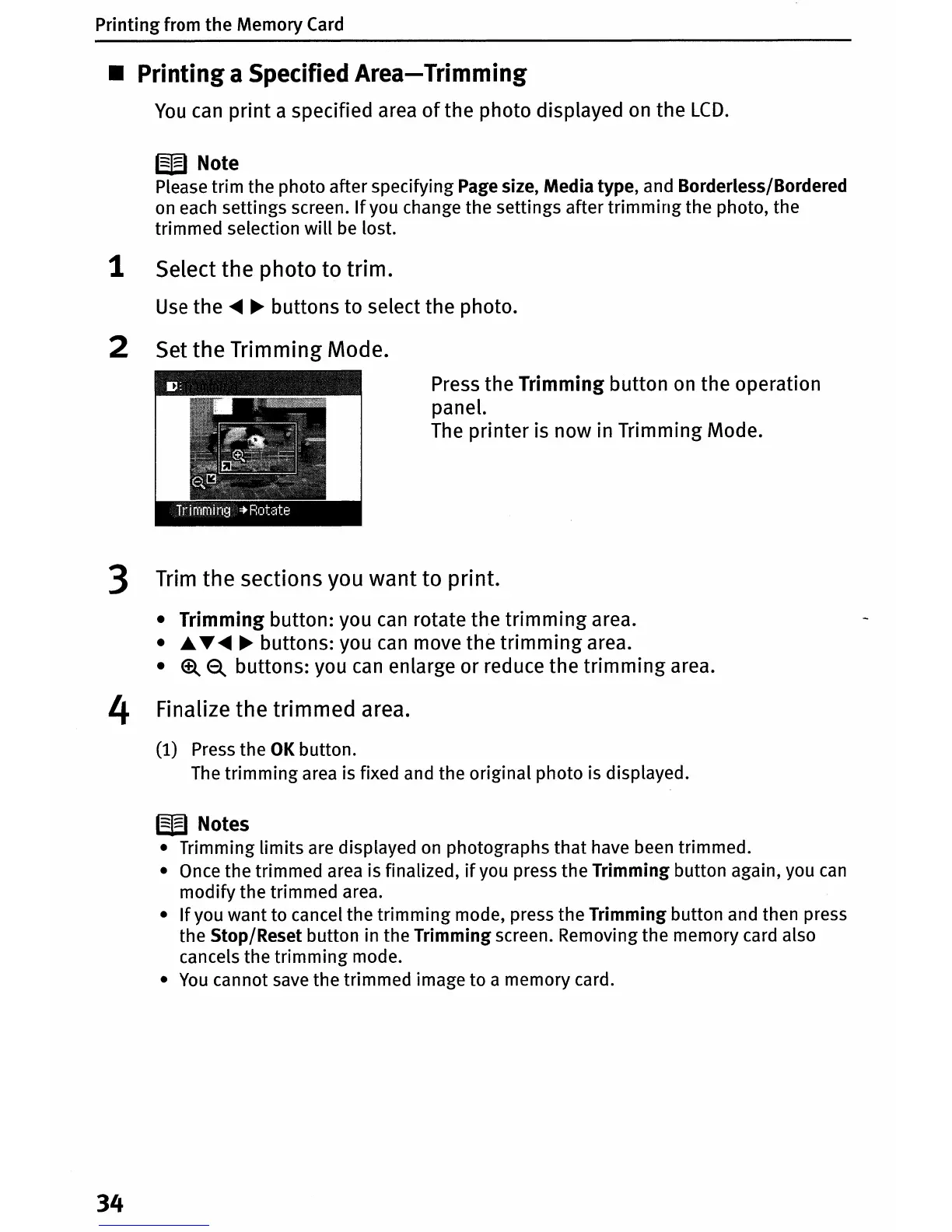
2 Set the Trimming Mode.
Press the Trimming button
on
the operation
panel.
The
printer is now in Trimming Mode.
3
Trim
the sections you want to print.
• Trimming button: you
can
rotate the trimming area.
•
~ ......
~
buttons: you
can
move the
trimming
area.
•
~ ~
buttons: you
can
enlarge or reduce the
trimming
area.
4 Finalize the trimmed area.
(1) Press the
OK
button.
The
trimming area is fixed and the original photo is displayed.
W Notes
• Trimming limits are displayed
on
photographs that have been trimmed.
• Once the trimmed area is finalized,
if
you press the Trimming button again, you
can
modify the trimmed area.
•
If
you want to cancel the trimming mode, press the Trimming button and then press
the Stop/Reset button in the Trimming screen. Removing the memory card also
cancels the trimming mode.
•
You
cannot
save
the trimmed image to a memory card.
34



 To Next Page