Printing Maintenance
• Resetting
the
Ink
Counter
When
an
Ink Tank is replaced, the
ink
counter must be reset.
The
low
ink
warning is only displayed properly
if
the
ink
counter is reset.
Message Prompting Confirmation
of
Ink Tank Replacement
If
an
Ink Tank is removed, the printer
will
output
a message prompting you to
confirm replacement
of
the Ink Tank at the start
of
the next print job.
When
an
Ink Tank has been replaced, follow the procedure below to reset the
ink
counter.
The
low
ink
warning is only displayed properly
if
the
ink
counter is
reset.
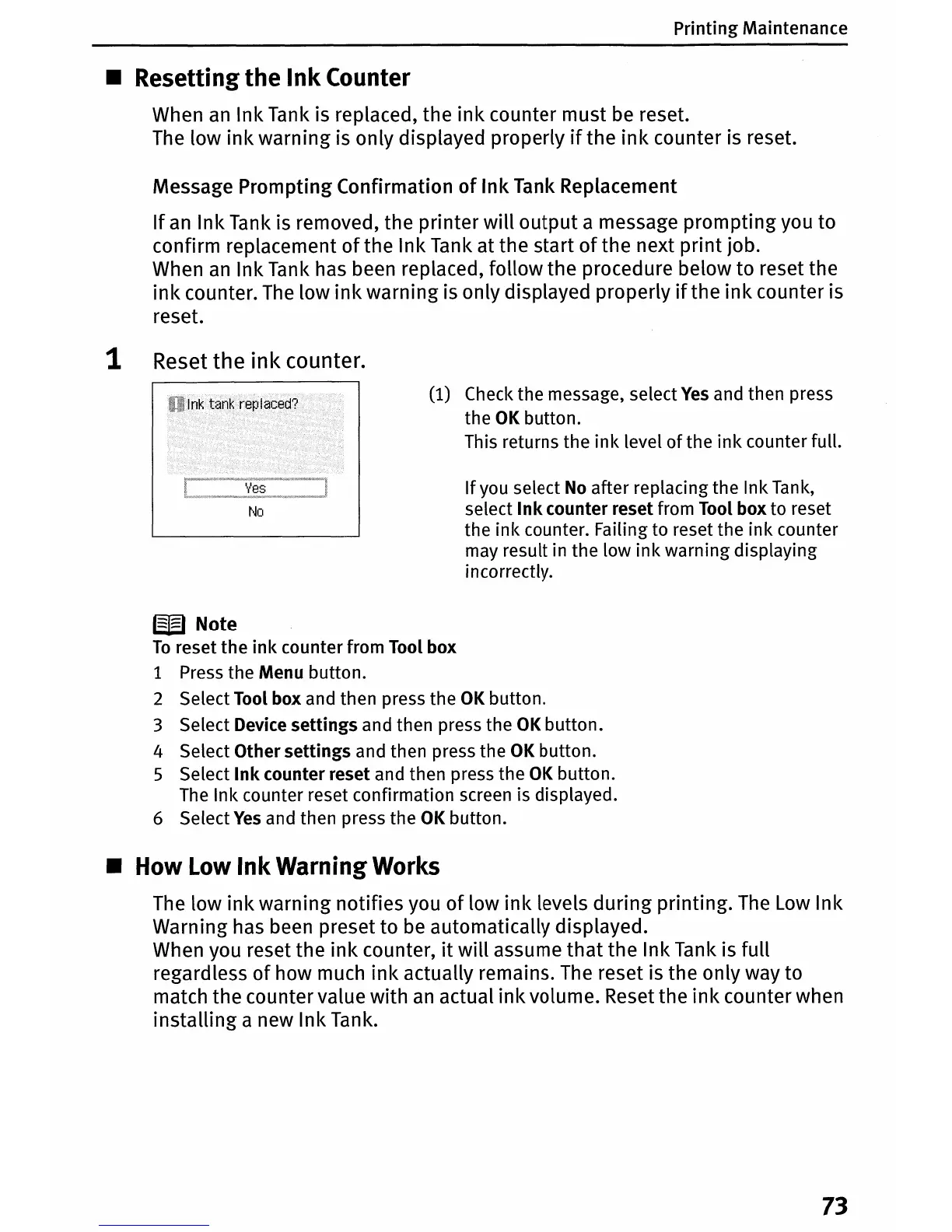
1 Reset the
ink
counter.
No
(1) Check the message, select
Yes
and then press
the
OK
button.
This returns the
ink
level
of
the
ink
counter full.
If
you select
No
after replacing the Ink
Tank,
select
Ink
counter reset from Tool box to reset
the ink counter. Failing to reset the ink counter
may result in the low
ink
warning displaying
incorrectly.
W Note
To
reset the
ink
counter from Tool box
1 Press the Menu button.
2 Select Tool box and then press the
OK
button.
3 Select Device settings and then press the
OK
button.
4 Select Other settings and then press the
OK
button.
S Select
Ink
counter reset and then press the
OK
button.
The
Ink counter reset confirmation screen is displayed.
6 Select
Yes
and then press the
OK
button.
• How Low
Ink
Warning Works
The
low
ink
warning notifies you
of
low
ink
levels during printing.
The
Low
Ink
Warning has been preset to be automatically displayed.
When you reset the
ink
counter,
it
will
assume
that
the Ink Tank is full
regardless
of
how much
ink
actually remains.
The
reset is the only way to
match the counter value with
an
actual
ink
volume. Reset the
ink
counter when
installing a new Ink Tank.
73





 To Next Page